How to tether your iPhone's EDGE Internet access with your Mac
intel Mac & PPCTethering is using your iPhone's EDGE Internet access to allow your computer to gain access to the Internet. You should know that this hack may violate your AT&T Terms of Service for your iPhone contract. Even modifying your iPhone to enable this service may be a violation. Please check before attempting this procedure.
The question that arises when people hear about this hack is, how does AT&T know you are tethering? AT&T can tell by examining the packets transferred through the iPhone. They can determine how the header is assembled, and they also note sustained data transfers and connections to chat servers as dead giveaways. Be careful. I would only use it to surf in an emergency situation, whatever that is.
This tutorial is based on the instructions provided by the now defunct iPhone Dev Wiki.
Attention
I will be using Fugu to upload the files in this tutorial. These instructions can be applied to any files you want to add to your iPhone, provided you already have SSH installed. If you have not installed BSD Subsystem, OpenSSH, or BossPrefs (via the Installer) or used Fugu before, then you must read this tutorial first.Step 1.
Determine what IP address is being assigned to your iPhone by your home network. Press the Home button, "Settings", "Wi-Fi", select the name of your network by pressing the blue arrow on the right, then look where it says "IP Address". On my iPhone it is 10.0.1.4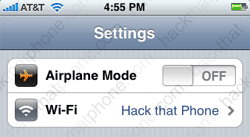


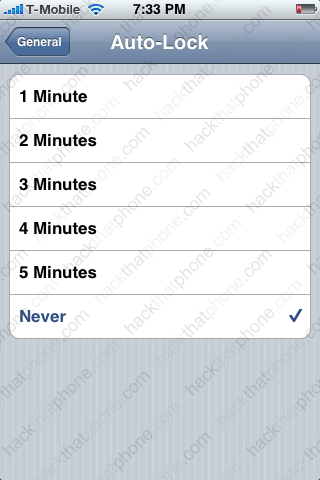
Next press Home, "Settings", "General", "Auto-Lock", then select "Never". This will keep the iPhone from disconnecting the SSH connection you will maintain while working on this procedure.
Step 2.
We are going to use the Terminal to enter some commands. The Terminal is a text interface program used for communicating with your computer. Open a Finder window and go to your Applications folder, then go in to the Utilities folder and you will find Terminal there.
Open the Terminal. We are going to SSH into the iPhone. Refer to the image below if you don't understand what I am typing. Now type: ssh -l root [YOUR IP ADDRESS] Then press enter/return. You will be prompted to enter your password, eventually. The default password is dottie, but if you changed it in a previous tutorial here like I recommended, then enter the new one now. Press enter/return.
Type cd /usr/bin Then press enter/return. Then type: srelay Then press enter/return. You will then get a reply about no valid entries found, default entries will be used.

Step 3.
On your Mac click the AirPort status menu icon and select "Create Network...".
In the Computer-to-Computer screen, name the connection you are creating. If you are concerned about encryption for this connection, then click the "Show Options" button and set this feature up however you'd like. Click "OK" when done.

The AirPort status menu now displays a computer to computer connection icon, you are connected to "Tether" via your computer.

Step 4.
On the iPhone, press "Home", "Settings", "WiFi", and select the name of the network you just created. Once joined, you'll need to click the blue arrow to make additional entries.
Press the "Static" button. Enter the following information:
IP Address: 192.168.1.100
Subnet Mask: 255.255.255.0

Step 5.
On the Mac, click "System Preferences...".
Click "Network".

Double click AirPort.

You are now at this screen.

Click the TCP/IP button.

At the "Configure IPv4:" drop down box, select "Manually".

Enter this IP address and subnet mask.

Click the "Proxies" button. In the "Select a proxy server to configure:" area, scroll down in the box to "SOCKS Proxy" and check the box. Enter 192.168.1.100 in the "Socks Proxy Server" box, and 1080 in the box next to that.

Step 6.
Open a browser. You should have a connection.
Step 7.
When you are ready to go back to your regular connection, click on "System Preferences", then click "Network", double click "AirPort", then click the "TCP/IP" button. At the "Configure IPv4:" drop down box, select "DHCP".
Then click the "Proxies" button, and in the "Select a proxy server to configure:" area, uncheck the box next to "SOCKS Proxy" and click the "Apply Now" button.

Click the AirPort status menu icon, and select "Disconnect from current network".

Click the AirPort status menu icon again, and select the name of your network.

I found I needed to shut off the AirPort on my Mac again, and then turn it on, and relaunch my browser to get back online. If your Terminal is still open, you should kill the srelay process. A restart on the phone would most likely do this as well. Once connected to the iPhone via SSH, type: ps x Then press enter/return. In my case srelay wasn't listed as an active process. Let's say it was. Looking at the column labeled "PID", get the number that corresponds to the process you want to kill. In this situation I will end the MobileMail application. Type: kill 42 Then press enter/return. The process is ended. You can enter ps x again, to confirm this process has been killed. If you were watching your iPhone with the mail program open you would see it close and you would be returned to the springboard.

