Backing up your personal files
If you want to copy your phonebook or calendars to the computer this is a
useful step. This does not back up flashes or flexes. Among many
other great features, it allows you to synchronize your phonebooks and
calendars and load, create and modify ring tones and work with video. The
version I am using here is 4.2.1a
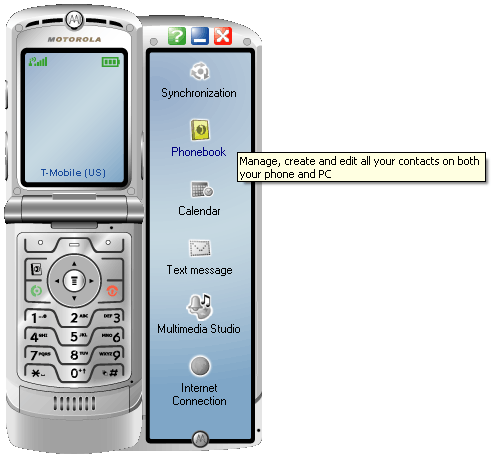
Launch MPT. Click on the "Phonebook" icon to the right of the phone.
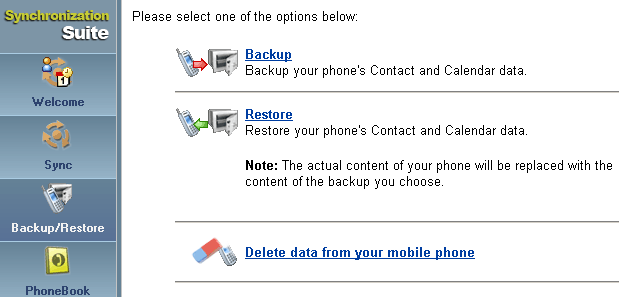
At the next screen look to the left column of icons and click on the one
labeled "Backup/Restore". Now looking over to the options presented
on the right, select "Backup".
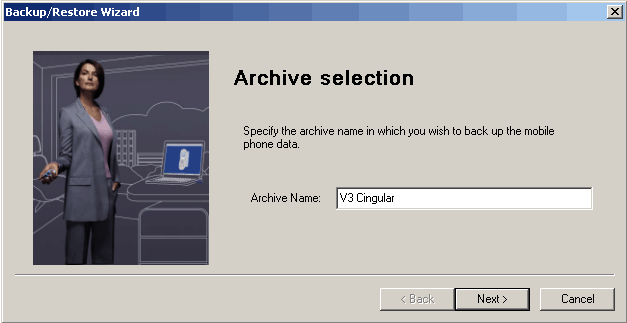
Now you'll be prompted to name this backup so you can later identify it if you
need to restore it later.
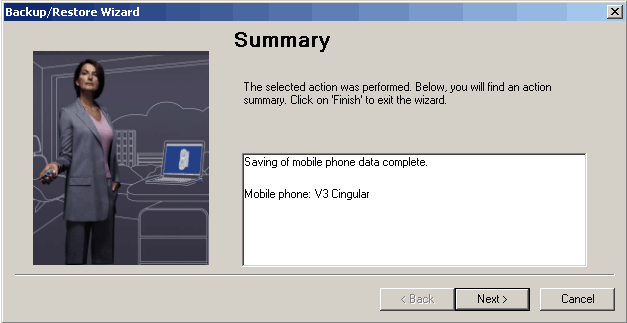
Then select what you want to back up at the next screen. When it's done
backing up you'll see this screen:
If you later want to restore your backup follow the above steps selecting
restore as your option then select the archive you saved earlier at this screen
and it will restore it. This is really useful if you have multiple
phones and want to share phone books and other information.
Backing up the V3's system files
This is something to do as soon as you buy your phone so you can always restore
it to like new condition and also for when you've got your phone modified just
like you want it, to be able to restore that state should something catastrophic
happen. You'll need two things: the Flash Backup program and the "07.D0"
bootloader on your phone already. If you have any other bootloader this
will not work. If you have the "08.26" bootloader on your phone then you
need to use the program above by "Scotty2". If you have the "08.23"
bootloader on your phone, then just use the "R374_V3BL_07.D0" bootloader flash
to downgrade your phone. Follow the flashing instructions on the next
page if you don't know how to flash a phone yet.
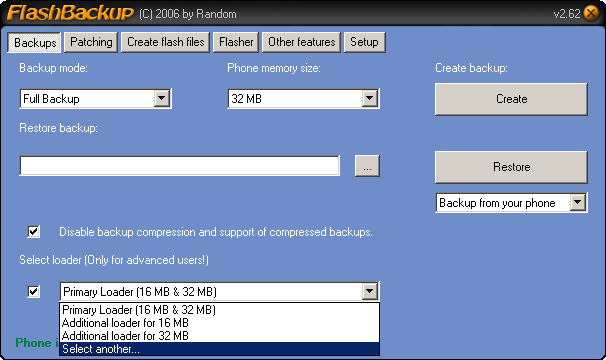
Launch Flash Backup. At the top click the "Backups" button, then go to
the "Backup mode:" area and select "Full Backup" from the drop down box.
Go to the "Phone memory size:" section and select "32 MB" from the drop down
box. Then go to the check box that says "Disable backup compression and
support of compressed backups." and check the box. Many have problems
using the compression when it comes to the restore process. Now go to the
area that says "Select loader (Only for advanced users!)" and highlight
"Select another..." from the drop down box.
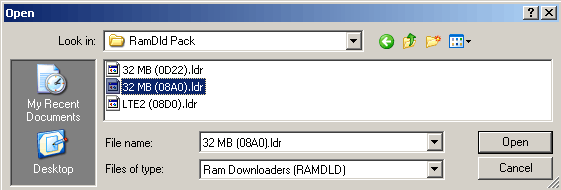
A pop up window will appear. Navigate to the install directory for the
Flash Backup program and go to the "RamDld Pack" folder. Select the
"32 MB (08A0).ldr file and click "Open".
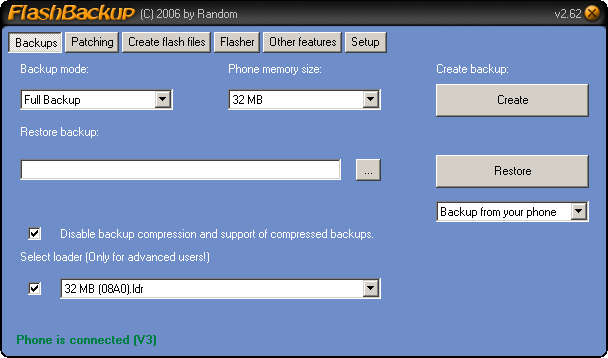
Then go to the "Create backup:" section and click the giant gray button
labeled "Create".
It took about 5 minutes to create the backup file.
Your V3, reduced to a single file... 
Now there are two other backup functions you can perform with this program.
A PDS backup and a bootloader backup. I'd recommend doing both.
You never know when you might need them and you don't want to be without
them when you do. Just follow the same steps as before, just select what
type of backup you want to do in the "Backup mode:" drop down box.
You'll be left with these files: 
On the next page I'll cover how to make a custom flex using this program that
contains all your seem edits and other changes. You could use this to
easily restore the current configuration of your phone should something go
wrong.
Restoring the V3's system files
If you had no issues backing up your phone with Flash Backup, in regards to
USB connectivity to the phone, then Flash Backup is a good way to restore your
phone. Flash Backup is especially helpful in restoring your PDS.
It is also helpful when you have major problems or have bricked your phone and
need to restore the entire 32 megabyte file. Other wise you should use
the custom flex method described on the next page for safely restoring your
phone as MFF and RSD Lite are more stable when writing to the phone as opposed
to Flash Backup.
Ensure you have bootloader "07.D0" on your phone. Put your phone into
bootloader mode by pressing and holding "*" and "#" then press and hold the
power key. Launch Flash Backup. Make sure the "Backups" button at
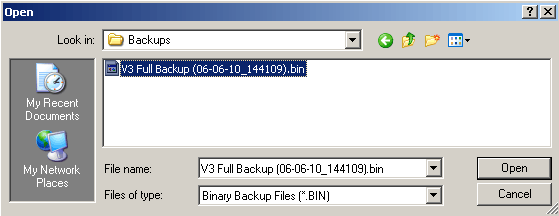
the top is already selected. Then go down to the "Restore backup:" section
and search for the file you want to restore by clicking the "..." button.
There's the file I needed. In my case I have a Cingular branded phone
and I want to restore a backup made of a customized T-Mobile branded phone.
In the "Select loader (Only for advanced users!)" area, select the
"Primary Loader (16 MB & 32 MB)" from the drop down box. Then click the
"Restore" button.
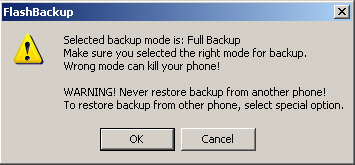
Here's your last chance to chicken out...
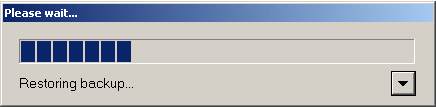
The most unnerving part of this process is staring at this blank status bar
for more than 5 minutes, wondering if you did something wrong...
Finally the restore process starts. It's a lot faster than the erasing
process. You're done when it disappears. It worked just fine
for me, I had my previously modified T-Mobile configuration back.
This ends the "backup" section of this tutorial.


|