
 |
 |
 |
 |
 |
 |
 |
 |
 |
 |
 |
 |
 |
 |
 |
 |
 |
 |
 |
 |
 |
 |
 |
 |
 |
 |
 |
 |
 |
 |
Creating a custom flexHow would you like the ability to restore your phone with a custom flex file that would have all your modifications (seem edits), wallpapers, sound files, videos and everything else you've ever changed or added to your phone?Let's say your phone is tricked out just how you like it, you try out the latest modification and you screw something up. And you can't figure out how to fix it, and you damn well sure don't want to use a stock monster pack and start all over again. This method will take the current flex you have on your phone (from the original source file, which you must still have) and combine it with a backup flex (of the data on your phone right now) that you'll make here. This procedure was originally written by "MotoCat" over at the MotoX Forums in this thread. The instructions below are paraphrased from the thread above. Do not deviate from the steps that follow. I did this myself and it worked perfectly. I took a phone with a couple modifications on it (and with bootloader "07.D0" on it), backed it up, then used a stock Motorola monster pack to clear everything out, then I used my custom flex and it restored everything just how it was. Simply amazing! Launch Flash Backup and click on the "Backups" button at the top left. Go to the box with the label "Backup mode:" and select "Custom Range" from the drop down box. Go to the box with the label "Specify range:" and enter "11140000-11FDFFFF" in the drop down box. Go down to the check box with the label "Disable backup compression and support of compressed backups." and check the box. Go down to the check box with the label "Select loader (Only for advanced users!) and check the box. Then choose "Select another" from the drop down box (if "32 MB (08A0).ldr" doesn't already appear in this box). If it doesn't, then navigate to the folder on your computer where the Flash Backup program lives and go to the "RamDld Pack" folder. Select the "32 MB (08A0).ldr" file and click "Open". Make sure your phone is connected and go to the "Create backup:" area and click the giant "Create" button. |

|
After the program finishes, which should only take a couple minutes, you'll
have a .bin file that is 14.6 megabytes large. If your .bin
file isn't this size, you've done something wrong, start all over again.
Put this file in its own folder and label it something like "my backup file" so you can find it. Now find the monster pack .shx file that is currently on your phone. If you can't find it then redownload it. You must use the same monster pack as the one you are running right now. This process won't work with other monster packs. Put this file with the backup file you just made. |
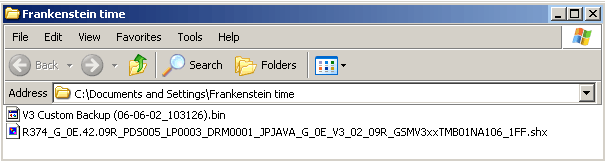
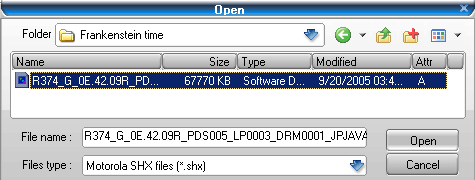
| Launch SHX CoDec, you can download it here. Click the button labeled "Split source SHX file". |

| A pop up window appears. Now locate the folder you just made where you put your two files at. Select the stock monster pack file, then click "Open". The file will then be split into CG file groups automatically. |
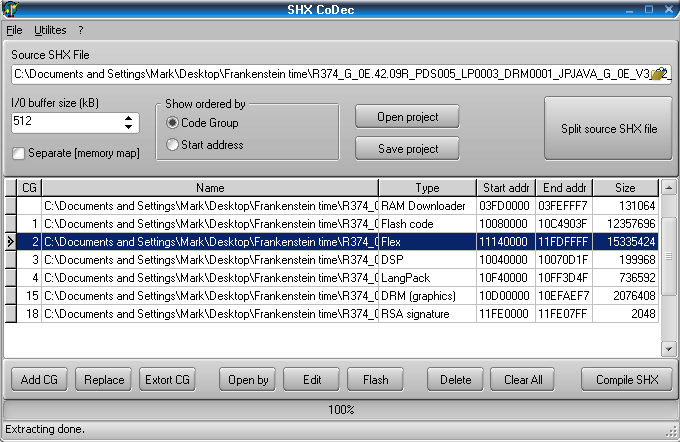
| In the image below highlight the same line I have where it shows the file type called "Flex". It is critical that the data in the "Start addr" and the "End addr" columns have the exact same address as your original file that you backed up from your phone and that the size in megabytes matches as well. If this data is not the same, start over. |
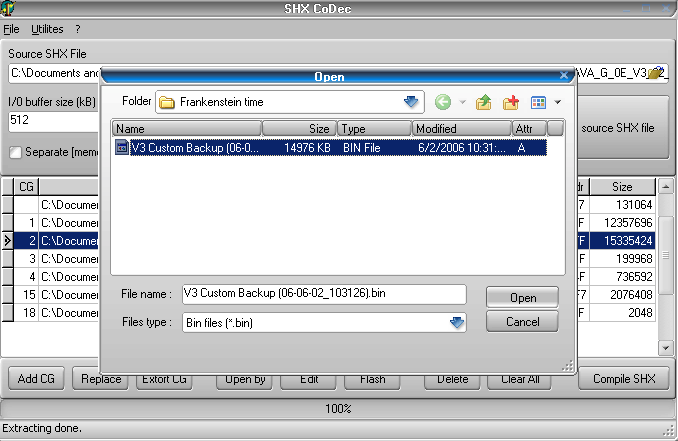
| Now click the "Replace" button. A pop up window appears, go to the area that says "Files type:" and select "Bin files (*.bin)" from the drop down box. Now select the .bin file backup you made from your phone and click the "Open" button. Then click "Yes" on the confirmation pop up window. |

| Look carefully and you'll see that the highlighted line now contains the path and information for your custom phone backup .bin file. Make sure that the data in the "Start addr" and the "End addr" columns have the exact same address as your original file that you backed up from your phone and that the size in megabytes matches as well. If it doesn't, start over. If it's good to go then click the "Compile SHX" button. |

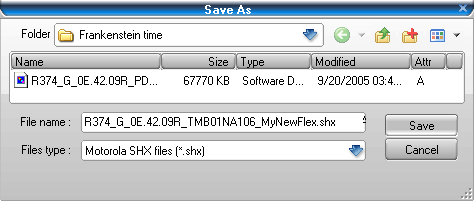
| Enter a file name for your new monster pack backup. Make sure the ".shx" extension is there. Then click "Save". The compiling will only take a couple minutes. Your new monster pack will be put in the same folder as your two source files. |
|
Now use RSD Lite or MFF to flash your phone when the flex backup is needed.
If you do use MFF to flash, uncheck the option boxes for "Master Reset
phones after flexing" and "Master Clear phones after flexing".
This ends the "X-flex" section of this tutorial. 

|