Step 2: Okay I've jailbroken, now what?
Updated: February 15, 2014So you finally decided to jailbreak your iPhone and now you are wondering what to do next. I'll introduce you to Cydia. Think of it as the App Store exclusively for jailbroken iPhones.
Launch Cydia
Launch Cydia. On my screen it says "See TSS Center (below) to request iOS SHSH. Simply put we used to be able to install older verisons of the operating system on the iPhone. This was used when a jailbreak wan't available on newer firmware if you mistakenly updated to it. Using an SHSH, you used a man in the middle attack to trick Apple into authorizing the restore on your iPhone to older firmware. This has ceased being useful since the iPhone 4S was released as Apple has changed the game to cut out the man in the middle. If you'd like to learn about how it worked read my article on this here.First up are a couple buttons for Facebook and Twitter so that you can follow Cydia, and its creator Jay Freeman, who goes by the name Saurik online.
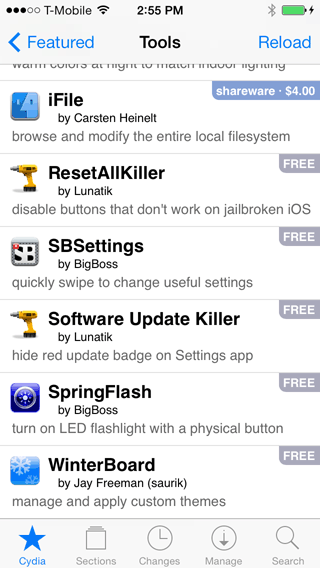
The next button below those is the Featured button. Pressing it reveals a list that may help point you in the right direction as far as what kind of things to install from Cydia.


Themes
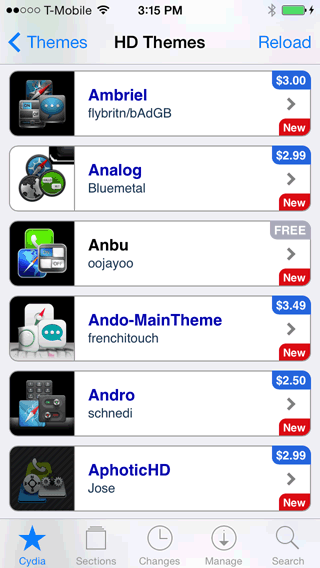
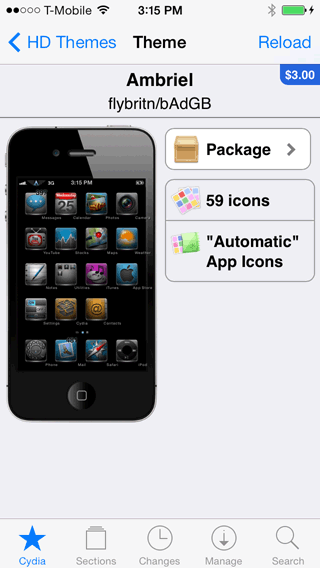
Back at the home screen, pressing the Themes button will bring you to a selection screen where you choose which device you own, and it will show you what themes are available for it. Themes change the graphical look along with some of the audio events on your iPhone. Keep in mind this section is not all inclusive. Many themes are in other sections of Cydia as well. Some themes are for sale, and some are free. I'm going to select Ambriel to show you what it looks like.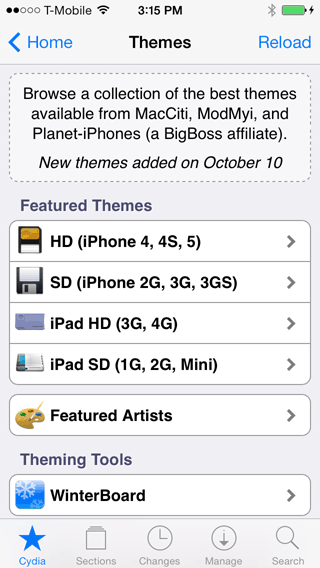
At this page you see a picture of the theme. There are larger images that can usually be viewed. In this case press the Package button. You can see that this comes with 59 icons. What this means is the theme was designed to replace many standard out of the box icons that are on the iPhone by default. Most themes will also come with icons to replace popular Cydia app store icons as well as Apple app store icons.
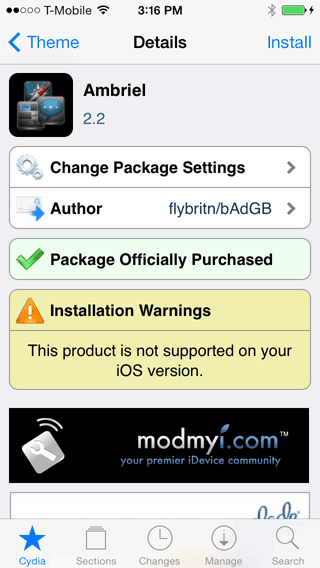
At the next screen you can see that I've previously purchased this theme. I bought it when iOS 6 was the current operating system. Note the Installation Warnings section. It tells me that while I purchased this, I can't install it on iOS 7, which is what I'm currently running. This will change in time when the theme has been adapted to iOS 7. The fix could be as simple as renaming some of the graphical files to work. Scroll down this screen until you see a button called Screenshots. Press it to view what the theme looks like on various screens within the operating system.
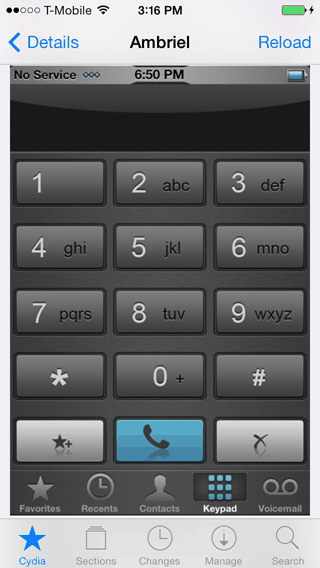
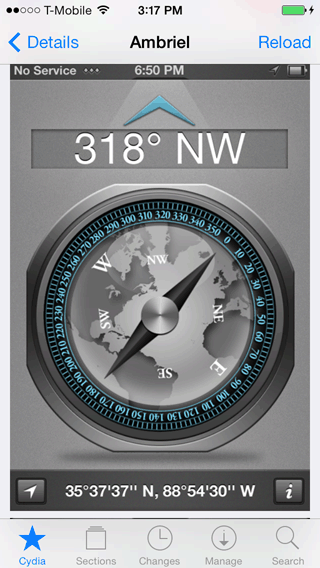
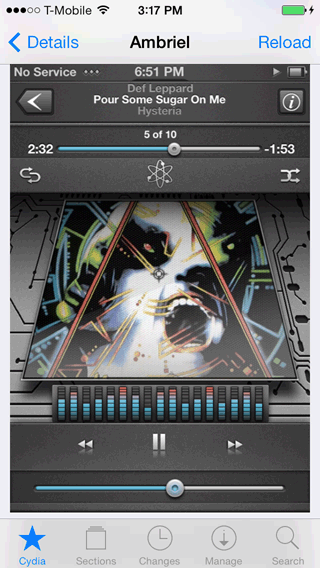
Some themes are very comprehensive and replace not only the icons, and audio events, but replace the look of the phone dialer, the calculator, the music player, et cetera.
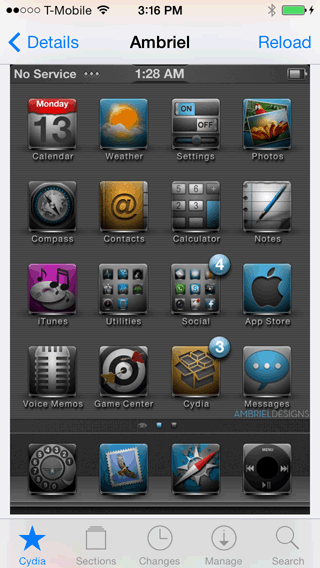

Here's the themed phone dialer, and the settings screen.

Here's the themed compass and iPod music player.
Manage your Cydia store account
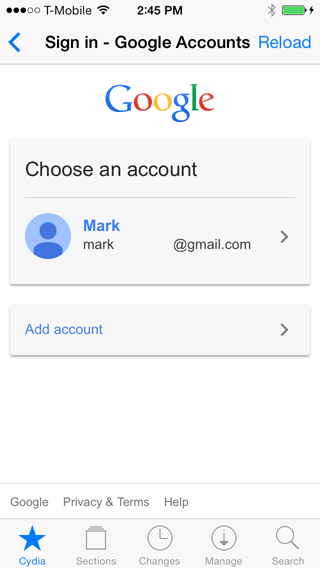
Pressing the Manage Account button will allow you to link your Cydia account to your Facebook or Google account so that you can make purchases.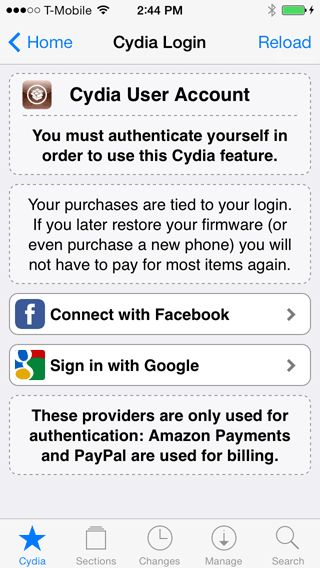
Press the Installable Purchases button and you'll see all the programs you have paid for. Selecting a program in this list will allow you to easily install it without having to remember that you purchased it.
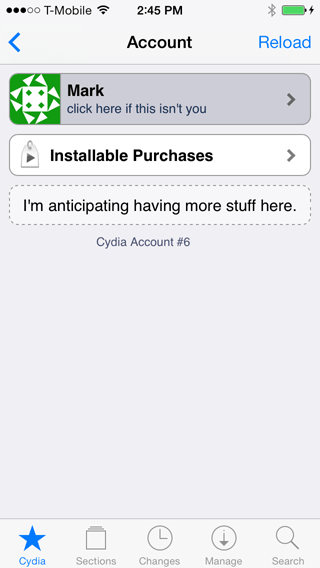
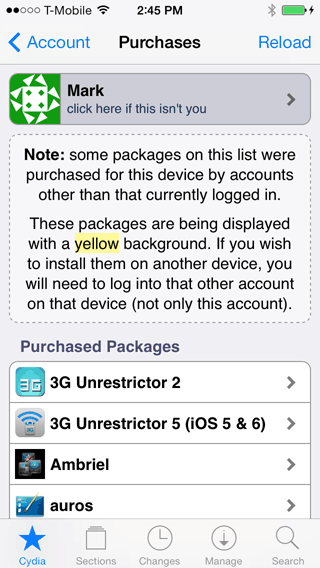
One way to add a new repository/source
Pressing the More Package Sources button will reveal a list of additional sources you can add to Cydia to give you access to an ever greater library of free and for fee programs.

Another way to add a new repository/source
While Cydia comes with many "sources" preinstalled, you can add sources that are not included by default or on the additional sources page. To add a source do the following: Press the Manage button, then press Sources. Press the Edit button.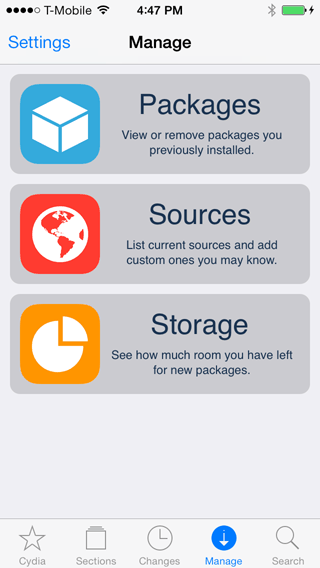
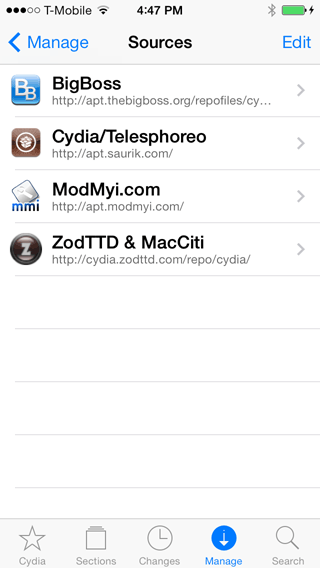
Press Add. Then enter the source's URL. Press the Add Source button.
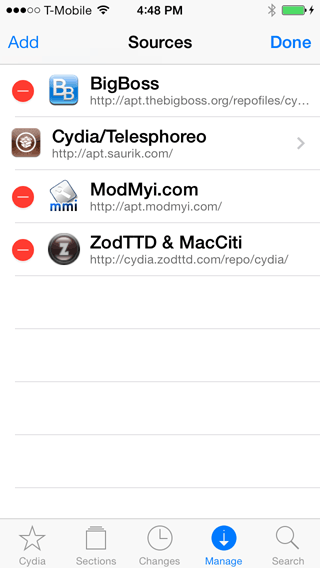
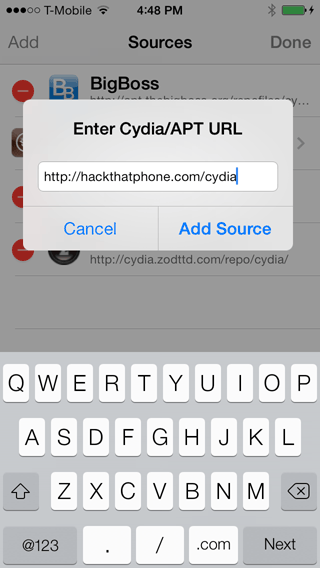
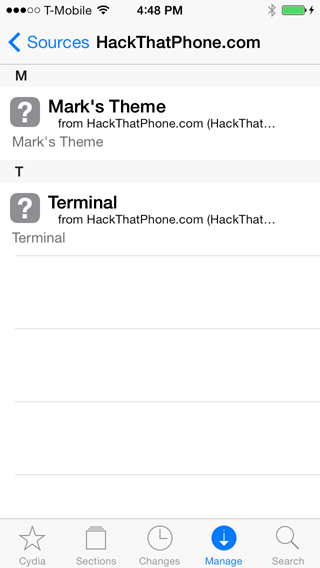
Your source will be added to your list. Press the Return to Cydia button. Your source is now added.


You can press the source's name to see every package offered by it.
See all the programs available in Cydia
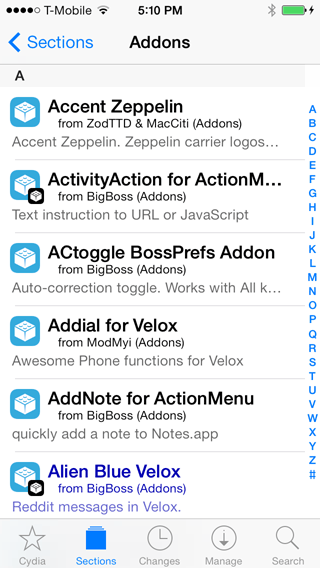
Pressing the Sections button at the bottom of the screen will reveal a list of folders. Everything that is in Cydia (by default) is categorized in these folders. Selecting a folder will reveal everything in it that is available for installation. If you add more sources, then more programs will appear in your folders. Packages listed in blue are for sale.
Updating your Cydia programs
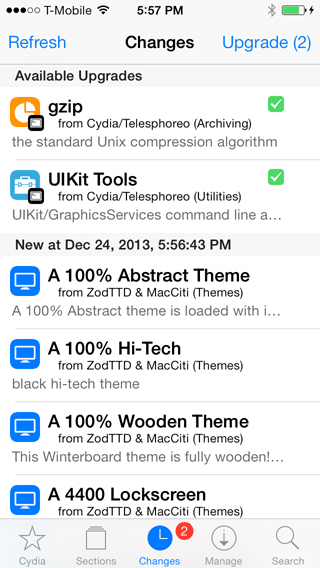
Note the update badge in the Changes tab. Press it. There are two items in the Available Upgrades section. Press Upgrade (2) in the top right.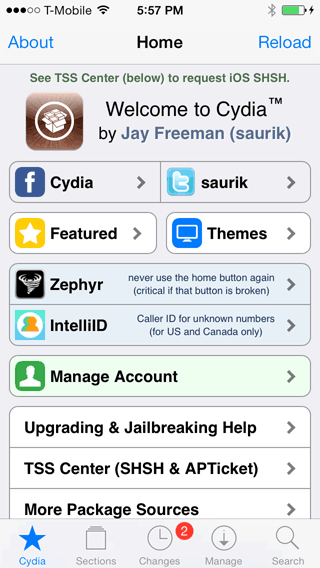
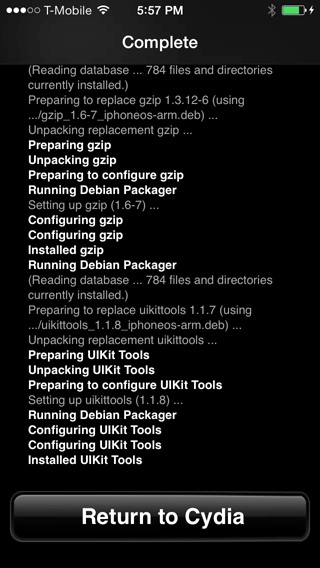
Press Confirm. Press Return to Cydia. You just updated a couple applications. Simple huh?

See what is installed through Cydia
If you press the Manage button, then select Packages, you can see what Cydia has installed on your iPhone already.

Check your iPhone's storage space
You can also see how much free space you have on the two paritions of the iPhone's storage chip. Press the Manage button, then select Storage.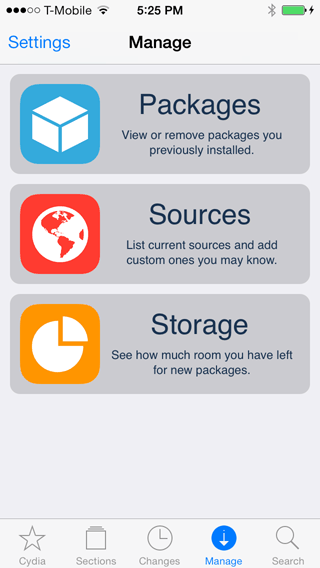

Installing and removing a program
Let's search for and install a program. OpenSSH is critical to many of the tutorials on this site. It's one of the best ways to move files to and from the iPhone, and to install programs that are not available on Cydia or the App Store.Note: If you do decide to install OpenSSH it is critical that you change the root and mobile passwords on the iPhone to ward off attacks by viruses, trojans, phishing schemes and worms and social engineering scams. Read this tutorial to learn more.
Press the Search button at the bottom. Enter the name of your program in the search box, then press the Search button. Your results will be displayed. Press the one you want to install. Press Install.


Press the Confirm button. You'll see a status report of the install process like this. When it has finished, press the Return to Cydia button.


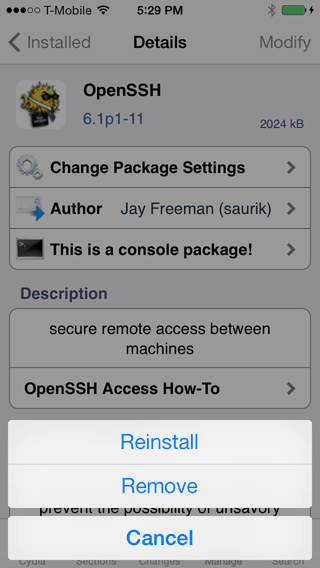
To remove a package already installed on your iPhone, press the Manage button, then select Packages. Then press the name of the package you want to remove. Then press the Modify button.


Press Remove. Press Confirm.
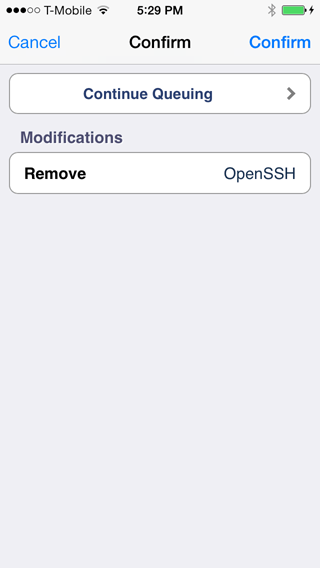
Press Return to Cydia.

When something messes up your iPhone
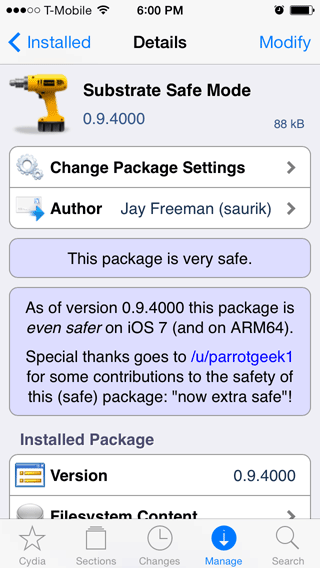
Cydia Substrate and Substrate Safe Mode are two programs that help to keep Cydia users safe from problems. Should you install a program and it causes issues with your iPhone and you're unable to launch Cydia to uninstall the program, simply hold the volume up button while booting the iPhone. Your iPhone will be in safe mode and you can launch Cydia to uninstall the offending program.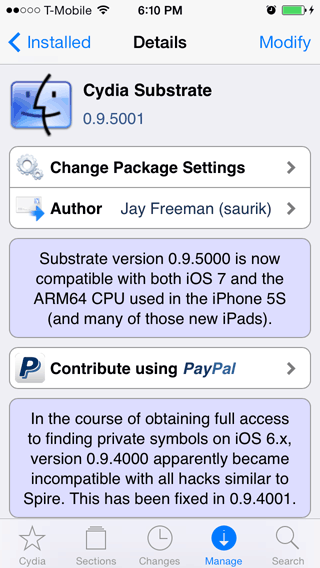
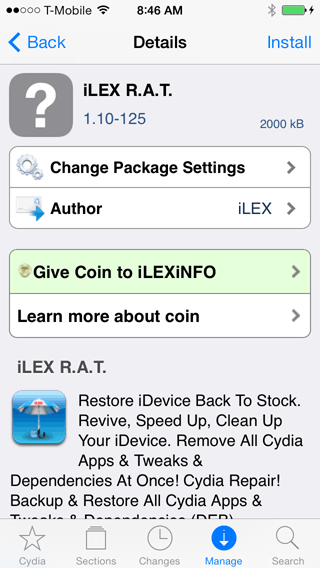
If this doesn't solve your problem you might want to look into the iLEX R.A.T. program discussed here. There is also a program called iLEX Restore that provides additional functionality.