Introduction to WinterBoard
Updated: January 19, 2014WinterBoard is a program for customzing the visual look and the sound events on your iPhone. It works by hooking into the iPhone's file system and replacing the stock graphics and audio files with any custom files you'd like on the fly.
Themes are in their infancy right now as theme designers must learn to program with the new way that iOS 7 handles graphics. Pictured below are a couple themes that caught my eye. Aura, Ayecon and 77 are paid themes, Solstice is free.


You can change the iPhone's appearance with a couple programs. You need Cydia, WinterBoard, OpenSSH (if you want to upload your own personal images, or themes that are not on Cydia), and a program to make your graphics.
I use Adobe Photoshop (you can get a free trial of this program), you could also use Adobe Photoshop Elements (which also has a free trial, and is less expensive option than Photoshop). You can learn more about these trial versions at this page. GIMP is a free alternative to Photoshop, which is also a very powerful program. You can download GIMP here. If you don't want to create your own images, you can use the themes that are already available through Cydia in the various "Themes" folders.
Installation
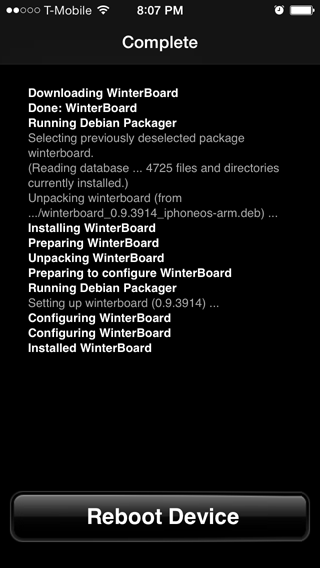
To install WinterBoard, launch Cydia and press the Search button. Enter winterboard in the text box and it should appear as the first choice. Press Confirm to install. Press the reboot button when prompted.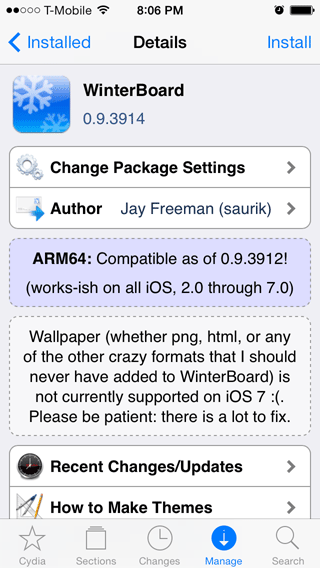
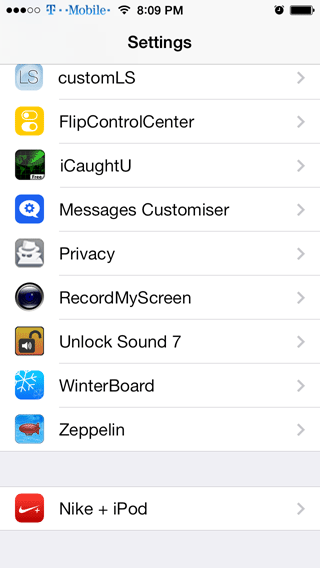
Once installed, you'll see an icon for WinterBoard. You can also launch it from within Settings.

|
|
When WinterBoard came out years ago it came with many themes installed so that you could see some of the things it could do out of the box. Sadly, over the years more and more of the default theme items included have been released in a broken state. Currently the only default themes hide the application names. If you use SSH and look in /Library/Themes you'll see there are many other themes installed by WinterBoard, they are just hidden from displaying in the program interface as they don't work.
Keep in mind you can combine themes by selecting more than one. You can also change their order in the list. When one theme is higher up on the list than another theme, and they both change the same element (say the icon for the Notes application), then the theme that is higher up on the list will have priority and you'll see the graphics it's using instead of the graphics from the theme below it which may also change the Notes application.
I'll install both themes. A check mark next to the name confirms it will be used. Then press WinterBoard to go back.


Then press Respring. Look at that, the text disappeared. That's how easy it is to use WinterBoard.
Keep in mind I have three other tweaks installed TransparentDock is used to hide my dock, and NoPageDots7 is hiding my page dots. I'm also using Zeppelin for the custom T-Mobile logo. These tweaks have nothing to do with WinterBoard, but a theme could be created for WinterBoard to achieve the same effect.
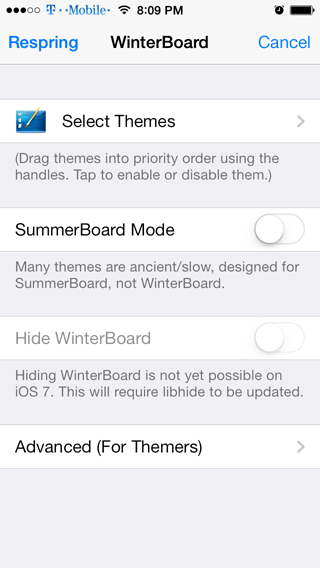

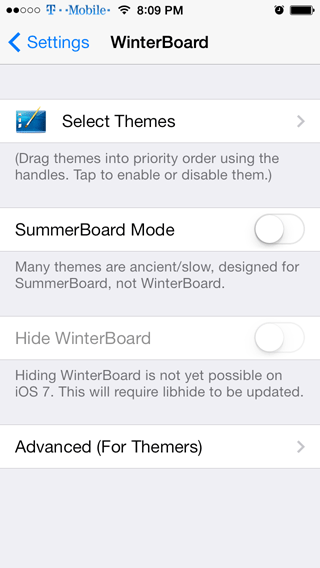
Let's take a look at that Advanced (Themers) button. Unfortunately Saurik (the creator
of this program) isn't big on documentation so this screen is a bit of a mystery to me.
|

|
