SSH via a Wi-Fi connection, using SFTP, and changing the root & mobile passwords
Updated: January 4, 2014Note: If you are only interested in using Cydia or the App Store to install applications on your iPhone, then you do not need to perform anything in this tutorial. This tutorial is strictly for those who need to interact with their iPhone's file system to perform advanced level tasks.
If you are interested in hacking the iPhone to change core features, you are going to need to have a couple programs installed on both your phone and your Mac. In this tutorial I'll cover how to use SSH over Wi-Fi so that you can interact with your iPhone's file system in a more robust way than using a program like DiskAid, iExplorer or PhoneView.
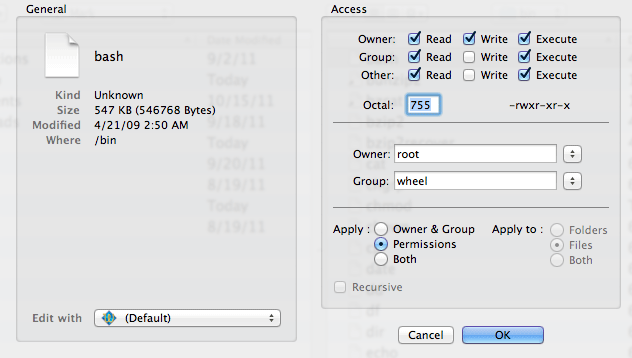
I realize that DiskAid, iExplorer and PhoneView can also interact with your iPhone's file system easily (and at a cost), however none of those programs allow you to change file permissions (and there may be other things they can't do as well).
Step 1.
Press Settings, General, Auto-Lock and set it to Never. You should always do this when working with SSH. If the iPhone should sleep, you will lose your connection and possibly data. If this happens during a critical process you could damage the iPhone, or have data corruption issues. Don't forget to set this back when you are done or the screen will not shut off!
Step 2.
Launch Cydia. Press the Search button at the bottom. Enter openssh then press the Search button. Your results will be displayed. Select the program. Press Install.

Press the Confirm button. You'll see a status report of the install process like this. When it has finished, press the Return to Cydia button.


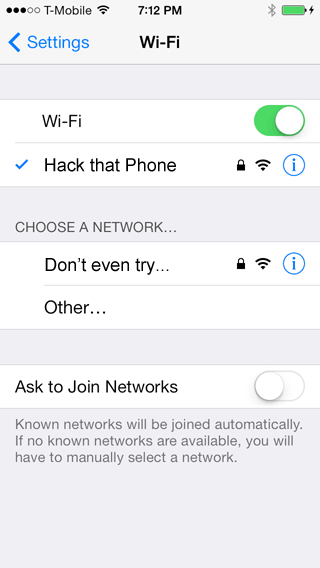
Press your Home button then launch Settings. Press Wi-Fi. Press the blue i next to your network name. Note your IP address.

Step 3.
On your Mac, go to your Applications folder, then go into the Utilities folder. Launch the program called Terminal.app. Enter the following:
ssh root@192.168.0.11 (or whatever your iPhone's IP address is)
If asked if you want to continue connecting, type yes, then press enter.
Enter the password:
alpine

Now is the time to change the root and mobile account passwords for your iPhone (if you want to). Enter the following:
passwd
You will now be prompted to enter a new password. You will then be prompted to enter the password again. Your root password will then be changed. Remember this password when you log in using YummyFTP or Terminal again. If you forget your password, then you will have to restore the iPhone.

Now enter the following:
passwd mobile
You will now be prompted to enter a new password. You will then be prompted to enter the password again. Your mobile password will then be changed.

Step 4.
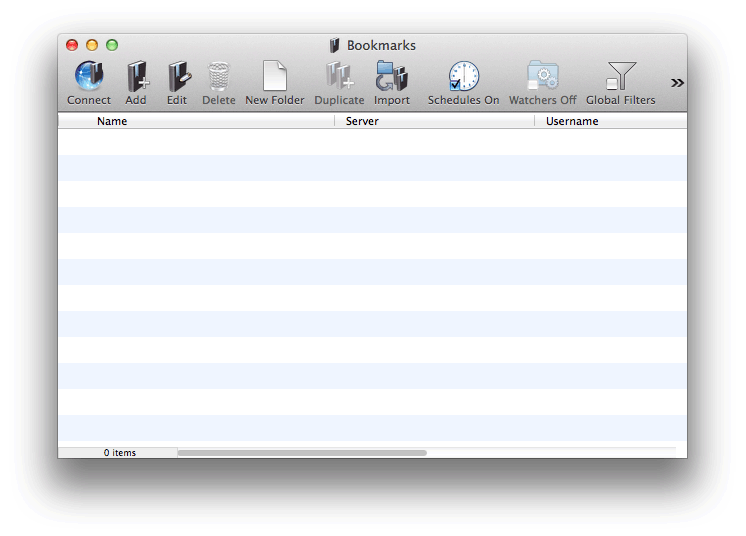
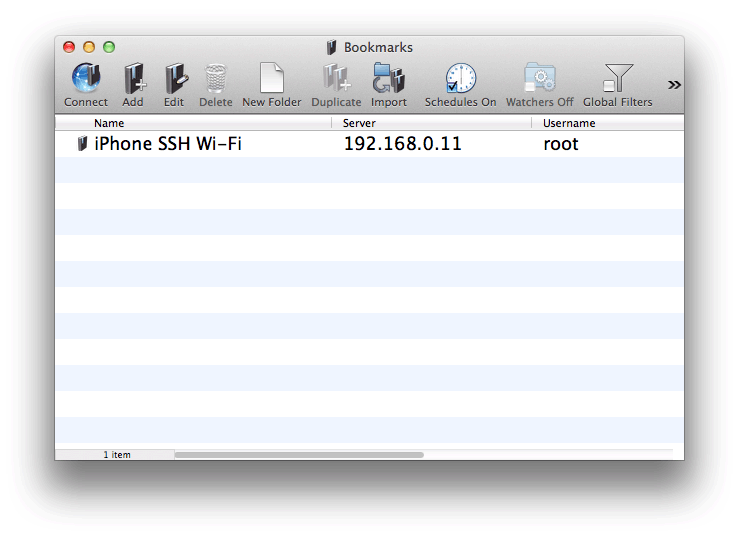
Download YummyFTP here. Note: many other FTP programs can be used as well.Launch YummyFTP. You'll see this. Click the Add button.
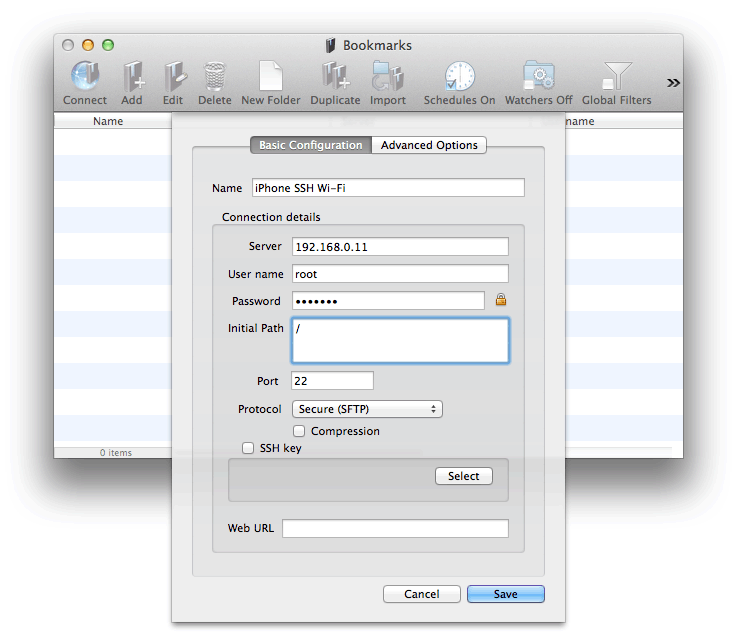
Enter the following information. Make sure you enter your iPhone's IP address in the Server field. Click Save.
Now double click the entry for the iPhone.
Here is the interface for sending files to the iPhone. The left half of the screen represents your Mac's hard drive. The right side of the screen is the iPhone's flash drive. This is a drag and drop method of transferring files. You can double click folders to navigate around to specific files.

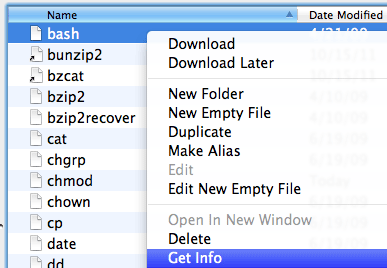
To change permissions on a file first select the file you want to modify then right click it and select Get Info.
Step 5.
If you would like to be able to turn SSH on and off easily from the iPhone you can use the program Toggle SSH to do this. Launch Cydia and install it. Press Return to Cydia.

This program installs an icon on your springboard. Launch it to control the SSH daemon.
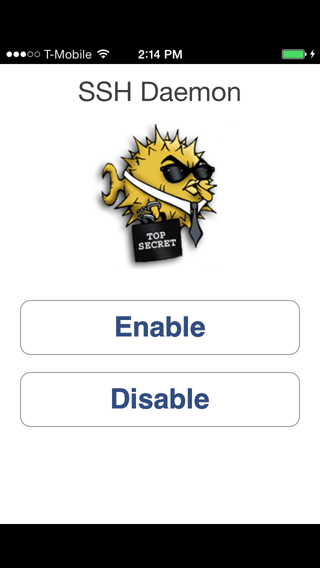
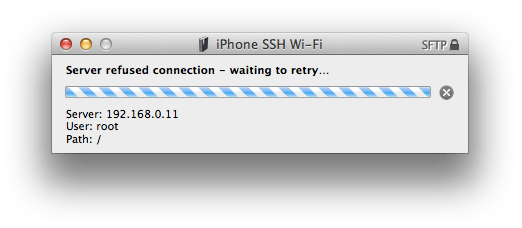
By launching YummyFTP, or using the Terminal and attempting to connect to the iPhone, you can verify the SSH connection has been closed.

If you restore your iPhone...
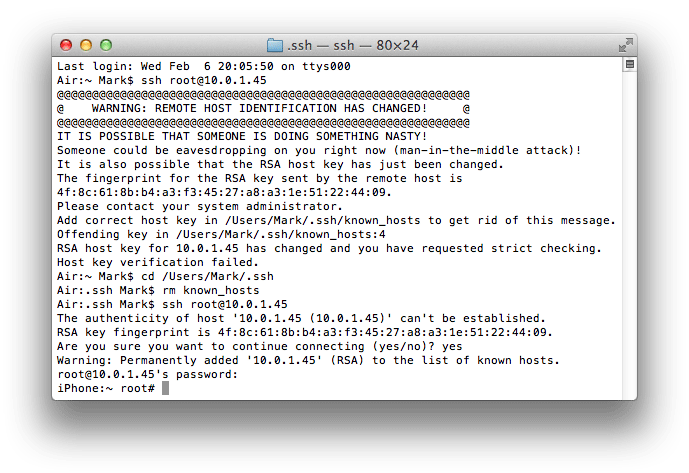
The next time you try to set up SSH and log in, you'll be greeted with this message:
Change directories to /Users/Your user name/.ssh. Then delete the known_hosts file by entering rm known_hosts. You can then log back in and a new key will be generated.