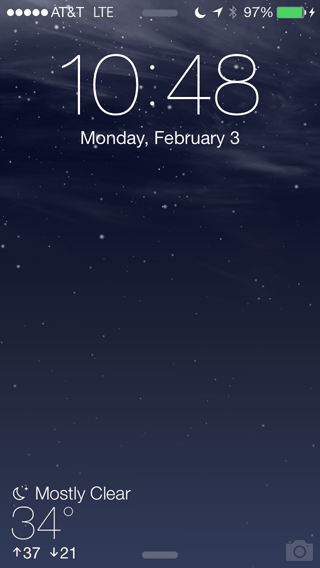
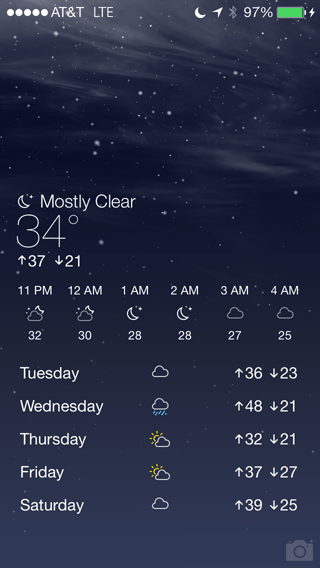
Mark's iPhone Makeover: The lock screen
Updated: February 7, 2014In the last installment I demonstrated how to apply a theme, and add a couple tweaks, to go from the plain iOS 7 theme to the Jaku theme. In this tutorial I'll show you how to liven up the very drab lock screen and make it into something more useful.
I'll also show you a couple other lockscreens at the very end of this tutorial so you can see some other great options.
Step 1.
Launch Cydia and install customLS.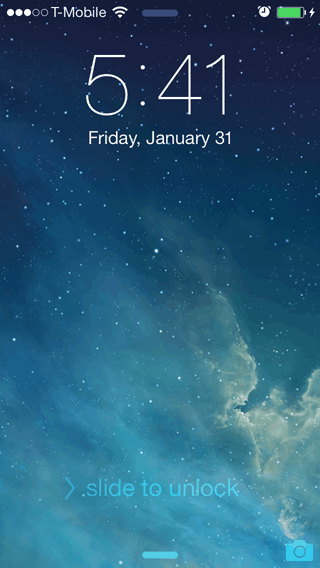

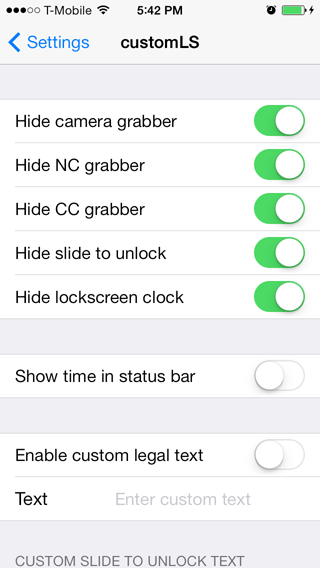
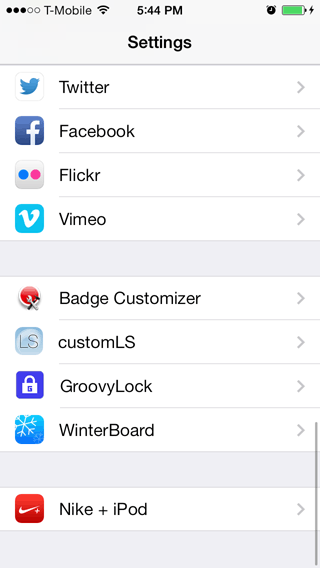
Now launch Settings and you'll see customLS down toward the bottom. I want to really clean up the lock screen for a theme I want to use so I'm turning everything off.

|
Don't freak out. The Notification Center still works when you slide down from the top
of the screen, and the Control Center still works when you slide up from the bottom of
the screen.
If you use the Hide camera grabber setting, it will not only hide the camera icon, but it will disable the functionality as well! If you just want to hide the icon and retain the functionality then go to /System/Library/CoreServices/SpringBoard.app/ and rename the camera-lockscreen@2x.png file to something else. Respring your device and problem solved! |

|
Step 2.
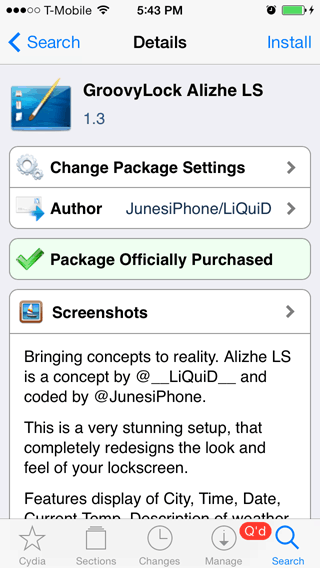
Launch Cydia and this time search for groovy. Let's install GroovyLock (which provides the programming base so to speak that this lock screen works on), and GroovyLock Alizhe LS (which is the particular theme I'll use). You can read the forum thread about GroovyLock Alizhe LS over at the ModMyi forums.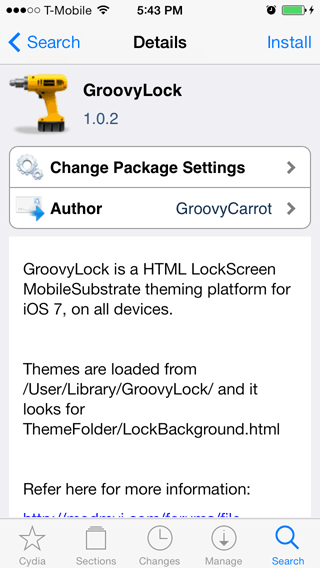
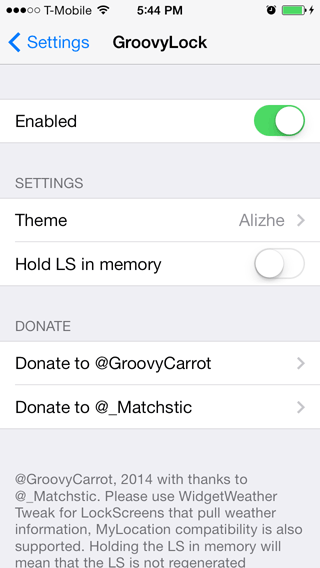
Launch Settings and you'll see a GroovyLock menu. Press it. Slide the Enabled slider and some new menus will appear. Theme is where you select the theme you want to use. Alizhe should already be selected as it's the only theme there. Make sure it shows in the Theme menu when you back out.
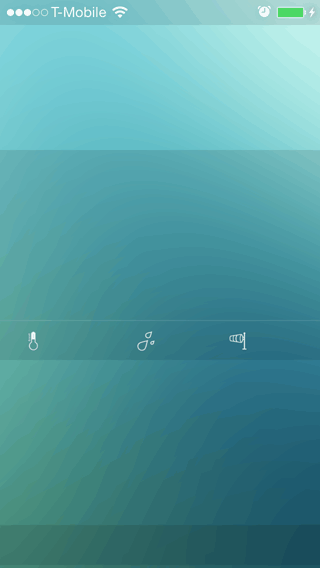
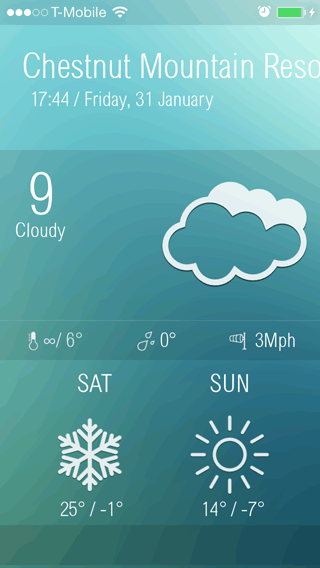
Lock your phone and press the home button to check your lock screen. If you see a screen like the one on the left with no information, then it means there's a conflict with any live WinterBoard themes that you are using that employ an Info.plist file. Simply launch Cydia and update WinterBoard and that will solve this problem. WinterBoard was updated on January 29, 2014. Respring your iPhone and the lock screen should be functioning.
Step 3.
Next we need to configure one of the files in the theme to localize it. I'm going to use SSH and my favorite text editor BBEdit. You can certainly also use iFile to do this. First I copied the contents of var/mobile/Library/GroovyLock/Alizhe/ to my Mac. I edit the files on the Mac and SSH them to the iPhone. This way I have a backup of all my changes.Go to Alizhe/weather/js/ and open the weather.js file. Below is picture of the part of the code you need to concern yourself with changing. Only items in red text need editing.

I want a twelve hour clock so I'm setting the variable to false. I'm also entered my zip code in where USIL0224 appeared. I don't want to shake my iPhone to get a forecast so I'm leaving the setting yes alone. Upload the .js file and respring. Here's what the night and day versions of the wallpaper look like. You're all done.


Customizing this theme
Note: These instructions are based on version 1.3 of this theme. I won't be updating the information below if there should be further updates. Cited line numbers and other items may be changed in updates.Many themes like this one use similar files that must be edited (much in the same way), so you could apply this information below as a reference to modify other themes.
Change the background image
It may not look like it from the pictures directly above, but the green background is hard to read the top third of the screen, so I'm going to substitute in my own photograph. In the Alizhe folder are two images: Day.png and Night.png. They are both 640 x 1136. Just name your photographs the same thing, upload and respring your iPhone.
Much better.


Eliminate the town name.
I don't need my town's name displayed on the lock screen. I know where I live and don't need to be reminded of that. I'd much rather use the limited screen real estate for more important information. Open the weather.css file and go to line 148. I changed the font-size to 0. Here's the code section you're looking for.
#City{
  position: absolute;
  top:50px;
  left:22px;
  width: 320px;
  white-space: nowrap;
  text-align: left;
  font-size: 0px;
  color: white;
  z-index: 2;
Split the time and the date into two separate lines.
I'd like my clock to be at least as large as it was originally. The only way to do that is to place it on its own line. This is a bit more work. I opened the LockBackground.html file and edited the line for "time". I then duplicated those three lines and called the second instance "time2". I've made some changes to font size and positioning on the screen as shown below.I also opened the weather.js file. I changed line 358 to display only the time.
var currentTimeString = currentHours + ":" + currentMinutes + timeOfDay;
I then added a line right below it to display the date.
	var currentTimeString2 = this_weekday_name_array[this_weekday]+", "+this_month_name_array[this_month]+
	" " +this_date_name_array[this_date];
I then duplicated line 362, made two changes and pasted this below it.
document.getElementById("time2").firstChild.nodeValue = currentTimeString2;
Fix AM and PM.
I'd like them to appear in small letters, and have a leading space to separate them from the time. In the weather.js file go to line 338. I changed it to this:var timeOfDay = ( currentHours < 12 ) ? " a.m." : " p.m."
Remove the leading 0 in a.m. times.
I don’t like the leading 0 in the time when it’s 1 a.m. through 9 a.m. Open the weather.js file and go to line 330. Delete the 0 in the first set of quotes.currentHours = ( currentHours < 10 ? "" : "") + currentHours;
Remove the leading 0 in the date.
Open the weather.js file and go to line 351. Leave the double 0 alone. Below is only part of the line.
var this_date_name_array = new Array("00","1","2","3","4","5","6","7","8","9"...
Fix up the wind speed section.
I wanted a space between the wind speed and the miles per hour abbreviation. I also wanted the abbreviation in lower case letters. Open the weather.js file and go to line 252. I changed mine to:
document.getElementById("WindSpeed").innerHTML = '' + ('' + WindSpeed+" m.p.h.") + ''
Spell out the days of the week in the forecast.
Open the weather.js file and go to line 183. Change it like this:
var daysofweek = new Array("Sunday","Monday","Tuesday","Wednesday","Thursday","Friday","Saturday")
Capitalize only the first letter of the days of the week.
Open the weather.css file and go to lines 424 and 435. Change them to read: text-transform:capitalize;Align the "now" temperature to match the clock.
Open weather.css and go to line 76. I set the left alignment to 10.
#TempNow{
  position: absolute;
  font-size: 60px;
  color: white;
  top:165px;
  left:10px;
  color: white;
  z-index: 2;
font-weight: lighter;
}
Align the today high / low temperature to match the clock.
Open weather.css and go to line 357. I changed mine left alignment to 10.
#tempImage{
  position: absolute;
  top:331px;
  left: 10px;
  z-index: 4;
}
Then move over the high and low temperature for today. Look at lines 40 in the #HighToday section, and line 54 in the #LowToday. Change margin-left:35px; I changed them to 22.
| Here's my end result. |

|
Okay, okay I'll show you how to change the font too.
You'll need to be careful what font you use. If it uses particularly wide letters you'll have to tweak your layout to accomodate it, and/or reduce its size in pixels. Head on over to iPhone Ruler and check out their collection of iOS 7 fonts.In my example I'll be using this font.
Make sure you click the Download - BytaFont 2.x button as these work on iOS 7 and with the newest version of BytaFont. This program changes fonts on the rest of the iPhone.
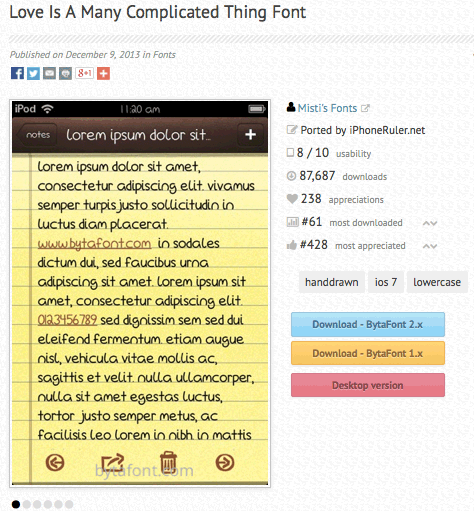
Once you've downloaded your font, decompress the zip file and upload the font file to Alizhe/weather/font. For the font I used I uploaded the Helvetica.ttc file.
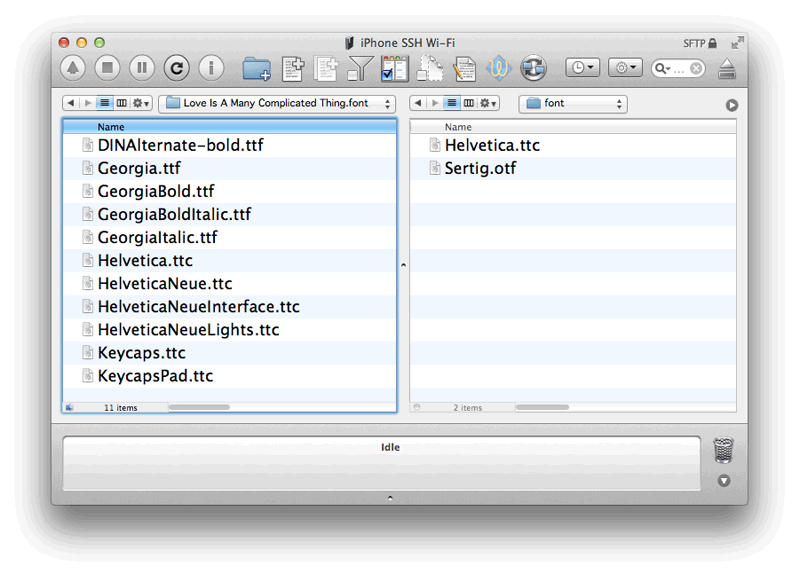
Open the weather.css file and go to line 4. Update the name of the font to whatever you place there.
src: url('../../weather/font/Helvetica.ttc');
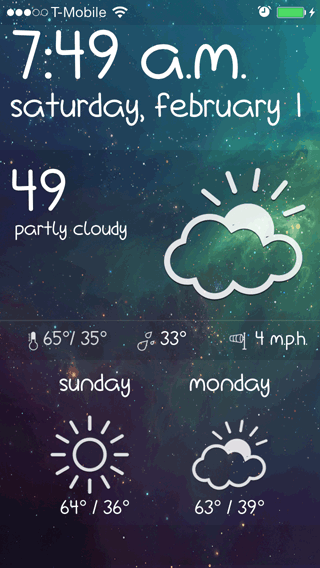
Alternate lockscreen themes
There are lots of different lockscreen themes out there. Below are LS Climacon and LS Serenity.

JellyLock7 is an Android style app launcher. Pressing the circle will display up to five programmable shortcuts to your favorite apps. Simply slide the circle to what you want to do: camera, one of your five apps, or slide right to unlock. You can change the color of the circle and set the transparency as well.


Forecast adds animated lockscreen and homescreen wallpapers showing the current weather conditions for either your current location or the first location in the default weather app. The lockscreen also includes the current weather details (temperature, condition and high and low for the day). Swipe to the left to see the full forecast on a separate lockscreen page.