Mark's iPhone Makeover: The home screen
Updated: February 1, 2014Theming the iPhone is lots of fun, at least for me. I’m going to create some brief walkthroughs on how I decided to customize my iPhone 5. Keep in mind, there are thousands of combinations you can make to create almost anything imaginable. Some of the things you can theme are:
- The home screen (apps, dock, text labels and add widgets).
- The lock screen (you can change graphics, hide things, add widgets, and even add HTML-based themes).
- The status bar (carrier signal bars, carrier name (or graphic), wi-fi bars, hide the clock, battery strength, et cetera.
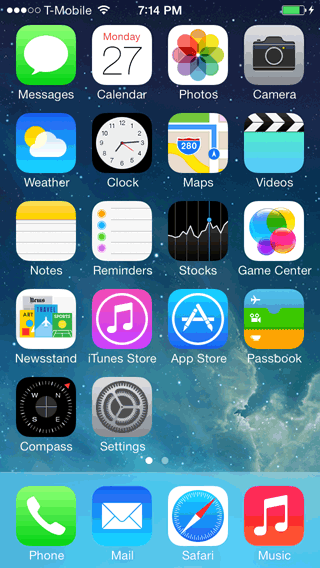
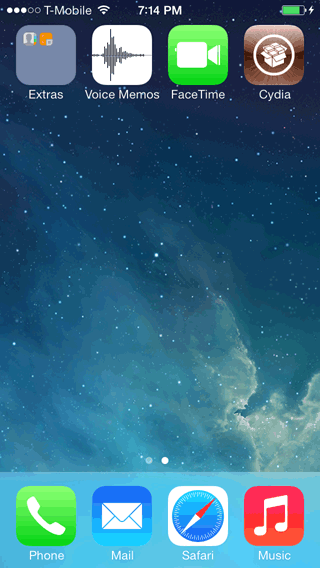
So here’s what every stock iPhone 5 on iOS 7.0.4 firmware looks like:
Step 1.
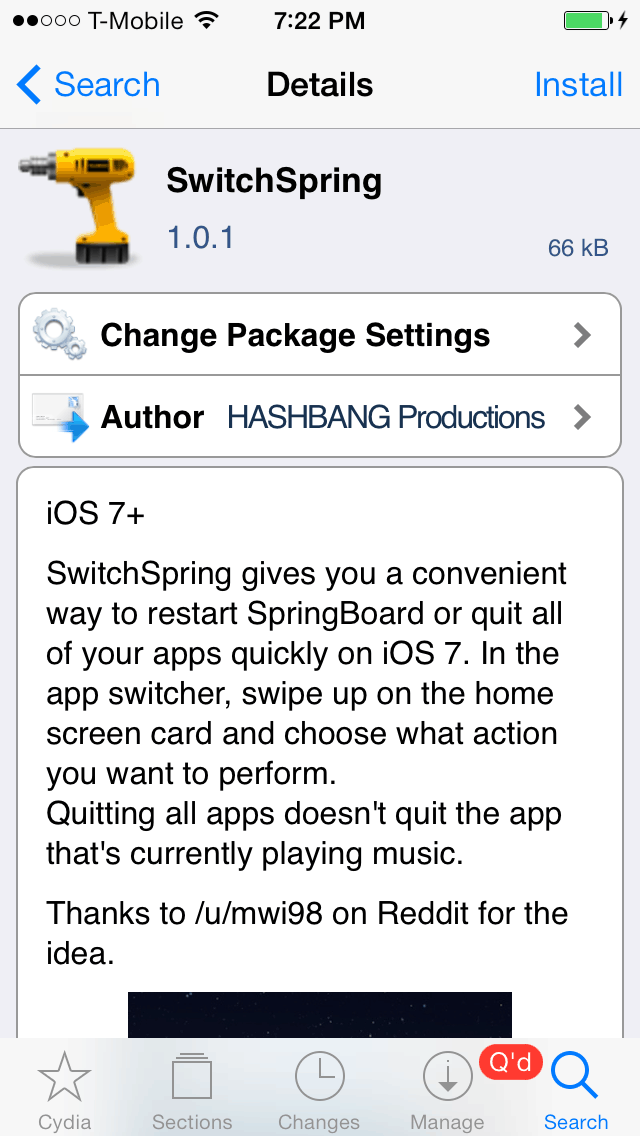
I'm going to install a theme I like call Jaku. I’m also going to install SwitchSpring (for quick resprings when theming if you don't want to use WinterBoard).This is from the Jaku product page: The theme boasts meticulously crafted icons for all default apps and hundreds of 3rd party applications (from both Cydia and the App Store). Jaku also includes custom wallpapers (installed to your default Wallpaper Roll), modifications to Notification Center, the Dock (and home screen), Popup Alerts, the Lock Screen, Mission Control, Status Bar, themes for Zeppelin, custom themes for SBSettings, IntelliscreenX, and more. It also comes with a pdf and a template for making more icons to match your theme.

Step 2.
Next I'm installing TransparentDock (which removes the blurred background from the dock area), and ClassicDock (which will allow the iOS 6 style dock (which the Jaku theme will hide) and more importantly the icon reflections from iOS 6.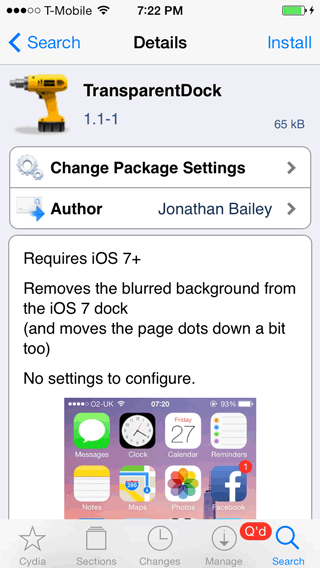
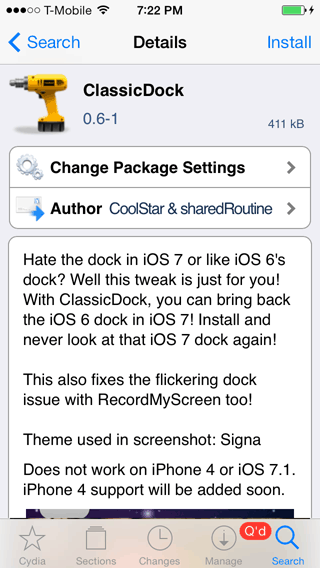
Look at that, the blurred dock is gone and the reflective icons are back! But WinterBoard wasn't installed (even though Jaku lists it as a dependency that should have been installed at the same time the theme was downloaded).

Step 3.
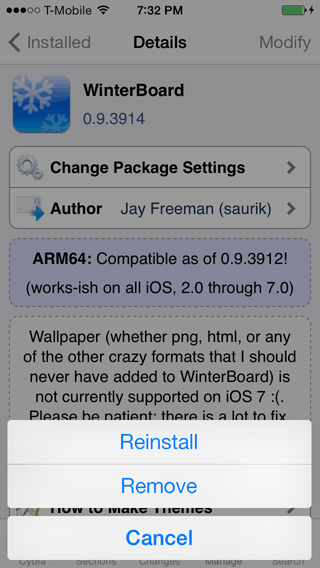
Launch Cydia and reinstall WinterBoard. Looks like we've found a bug...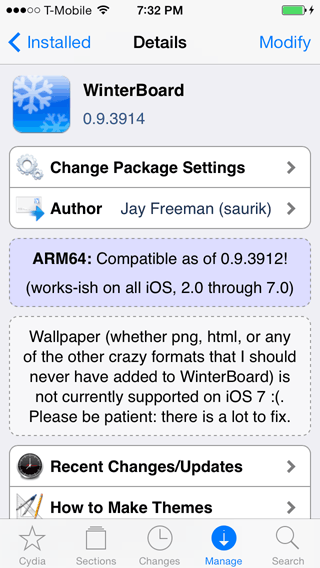
Step 4.
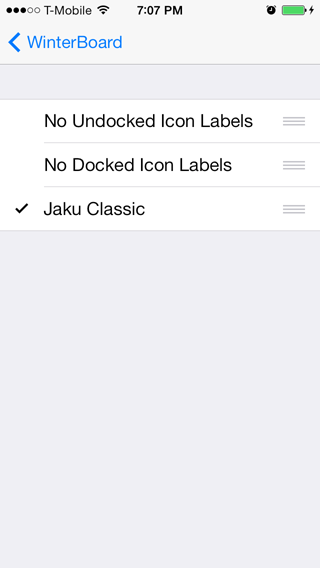
There it is! Launch WinterBoard. Press Select Themes, press Jaku Classic then press WinterBoard.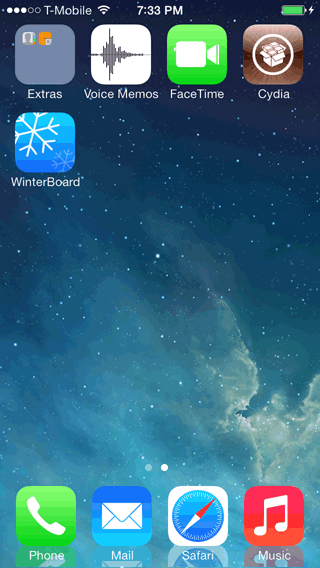

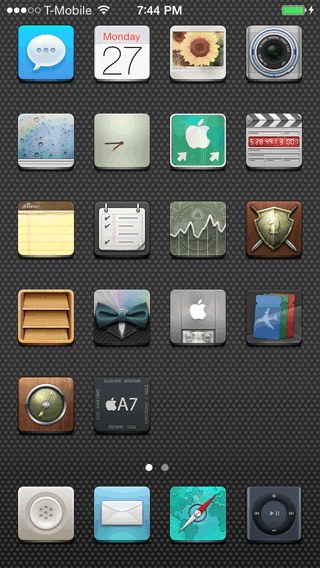
Press Respring and there it is. Jaku hides the docked icon app labels by default for whatever reason. I may unhide those later. Also note this theme adds drop shadows to text and app icons. It also reduces the text a little, and I may make this larger again. I wear glasses as it is, I don't need things even harder to read. The reflections in the dock are also gone, I'll fix that too.

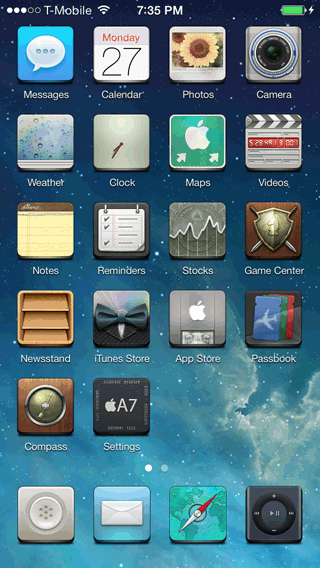
I'd like another wallpaper. Jaku adds three wallpapers to your Settings program, but I'm going to use one of the stock wallpapers that I really like.
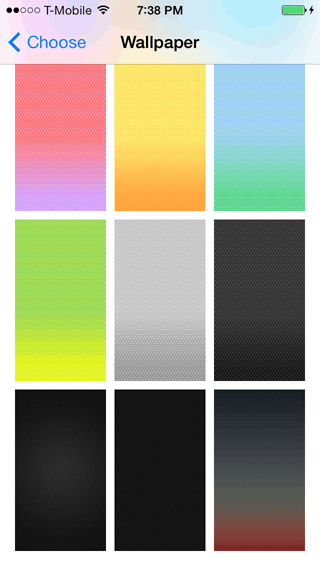
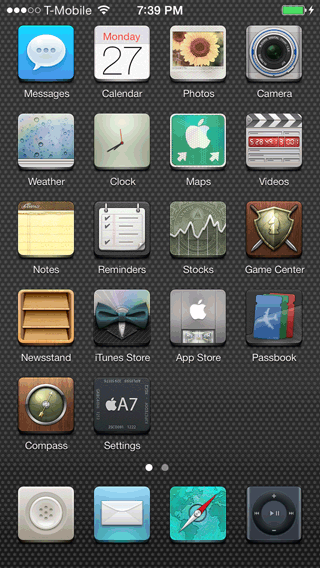
Let’s hide the rest of the app labels. Launch WinterBoard and select No Undocked Icon Labels and respring. Nice.

Step 5.
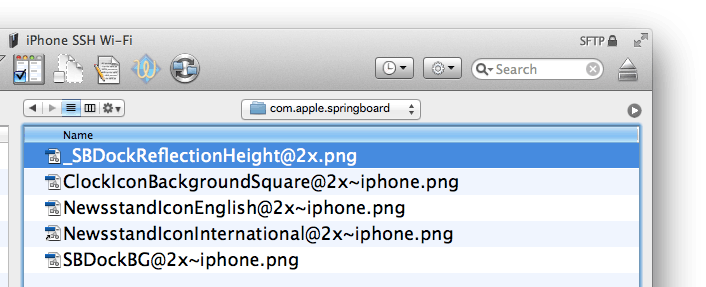
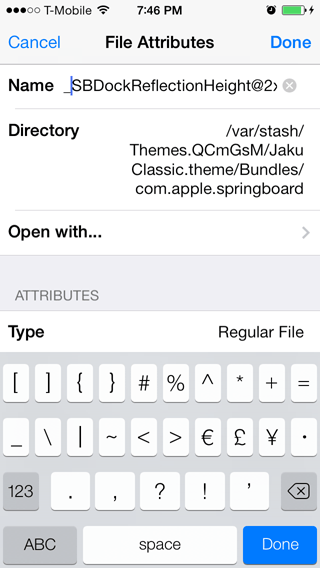
To fix the reflection problem that Jaku caused we'll have to SSH into the iPhone (of use the iFile program). If you haven't read my SSH tutorial yet then go here.Go to /Library/Themes/Jaku Classic.theme/Bundles/com.apple.springboard. Rename the file SBDockReflectionHeight@2x.png to something else. I just put an underscore in front of the name.
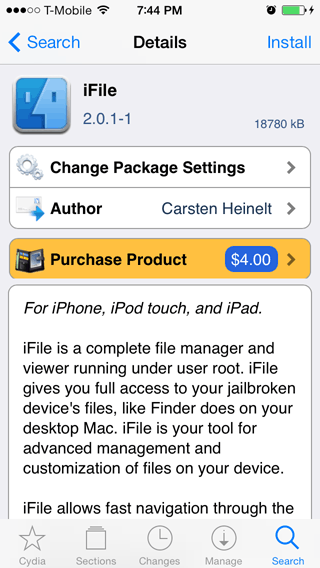
Otherwise you can download a trial version of iFile on Cydia to fix this problem. Once you've installed it launch it and press the back arrow at the top until you are at the root level of the iPhone. Then press Library, Themes, Jaku Classic.theme, Bundles, com.apple.springboard. Then select the last file in the list by pressing the blue i on the right.
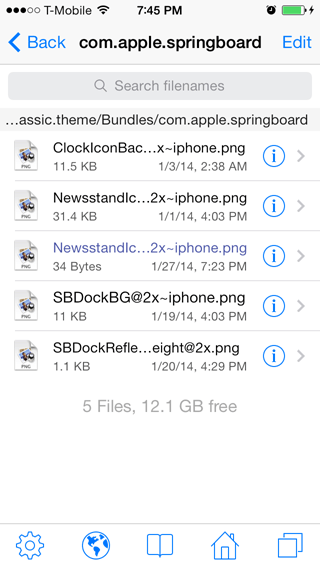
At this screen press and hold the name of the file until the magnifying glass appears where you want to change the name and alter it. I placed an underscore at the beginning. Then press Done.
Now just respring and check out your theme.

Step 6.
I decided I'd rather have icon labels. I'd also like the text to be larger. Once again, either SSH into your iPhone or use iFile. Go to /Library/Themes/Jaku Classic.theme and edit the Info.plist file. I made mine look like this: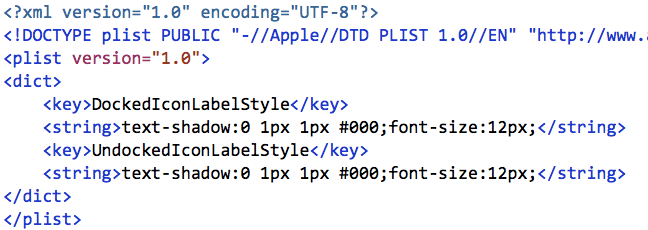
Yes, much easier to read. That's it for the first phase of the makeover. Stay tuned for other tutorials.
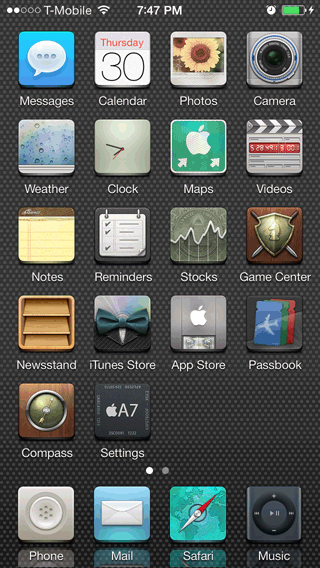
Custom AppStore icons.
One of the programs I like to use is AnyList. I use it for grocery shopping and it works great! You can see the default icon sticks out like a sore thumb. Let's do something about that.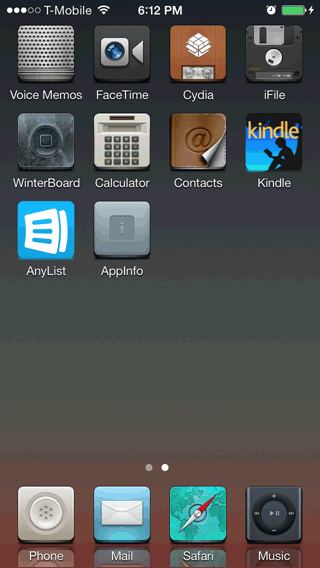
First I need a new icon. I don't care for the original icon as it doesn't communicate it's purpose to me. So I went to the official Jaku icon repository. They didn't have an icon for my specific application so I just searched for groceries and came up with this icon. I then downloaded the version for use with iOS 7.

Since this is an AppStore application I need to determine how to use the Jaku theme to replace the application icon. You can't just go to /Applications, because iTunes doesn't place AppStore applications there. You could poke around in /var/mobile/Applications for the app, but if you have a lot of applications it could take some time to find it since iTunes uses alpha-numeric strings to label application folders.
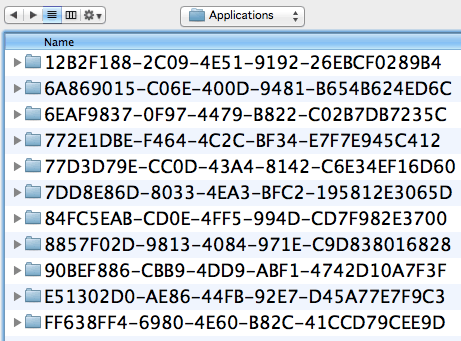
If you only have a few applications, you can just start going through them. If you find a file called iTunesMetadata.plist you could open it and look for the key called softwareVersionBundleId. Below it will be a string with the name that you need to name your folder. If that file doesn't exist then look for a folder called Library. Open it and you should have a folder like this: com.purplecover.anylist. That's the bundle identifier we're looking for.
If you do have a lot of applications then I'd recommend using a program called AppInfo in conjunction with the iFile program. AppInfo will give you a list of the applications on your iPhone. When you select one it will provide you with the bundle identifier, and sometimes the correct name of the icon graphic you need to replace. In this case the bundle identifier is com.purplecover.anylist. There's no information for the application icon.


Scroll down and press Open in iFile. Press AnyList.app.
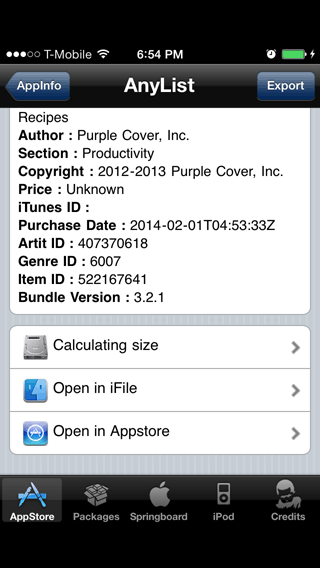

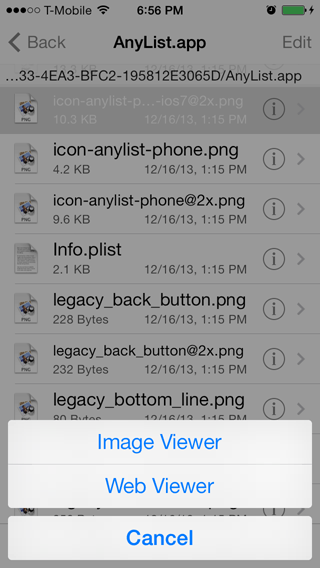
Scroll the list looking for the icon files. In this case there are three that look like the file I need. You'll have to use trial and error to find them. I'm using an iPhone 5 so I'm looking for an icon that's 120 x 120 in size. Press one of the files, select Image Viewer and it'll show you the graphic, give you the file name, and tell you the size of the image.

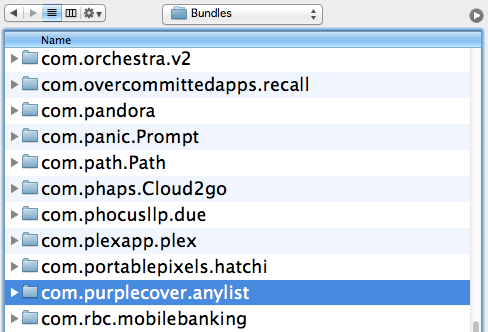
Next build a theme to replace this icon. Name your folder com.purplecover.anylist and place the images you need in this folder. In my case I need two for this theme to work: icon-anylist-phone-ios7@2x.png, and icon-anylist-phone@2x.png.
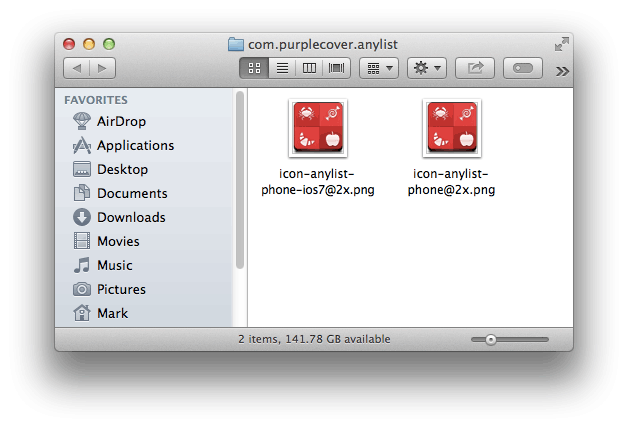
Once you have your theme upload it to /Libary/Themes/Jaku Classic.theme/Bundles/.
Launch WinterBoard. Press Select Themes. Deselect Jaku Classic, then select it again. Press WinterBoard, then press Respring. There you go.