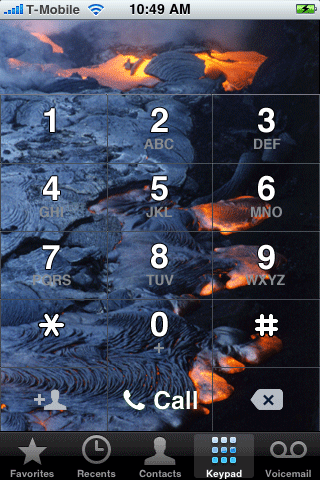
Custom keypad dialer
Page 3 of 3Method 3: Step 1.
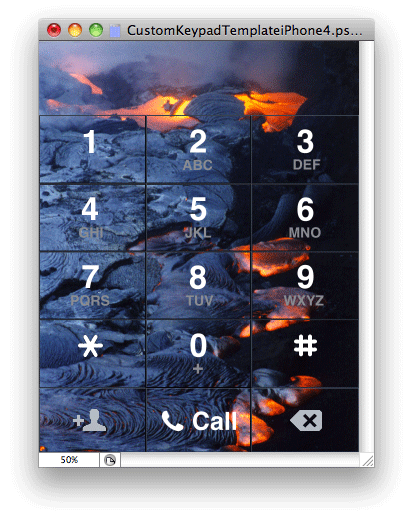
Let's make the keypad where the picture extends into the area where the phone number you are dialing appears, and into the lower three buttons (add contact, call and delete). I have a template you can download here. I created this in Adobe Photoshop. It is in PSD format. There are two versions: one with and without gridlines. I find the gridlines don't look right on the lower three buttons some times.Find whatever image you would like to place on your phone's keypad. It must be 640 by 822.
Method 3: Step 2.
Open the template graphic. Copy and paste your image into the template.
The next step is to slice this graphic up into several pieces that the iPhone will then reassemble. First we'll make the add contact button. All buttons on this screen have two states: as they look normally, and when they are pressed. Both states can look the same if you want.
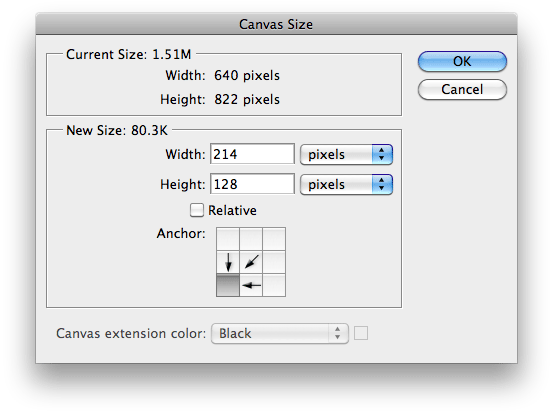
To create the add contact button graphic it must be 214 by 128 pixels in size. I am only going to demonstrate how to make a button one time. You can use the same steps, and a little logic, to create the remaining buttons with simple math. In the tool bar, click Image, then select Canvas Size...

In the pop up window, change the unit of measurement to pixels, then enter 214 in the Width box, and 128 in the Height box. Then select the lower left corner (because that's where the add contact button is) as the anchor. Click OK. You'll receive a pop up warning about the image being clipped, that's ok. We will undo this clipping once we have the buttons we need.
There's your button. Save this image as addcontact@2x.png.

Next make the version of this button when it is pressed. Go back to the template graphic, check the visibility for the layer blue background. Save this graphic as addcontact_pressed@2x.png.

Now for the most important step. Click Edit, then select Step Backward. Your entire template should now be visible again. Let's go on to the next button.
There are two ways you can handle the call button. You could either keep the stock green button with the phone icon and the word call...

Or you can have it display that area of your photograph with the phone icon and the word call. If you want the stock green buton, then skip ahead to the creation of the delete button.
If you want your photograph to show through the call button, then there are four images that must be created. With your photo editing program, create a 10 by 128 pixel graphic that is transparent. Save this file as callbkgnd@2x.png, then save it as callbkgnd_pressed@2x.png.
Go back to your template graphic and use the Canvas Size tool to crop the template down to the size of the call button which is 214 by 128. First get an anchor point at the bottom and crop it down to a height of 128 pixels.

Then crop with an anchor point to the right, with a width of 640 minus the 214 that the contact button is which comes to 426.

Then crop with an anchor point to the left and a width of 214. Your call button should now look like this. Save this as callglyph_big@2x.png.
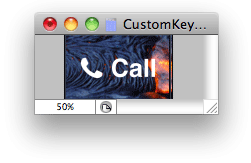
We need to make a second button that is 2 pixels in width narrower. Use the Canvas Size tool and enter 212 in the width box. Then press OK. Your image should now look like this. Save it as callglyph@2x.png.

Click Edit, then select Step Backward (four times). Your entire template should now be visible again. Let's go on to the next button.
Let's make the delete button. It is 214 by 128. Use the Canvas Size tool to crop the template down to the size of the delete button. Enter 214 in the width box and 128 in the height box, then select the lower right corner as the anchor point. Click OK. Your button should look like this. Save this as delete@2x.png
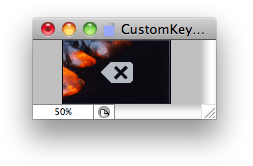
Go back to the template graphic and turn on the visibility for the blue background layer. Save this image as delete_pressed@2x.png
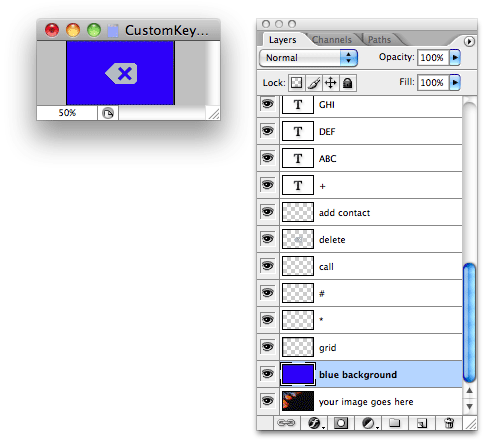
Click Edit, then select Step Backward. Your entire template should now be visible again.
Let's make the dialing keypad next. It is 640 by 546. Use the Canvas Size tool. The width should be 640, and the height (minus the bottom 3 buttons) is 694. Click the top row as the anchor point. Click OK. Your image should now look like this.

Use the Canvas Size tool again. The width is 640 and the height is now 694 minus the LCD bar height of 148 leaving 546 pixels. This time click the bottom row as the anchor point. Your keypad should look like this. Save this as dialerkeypad@2x.png.
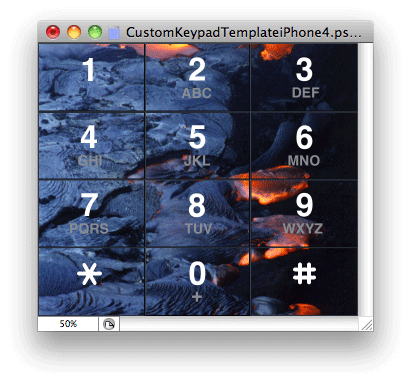
Go back to the template graphic and turn on the visibility for blue background. Save this image as dialerkeypad_pressed@2x.png.
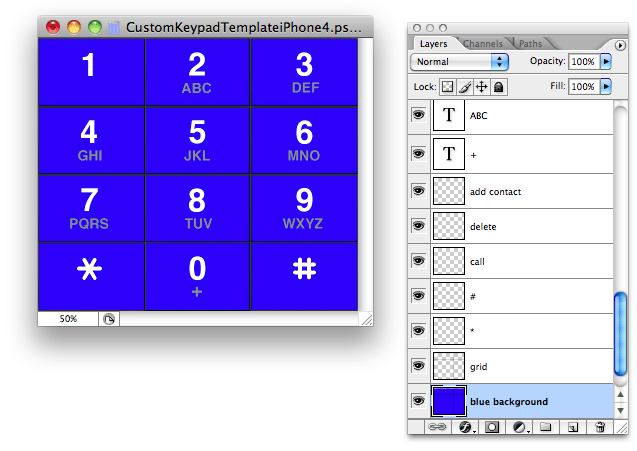
Click Edit, then select Step Backward only one time. Your template should now look like this.

Let's make the dialer LCD graphic. Use the Canvas Size tool. The width remains at 640, but the height is 694 minus the keypad height of 546, which is 148. Click the top row as your anchor point then click OK. Your template should look like this. Save this file as dialerlcd@2x.png.

Method 3: Step 3.
Create a folder for your phone theme, mine will be Lava dialer, then create the following folders: Lava dialer/Folders/MobilePhone.app Note: you may want to wait until you've placed all your image files into the MobilePhone folder before adding the .app extension to it.
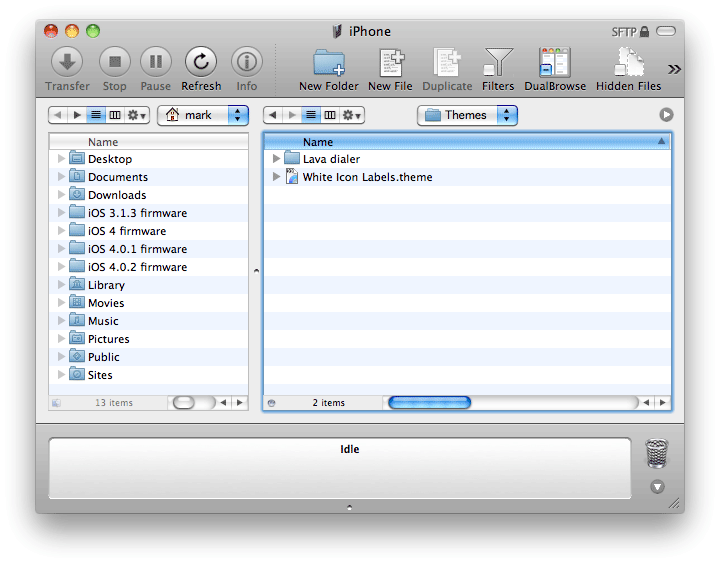
Place your theme folder into the iPhone's Themes folder.
Launch Settings, then go into WinterBoard and check out your new theme.