Securely erasing the iPhone
If you are looking to sell your iPhone, or give it to somone as a gift, you should probably ensure that your personal data does not remain on the iPhone. Most would think that a restore via iTunes would take care of this. But it does not! It has been proven more than once, and by more than one person - one of them a programmer with deep routes in the iPhone community, and the other a state police detective using a forensics data retrieval kit built by that same programmer - that your personal data survives a restore. In the case of the detective, he purchased his iPhone via Apple directly (refurbished). This entire process will takes anywhere from just a few minutes (for iPhone 3G S and newer) to a couple hours for older iPhones.You can read more about this process at Apple's support forums here: http://support.apple.com/kb/HT2110
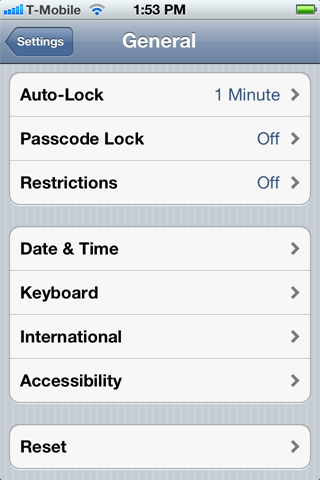
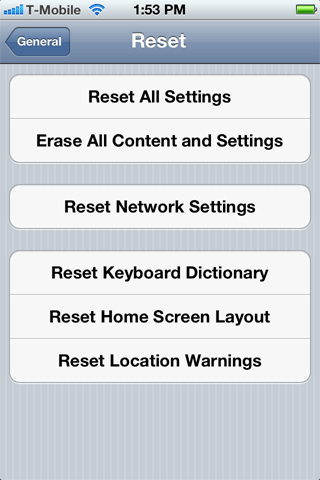
Launch the Settings application. Then press General, then Reset. Press Erase All Content and Settings.
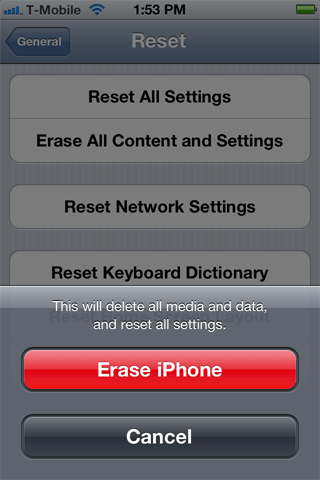
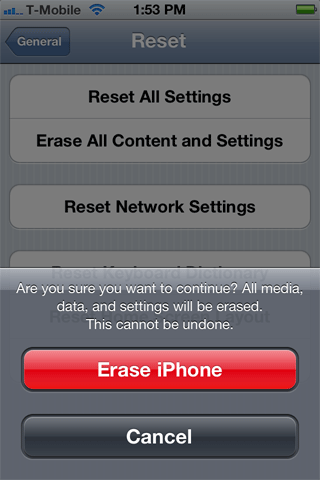
Finally, press Erase iPhone. Press Erase iPhone one more time.
You will then see this screen for the remainder of the process. I received no indication when the process had completed. While it was being erased the iPhone became warm. After an hour or so it had cooled up and the wheel continued to sping. I then placed the iPhone into DFU mode and restored normally.

Should your iPhone become stuck at the Apple boot logo, and you see the small spinning wheel also freeze, then what you need to do is press and hold the Sleep/Wake button and the Home button until the phone shuts off. This will identify itself when a thin colored line appears at the top of the screen and then the whole screen goes black. Hold the Home button, and plug it in via USB to your Mac and iTunes will identify the iPhone as being in recovery mode. Now just press the option key on your Mac and click the restore button and select whatever firmware you'd like to put back on the iPhone.
