Installing Siri on the iPhone 4
Posted: January 23, 2012Who is this guide for?
- You need a jailbroken iPhone 4 running at a minimum 5.0 firmware.
- Access to an iPhone 4S.
- I used OS X 10.7.2.
This tutorial would not be possible at all without this excellent article written by "waynevo". You may want to refer to this article as I won't be including all the information from it. I'm documenting my particular setup. I don't have a static IP address with my cable service, so I used the IP address from my Mac as the proxy server that the Spire program requires. Another big thanks goes out to chpwn and Ryan Petrich who created Spire. This is the first legal way to install the Siri interface on older iPhones.
Update: A far easier method of installing Siri can be found here. This method does not require setting up a proxy, or paying to access someone's proxy server.
Step 1 - Installing software
There is a lot of software to install. Plan on this taking at least an hour to complete just this step! All the software is free. Everything installed for me without issue.Download and install Xcode.
Download and install MacPorts.
The rest of the software will be downloaded using the Terminal program and is highly automated. The Terminal will install each program as you enter the command for it, and enter your administrator password. Some of these programs take 5-10 minutes each to install depending on your Internet speed. You can walk away as each one installs in turn.
- When you need to enter a command into the Terminal I will indicate this by placing a bullet point in front of the command to enter.
- sudo port install dnsmasq
- sudo port install openssl
- sudo port install ruby
- sudo port install rb-rubygems
- sudo port install libxml2*
- sudo port install nano
- sudo port install wget
- sudo gem install eventmachine
- sudo gem install CFPropertyList
- sudo gem install httparty
- sudo gem install json
- sudo gem install uuidtools

Step 2 - Setting up a DNS server
The following is an excerpt from "waynevo's" article:|
"If you want to use your iPhone 4S just in a local network replace YOUR IP ADDRESS with
the static LAN IP of your Mac. I recommend this step if you don’t have a static WAN IP.
If you want to use your iPhone 4S from any WiFi-Network replace YOUR IP ADDRESS with your WAN IP (http://whatismyip.com) and forward port 53 to your Mac." |
I will be using the first method. To find out the IP address of your computer launch System Preferences, click Network and you'll see your address in the Status section. Note: This address may change in the future!

In the Terminal open up the dnsmasq configuration file by entering:
- sudo nano /opt/local/etc/dnsmasq.conf

I pressed CTRL + V three times until I saw this line appear: #address=/double-click.net/127.0.0.1.
Add this line below it: address=/guzzoni.apple.com/YOUR IP ADDRESS

Press CTRL + O, then press Enter to save the file. Press CTRL + X to exit the Nano editor.
To load dnsmasq enter:
- sudo port load dnsmasq
|
"The server I use and which is linked here was not coded by me. It is a modified version
by the guys of http://www.ketchup-mayo-senf.de/blog/ who put their free time into
creating an awesome Siri Proxy which has several advantages:
- Every connected device gets their own ace host, assistant identifier and speech identifier, so only the sessionvalidationdata gets sent to Apple. - That way the iPhone 4S does not get blacklisted and you can connect 2 or more devices to Apple at the same time (tested 3 devices by myself). - The validation files don’t need to be extracted and filled in, the server saves them automatically and uses them for non-4S devices. Please think about donating to them." |
Create a folder where you would like your SiriProxy folder saved. I placed it at /MySiri. You will need to CD to this directory in the Terminal, once you have created it so that the download will be placed there.
In the Terminal enter:
- wget http://www.ketchup-mayo-senf.de/blog/MySiriProxy.zip
- unzip MySiriProxy.zip
- cd SiriProxy
Step 3 - Generating certificates
In the Terminal enter:- openssl genrsa -des3 -out ca.key 4096
- openssl req -new -x509 -days 365 -key ca.key -out ca.crt
A pass phrase for the key.
Enter US for the country name.
Enter CA for the state.
Enter Cupertino for the city.
Enter Apple for the organization name.
Enter Genie for the organization unit name.
Enter guzzoni.apple.com for the common name.
Enter an email address.
Now enter:
- openssl genrsa -des3 -out server.key 4096
- openssl req -new -key server.key -out server.csr
- openssl x509 -req -days 365 -in server.csr -CA ca.crt -CAkey ca.key -set_serial 01 -out server.passless.crt
- openssl rsa -in server.key -out server.key.insecure
- mv server.key server.key.secure
- mv server.key.insecure server.passless.key
Step 4 - Start the server
Enter:- sudo ruby start.rb

Step 5 - Configuring the iPhone 4S
Install the ca.crt file in your SiriProxy folder, created in Step 2, to your iPhone 4S by e-mailing it. Mine is located at /MySiri/SiriProxy/ca.crtOpen the e-mail on your iPhone and press the ca.crt attachment. At the next screen press the Install button.

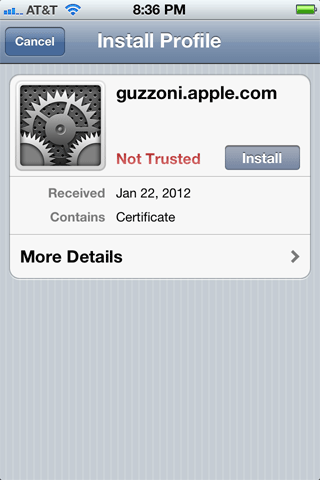
Press Install, then press Done.


Launch Settings, press Wi-Fi and tap the blue arrow beside the network name that you are connected to. We will be changing the line that says DNS. In my case it is set to my Airport Extreme Base Station's address.


I've changed my DNS address using the IP address of my Mac. Locating this was demonstrated in Step 2. Press the Wi-Fi Networks button to back out of this screen. The iPhone will then re-connect to the new IP address and you'll eventually see a checkmark next to your network name again.


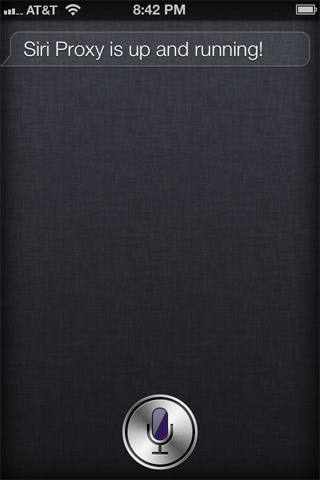
Press the Home button to exit Settings. Press and hold the Home button to trigger Siri. Say "Test Siri proxy" and watch the Terminal window on your computer which is still waiting for input from the iPhone. You'll see numerous comments appear.

Siri will respond, audibly in English, and on the screen that the "Siri Proxy is up and running!"
Step 6 - Configuring the iPhone 4
Launch Cydia and install Spire. It downloads 100 MB of data so it will take awhile. Don't let your iPhone go to sleep. Press the reboot button when prompted.

Install the same ca.crt file on your iPhone 4.


Launch Settings and press Spire. Then enter https://guzzoni.apple.com in the Proxy Host field.


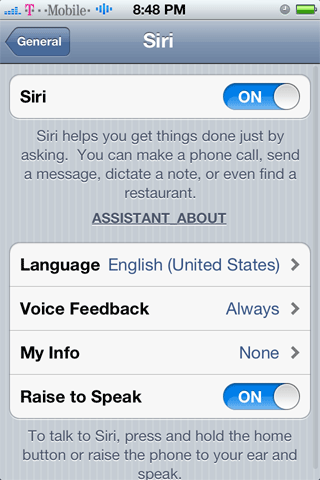
Go to Settings, General, Siri and activate it. Go to Settings, Location Services and ensure that it and Siri at the least, are both on.

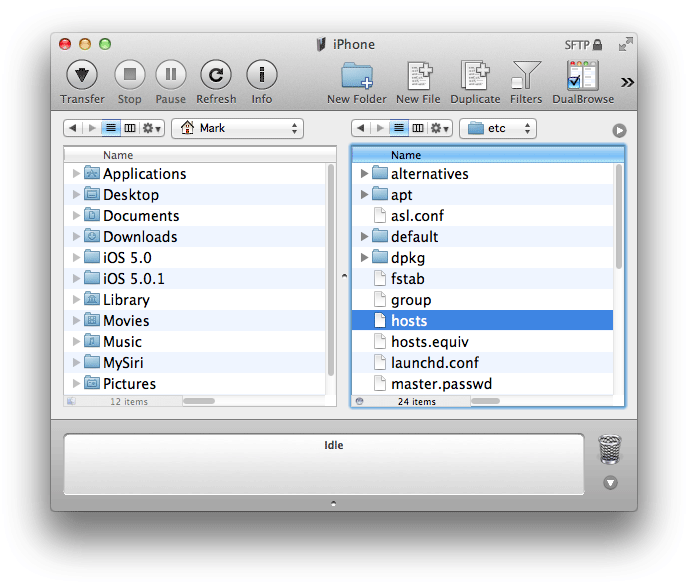
SSH into your iPhone (see my SSH tutorial here) and go to the /etc folder. Look for the file hosts and drag it to your desktop.
Open the hosts file in TextEdit, and add the following line:
YOUR IP ADDRESS guzzoni.apple.com
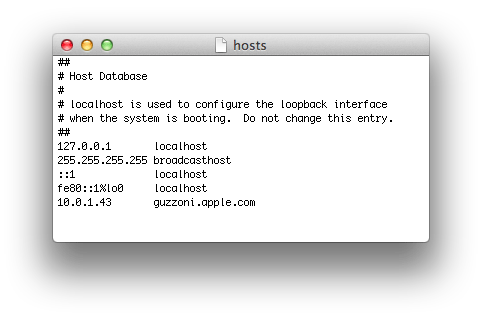
If you want to use Siri over a 3G connection, you have to enter your WAN IP address here. Remember that if your IP address is not static you may have to change it every day!
Save the file and upload it back to the iPhone.
Use Siri. It worked immediately for me. Siri keys expire approximately every 24 hours. So make sure you use your iPhone 4S while connected to the Siri Proxy Server so that the new SessionValidationData key is saved and used for all other iPhones.
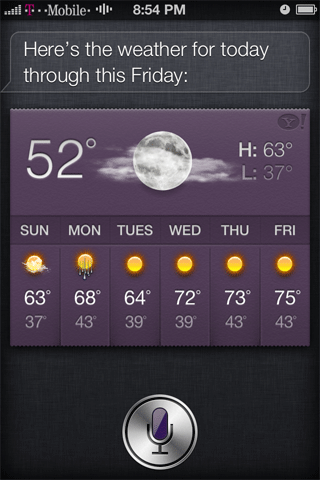
Using Siri the next day...
There is a method to dump your Siri keys and it will display a time stamp of when they expire. Generally they renew on a 24 hour cycle. Since the SiriProxy program handles the retrieval of the keys and distribution of them to other iPhones the process is pretty simple. You'll know when your keys have expired because Siri will constantly reply that it's sorry and you should try back later when performing requests.- Verify your computer's IP address didn't change. Refer to Step 2. If it did change, then you must launch the Terminal and enter the command: sudo nano /opt/local/etc/dnsmasq.conf Then edit the file as you did before by placing the new IP address in it.
- In the Terminal, CD to your SiriProxy folder, then enter: sudo ruby start.rb
- Press and hold the Home button on the iPhone 4S to launch Siri. Say "Test Siri proxy." You should receive the response "Siri proxy is up and running."
- If your computer's IP address changed, then edit the hosts file on the iPhone 4. Refer to Step 6.
