Downgrading iPad modem firmware
Updated: July 4, 2012Who is this guide for?
- iPhone 3G and 3G S only.
- Can be running any version of iOS firmware.
- For those with 06.15.00 modem firmware (baseband).
Thanks again go out to the iPhone Dev Team for getting together and providing this amazing, and FREE program for customizing the iPhone. You can visit the iPhone Dev Team's blog here.
If you previously upgraded your iPhone's modem firmware to iPad modem firmware version 06.15.00 so that you could unlock it (I wrote a tutorial for this here. It was also possible to updgrade the 3G S. I have a tutorial that makes this option available here.) and would like to downgrade that modem firmware to another version that can be unlocked (primarily to regain GPS functionality), then this is the tutorial for you.
The iPhone Dev Team added Update 2 to their blog. "Update #2: There’s a subset of 3GS iPhones that won’t take the downgrade. We now understand why (they use a slightly different NOR chip), and should be receiving a loaner of such a phone on Thursday the 28th. After we have one in hand we’ll tweak the redsn0w payload to handle that variation too!"
One last thing before we jump in to the tutorial. Please read my disclaimer before proceeding. You've been advised. What you do to your iPhone is your responsibility and no one else's.
Step 1.
Update: There is a new post at the team's site and a newer version of redsn0w. Read about it here.The previous version of redsn0w from the iPhone Dev Team's site is here.
I highly recommend you read their article on this, as I do not have an iPhone running this modem firmware any more, so I won't be documenting a downgrade that I am performing.
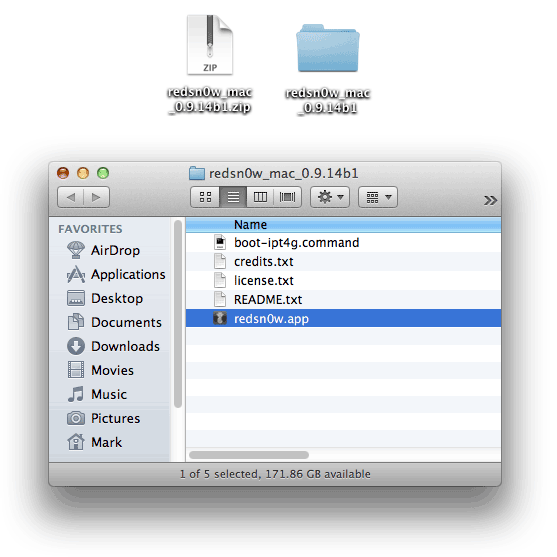
Decompress the .zip file and drag the redsn0w.app into your Mac's applications folder.
Step 2.
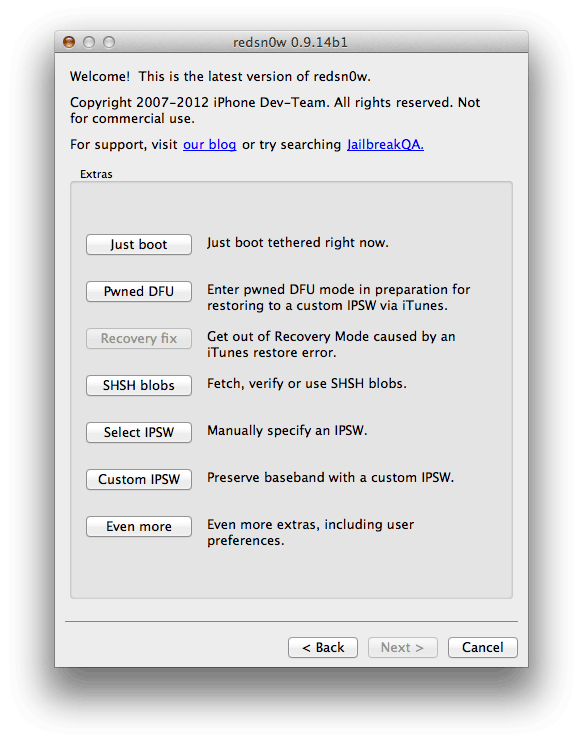
Launch redsn0w and click Extras.
Click Select IPSW.
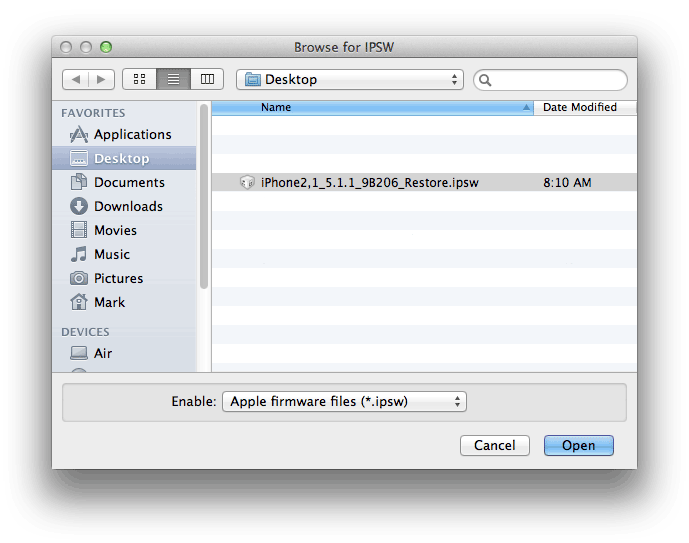
You will need to select the firmware version that is installed on your iPhone. This procedure will install the modem firmware that came with that firmware.
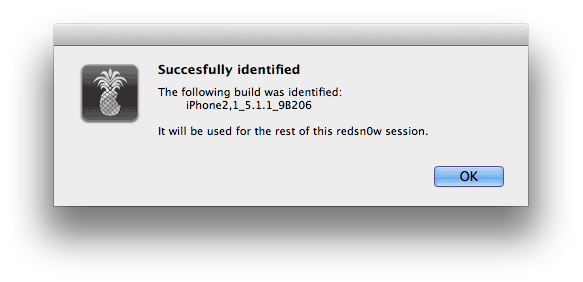
The firmware will be identified.
Answer this question next.

Shut off your iPhone normally. Click the Back button in redsn0w, then click Jailbreak. Another pop up will appear.

Check the Downgrade from iPad baseband box. Don't check the Install Cydia box if you already have it installed. Click Next.

You will then be guided through the steps to place your iPhone into DFU mode. Make sure your iPhone is off and plugged in to your Mac.

Hold down the power button.

Do not let go of the power button, now press and hold the home button.

Release the power button but continue holding the home button.
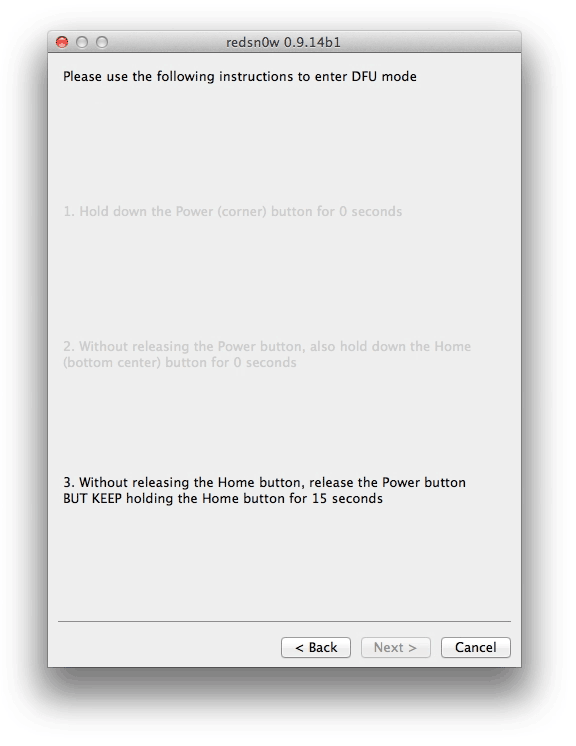
The iPhone will then be exploited with limera1n and reboot. The ramdisk will be uploaded and redsn0w will state that it is Done!
You'll see the PwnApple graphic on your iPhone and then you'll get to the "Flashing Baseband" stage. This can take up to 8 minutes! There will no feedback while this process is running. When it has finished the iPhone will reboot. You can then unlock using ultrasn0w.

Some important notes:
- You can upgrade your 3G and may be able to upgrade your 3G S to 06.15.00 modem firmware specifically for the purpose of downgrading it to 5.13.04.
- The iPad modem firmware is not compatible with the iPhone 3G S if it was manufactured in week 34 of 2011 or later. If you have an iPhone 3G S and the third through fifth digits of the serial number are 134 or or higher, then you can not do this.
- If you’re still using ultrasn0w after going back to 05.13.04 modem firmware, many people have reported that re-installing Mobile Substrate and/or ultrasn0w fixes crashes and a "No Signal" issue.
