Custom keypad dialer
Page 1 of 3Let's face it, the stock phone keypad is BORING looking. You can download themes on Cydia (in conjunction with WinterBoard) to spice up your dialing experience like this. This dialer is called Retro Phone Dialer.


But I want to show you how to put your own personal photo on your keypad, to achieve something like the images below. You can also change the numbers and letters (or move them) and get rid of the grid lines if you wanted. Each image will have its own instructions as they use a different approach.
This tutorial will be presented in three pages.
- This page will demonstrate the creation of the custom keypad dialer shown on the left. This is for the iPhone 3G S, iPhone 4 and iPhone 4S. It is called Method 1.
- Page 2 will demonstrate the creation of the custom keypad dialer shown on the right. This is for the iPhone 3G S. It is called Method 2.
- Page 3 will demonstrate the creation of the custom keypad dialer shown on the right for the iPhone 4 / 4S only. It is called Method 3.


Method 1: Step 1.
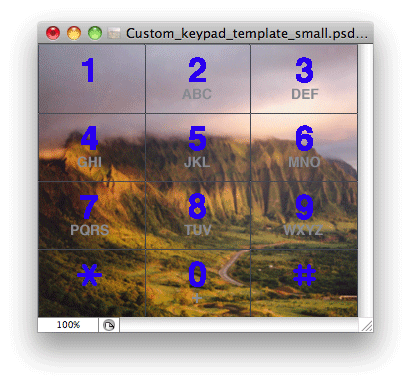
Find an image you want to use for your keypad. For the iPhone 4 it must be 640 by 546, for the iPhone 3G S it must be 320 by 273. You'll also need to superimpose the numbers for the keypad over your image, or you're going to have to guess where the buttons are.I've simplified this process by providing a template graphic that I created in Adobe Photoshop. I use Adobe Photoshop (you can get a free trial of this program), you could also use Adobe Photoshop Elements (which also has a free trial, and is less expensive option than Photoshop at $99). You can learn more about these trial versions at this page. The graphic is in PSD format for the iPhone 4 here, and for the 3G S here.
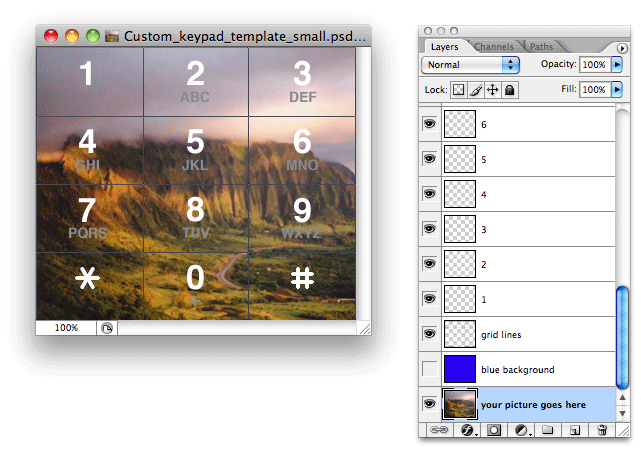
In this image you see the template file I provide with all the layers except for the "blue background" turned on. Your image goes on the "your picture goes here" layer. The "grid lines" layer divides the buttons. All other layers are self explanatory.
When you are done compiling your graphic, simply save it as a png file and name it dialerkeypad@2x.png for the iPhone 4, for the iPhone 3G S name it dialerkeypad.png.
If you would like to have your buttons turn blue when pressed as seen below...
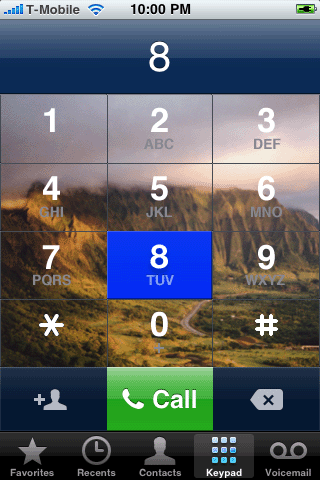
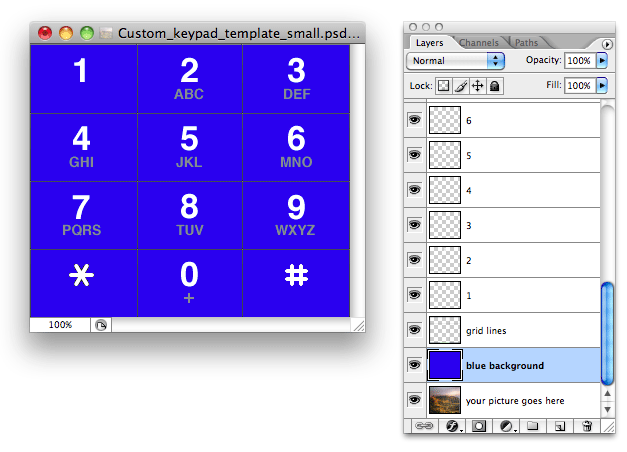
...Then turn on the "blue background" layer. Save this image as dialerkeypad_pressed@2x.png for the iPhone 4, for the iPhone 3G S name it dialerkeypad_pressed.png.
You can make it so the buttons do not change. To do this, duplicate your custom dialerkeypad@2x.png or dialerkeypad.png image and rename it dialerkeypad_pressed@2x.png or dialerkeypad_pressed.png depending on which iPhone you have.
There is one more option. You could make it so that just the number changes color when the button is pressed. When you try to change the color (on the iPhone 4 template) you will be prompted to rasterize the layer that the particular number or letter is on. You can do this safely.

To do this, go back to the template and make whatever changes you'd like to the numbers or the letters, and save this image as dialerkeypad_pressed@2x.png or dialerkeypad_pressed.png depending on which iPhone you have.
Method 1: Step 2.
Create the following folders: Custom dialer/Folders/MobilePhone.app Then place your files inside it. Note: you may want to wait until you've placed all your image files into the MobilePhone folder before adding the .app extension to it.
Place the Custom dialer folder into your iPhone's Themes folder.

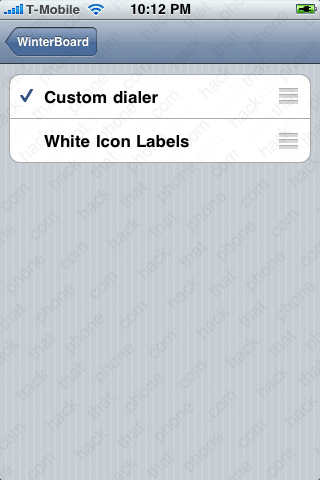
Launch Settings, go into WinterBoard and select your new theme.