iPhone 3G S hacker's flow chart
Updated: May 7, 2010When you have to make a flow chart to keep track of how to customize your cell phone you know Apple is really trying to make it difficult on us on jailbreakers and unlockers. If Apple put as much time, money, and energy into adding useful features into the phone instead of worrying about jailbreakers and unlockers, imagine how amazing the phone might actually be by now? This chart only applies to the 3G S model of the iPhone. I'm sure it will continue to grow in complexity...
As of February 2, 2010, Apple stopped signing 3.1.2 firmware. This means if you do not have an ECID SHSH on file with Cydia, or have not used Umbrella to obtain it, then you are stuck restoring to 3.1.3 firmware. You will of course not have an unlock available to you since the modem firmware will be updated when restoring to 3.1.3.
Note: The flow chart below is intended to provide a general overview of the jailbreaking and unlocking scene. For more detailed information as it pertains to your iPhone, consult my various Step 1 tutorials in the Start here menu.
Following this flow chart is ALWAYS at YOUR risk.

Note 1:
See Saurik's site for more information. Get your ECID SHSH on file with Cydia as soon as possible. This enables you to either downgrade your main OS firmware, or simply stay on an older firmware that Apple is no longer signing. While you can use an ECID SHSH to downgrade your main OS firmware, it will not downgrade your modem firmware (baseband). When you have an ECID SHSH on file with Cydia, Cydia will display this message toward the top of the screen. In my example I have multiple ECID SHSH's on file.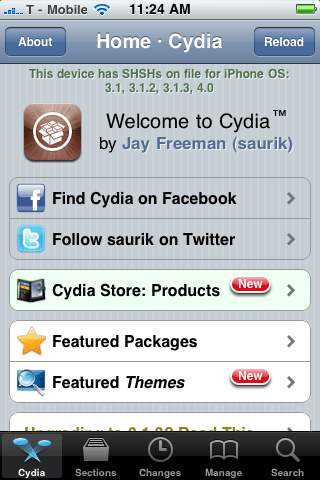
Note 2:
It is unclear whether past use of purplera1n to generate a certificate for your iPhone, or obtaining the ECID and iBEC and iBSS files in the past will help you in the future.Update: There is a Windows only method available for downgrading to 3.0 firmware. This will do nothing for your baseband of course. You must have used the program iBEC and iBSS Grabber from this site while 3.0 firmware was still being signed by Apple. You must have saved ALL FOLDERS AND ALL FILES, not just the iBEC And iBSS! You do not need to have an ECID SHSH on file with Cydia. Read more about this method here.
Note 3:
The question was raised what if Saurik's server should go down for whatever reason (like it did around the release of the Spirit jailbreak on May 3rd.) Cydia users now see this message at the top of the screen. Pretty unhelpful if you need to restore your iPhone 3G S right now to an older firmware, isn't it?
A programmer by the name of Semaphore addresses this issue with a program he created called Umbrella. You can now acquire your saved ECID SHSH files from Cydia, or from Apple and store them on your own computer. You can also configure iTunes so that it will verify any restores you need to perform without having to redirect to Cydia for assisstance. This program will also create the ECID SHSH file. I have written a tutorial based on this method here.
Read this thread, and this thread for more information. To learn more about the iTunes verification process, read this article by iGuru.
Note 4:
If you have a new iPhone 3G S (purchased within the last week or so as of October 13, 2009) it may have a newer version of iBoot. This updated iBoot (359.3.2) prevents the jailbreak from working. There is currently no work around for this, but the iPhone Dev Team is looking for other exploits.You may be able to check prior to purchase by looking at the serial number of the phone. This may not be a definitive check. Look at the fourth and fifth digits. This is the week the phone was manufactured. If that number is 40 or higher than you just might have this new iBoot.
Here is how you definitively check your iBoot version. Place the iPhone into DFU mode: have the phone connected via USB, turn it off. Press and hold the Home and the Sleep/Wake buttons for ten seconds. Then let go of the Sleep/Wake button and continue holding the Home button for 10 seconds. The screen will appear black but it will be on.
Click on the Apple in the top left corner of your screen. Select About This Mac. Click the More Info... button on the pop up that appears. Under the Hardware menu select USB. Now go to the USB High-Speed Bus menu and look for the Apple Mobile Device (DFU Mode). In the Serial Number field look for SRT:[iBoot-XXX.X]. Your version number is here. My version, pictured below, allows the jailbreak to function. To leave DFU mode, simply continue holding the Home and Sleep/Wake buttons until the iPhone reboots.
Update: Blackra1n now provides a tethered jailbreak solution for this new version of iBoot. It may not work for everyone however. What does a tethered jailbreak mean? It means once you have jailbroken, should your battery die, the iPhone crash or lock up, you will need to run the jailbreak process over again with a computer. I don't have one of these new 3G S iPhones, so I can't write about this myself. Go to GeoHot's site to download the program.

