Using a non-iPhone data plan for data.
This no longer works under version 2.1 of the iPhone Configuration Utility. Looks like Apple and/or AT&T is blocking this now. It does work with version 2.0. I verified both versions of this program. You will have to Google for version 2.0 of this program. It is Apple proprietary software and I will not provide it. You may want to stop by BenM.at as there is an online mobile configuration utility program there.
Since 3.0 firmware came out (yes it still works on 3.0.1, at least on my 2G), those of us (myself included) who use AT&T GoPhone SIMs (pay as you go cell phone service), have been greeted with this message when trying to surf the 'Net:
This was done to encourage us to purchase official contracts for iPhones, and make more money for AT&T on their expensive iPhone data plans.
A reader told me about this article he found discussing how to use the iPhone with a pay as you go AT&T SIM on 3.0 firmware and still be able to access data, without an official iPhone data plan. I tested this on my 2G, and 3G iPhones using my GoPhone SIM and it works. It is a very expensive way to browse the 'Net, but if you have a data plan with your pay as you go SIM, it probably won't cost you as much. The link to the article in question is here.
This hack works on the 2G and 3G iPhones. I was unable to add this to my 3G S for whatever reason. One person has confirmed in that thread that this does work on the 3G S as well.
Step 1.
Download the iPhone Configuration Utility 2.0 from Apple if you can find it. The link here is for 2.0 but Apple forwards this link to version 2.1 Download 2.1 here.Step 2.
Launch the program (it's in your Applications/Utilities folder). Click on Configuration Profiles, under the Library header to the left, then scroll down the list to the right to Advanced.Enter the following information in the boxes:
- Access Point Name (APN): wap.cingular
- Access Point User Name: WAP@CINGULARGPRS.COM
- Access Point Password: CINGULAR1
If you go back up to General, you can give your profile a name. I didn't bother.
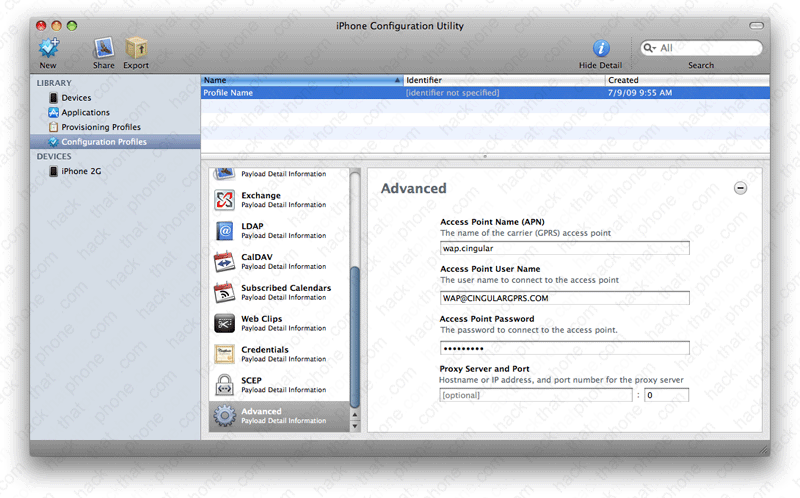
Now click where it says iPhone 2G, under the Devices header to the left. Look to the right and make sure you are in the Configuration Profiles tab. Click the Install button next to Profile Name.

Step 3.
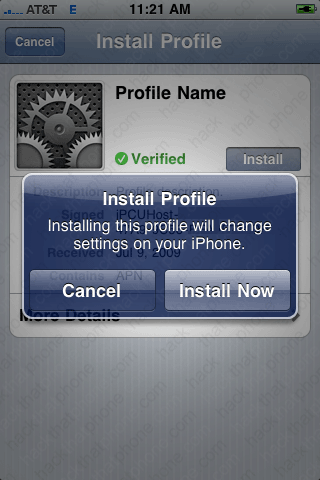
This screen will appear on the iPhone. Press Install. Press Install Now.
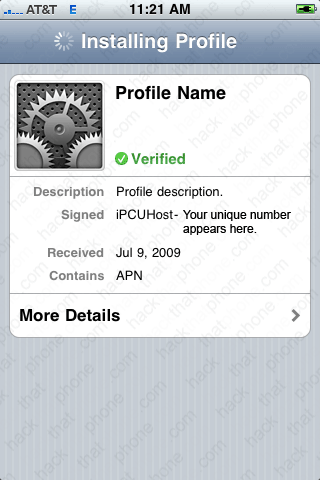
It will take a few seconds to install. Press the Done button.

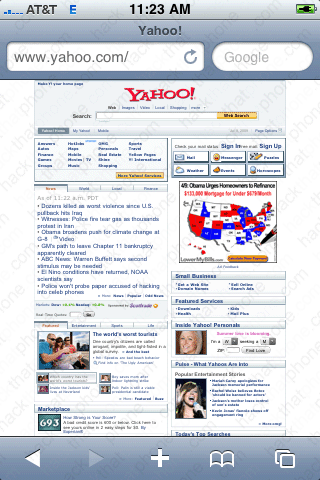
Launch Safari and it will load a site. Ouch!

Step 4.
To uninstall this go to the iPhone Configuration Utility. Click the Remove button next to the Profile Name (or whatever you called it).
Confirm the removal of the file and you are done.

