Unlocking the 1st generation iPhone using PwnageTool in Expert mode
Updated: March 4, 2010Page 1 of 2
Who is this guide for?
- All 1st generation iPhones, unlocked or not.
- Any firmware version.
- Make sure to Sync your iPhone prior to using this tutorial. This way your personal information, and any App Store applications will be preserved.
- Pwned (previously jailbroken) or not.
- I used iTunes version 9.0.3.
- I used OS X 10.6.2
Thanks again go out to the iPhone Dev Team for providing this amazing, and FREE program for jailbreaking, activating, unlocking, and customizing the 1st generation iPhones. You can visit their website here, and their blog here.
Step 1.
Download PwnageTool 3.1.5 from the iPhone Dev Team's download link list here.Download the 3.9 and 4.6 bootloaders from the Internet. You'll have to find them yourself, I won't provide them.
If you haven't already downloaded 3.1.3 firmware from Apple, then you can download it here. Note: Safari likes to open "safe" files by default. You must turn this feature off for this download to work correctly. Click "Safari", select "Preferences", from the "Geneal" tab uncheck the box that says "Open "safe" files after downloading". Otherwise just use Firefox to download this firmware file.
You should now have these three icons on your desktop. If your firmware file ends in .zip, then click on the firmware icon and remove the .zip extension from the file name. Confirm this change when you receive a pop up message warning.

Step 2.
It is best to shut down iTunes and iTunes Helper to alleviate any potential problems later on. You can do this by going to your Applications folder, then into the Utilities folder. Launch a program called Activity Monitor.app. Here are the programs highlighted below. You can only close them one at a time.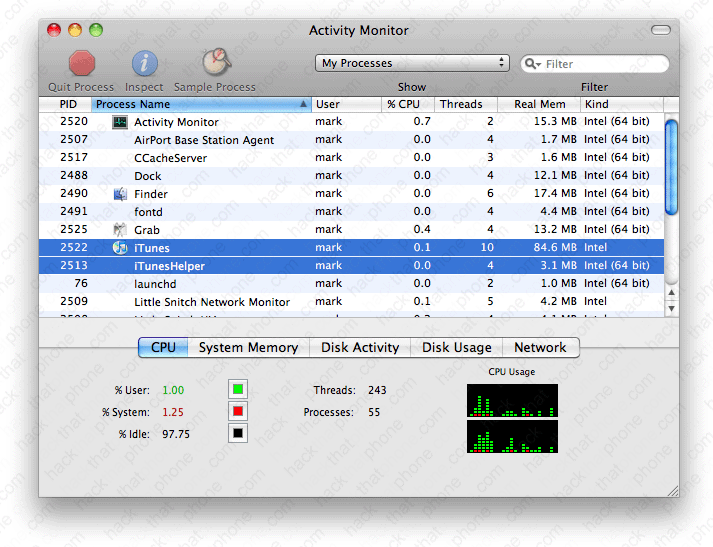
When you've highlighted the program you want to close click the Quit Process button up above. Next confirm this action by clicking Quit.

Step 3.
Double click the PwnageTool_3.1.5.dmg. It will open the window seen below. Install PwnageTool. Make sure to drag the program icon from the disk image into your Applications folder! Do not attempt to run the program from the disk image window, it will cause problems. If you have a previous installation of PwnageTool, then overwrite it.
Step 4.
Launch PwnageTool. Make sure the Expert mode button in the top left corner is selected. Click the iPhone on the left.
You should get a green check mark on the iPhone you selected. Click the blue arrow button in the lower right corner.
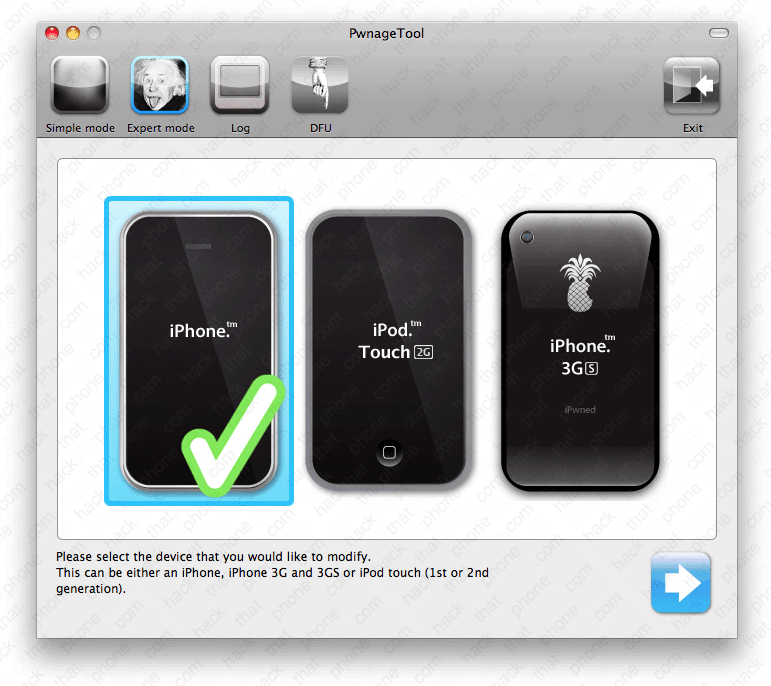
PwnageTool will search for the 3.1.3 firmware on your computer. When it displays the firmware file, click on it. Multiple firmwares may be displayed, so make sure you select the correct one. Then click the blue arrow in the lower right corner.
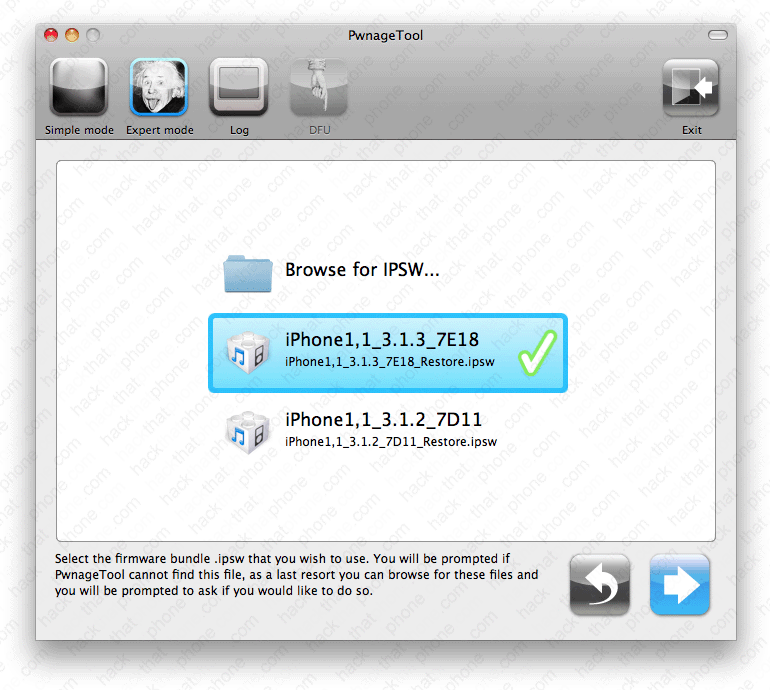
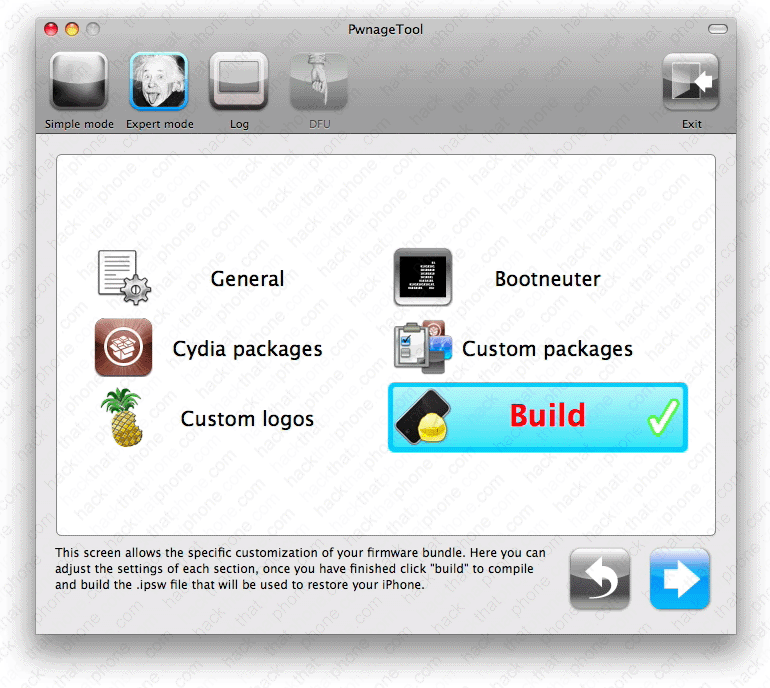
You will be at this screen and have many choices you can make. Click on General. Then click the blue arrow at the bottom.
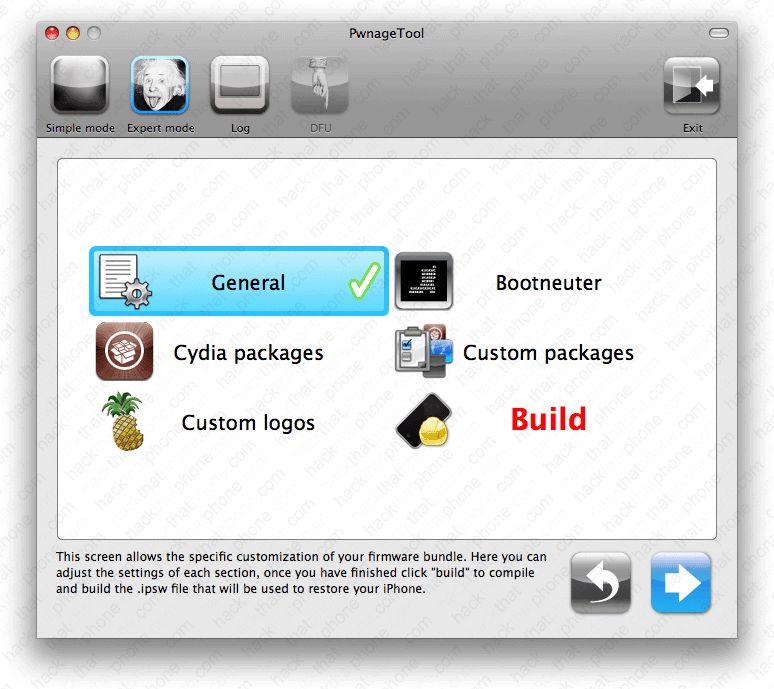
At the General Settings screen, if you are using an authorized carrier, then do not check the box for Activate the phone. If you are not using an authorized carrier (i.e. you want to unlock), then check the box for Activate the phone. Note: Push notifications do not work on hacktivated iPhones.
You can also increase your root partition size to accommodate lots of Cydia applications and themes, et cetera. Click the blue arrow in the lower right corner when you have made your choice(s).

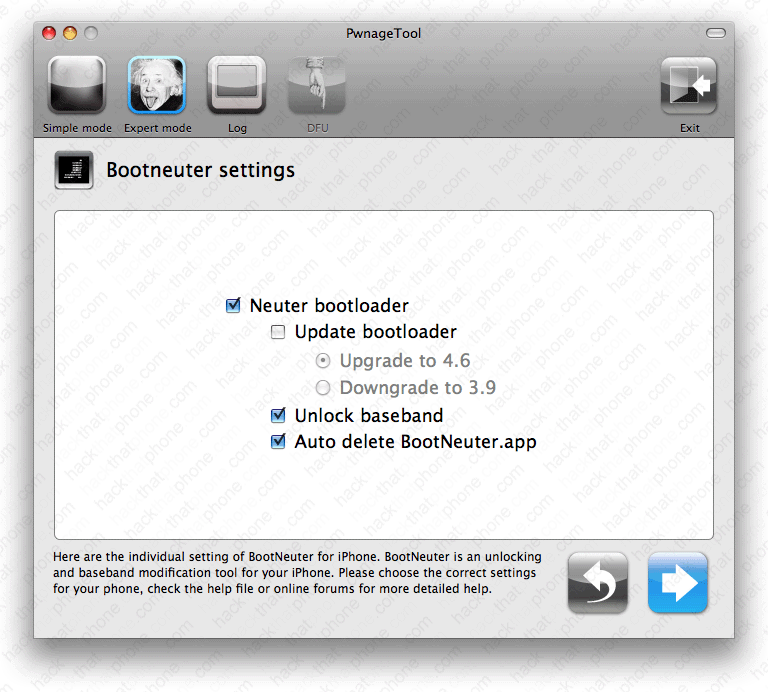
At the Bootneuter settings screen, and only if you want to unlock, check Neuter bootloader, check Unlock baseband, then check Auto delete BootNeuter.app. Click the blue arrow in the lower right corner.
Based on Saurik's advice (the creator of Cydia), I ignore the Cydia settings screen in PwnageTool. It is better to install any applications you need from Cydia directly. I've found problems when using this screen to automatically install programs. This does not mean that you can't install programs from this screen. Keep in mind if you add a lot of them you may need to increase your root partition size back at the general settings screen. Just click the blue arrow in the lower right corner, to continue to the next screen.

Here you can decide whether or not to install Cydia. After you've made your choice, click the blue arrow in the lower right corner.

At the Custom logos settings screen, you can choose to use the suggested images by leaving their boxes checked, or uncheck them and use the stock images. If you check the boxes you can click on Browse... to add your own images in their place. Click the blue arrow in the lower right corner when done.
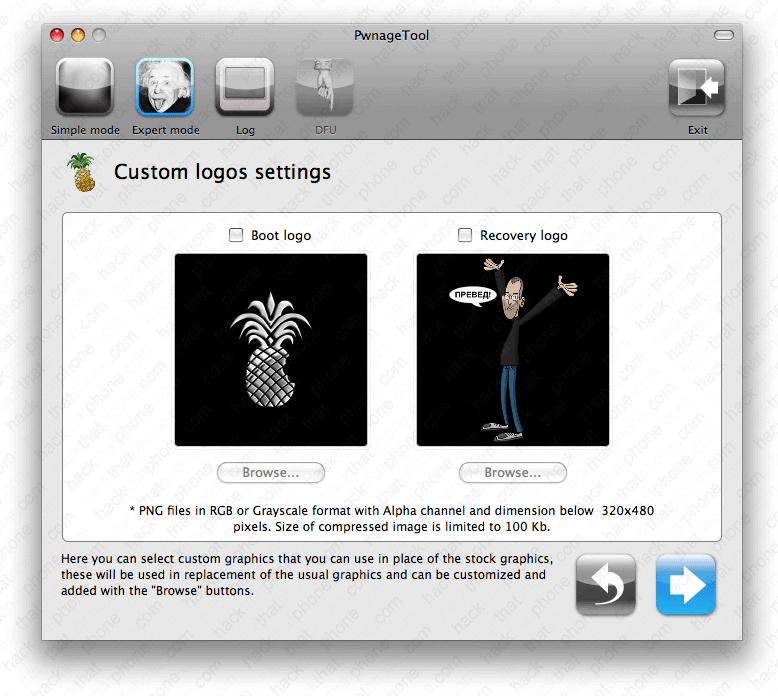
Here is the boot graphic I like to use. It is 320 by 480 in size. It has a one pixel, transparent border on all sides. All you have to do is paste in your 318 by 478 image onto it and center it. Then just save the image with the transparency intact and your image will work. Make sure your saved image is 100kb or less.

Finally, click the Build button and the blue arrow in the lower right corner.
|
If this is your first time hacking the iPhone, the following instructions (within this bordered
area) may apply to you.
You will receive a pop up warning if the 3.9 version bootloader is not found. Answer No to this question. 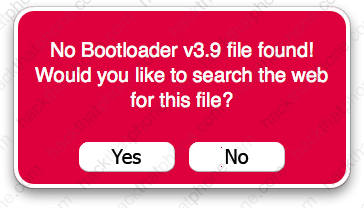
You will then be asked if you would like to browse for the bootloader. Answer Yes. 
Now navigate to where you saved the two bootloader files from Step 1. Select the BL-39.bin file and click Open. 
You will receive a pop up warning if the 4.6 version bootloader is not found. Answer No to this question. 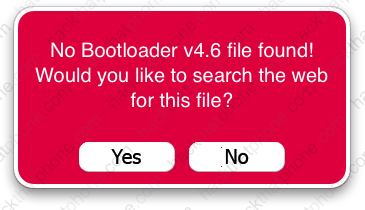
You will then be asked if you would like to browse for the bootloader. Answer Yes. 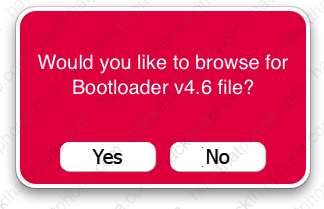
Now navigate to where you saved the two bootloader files from Step 1. Select the BL-46.bin file and click Open. 
|
Name your custom firmware file, and select where to save it.

You will now see this screen while your custom .ipsw is assembled. This stage is about four minutes long.
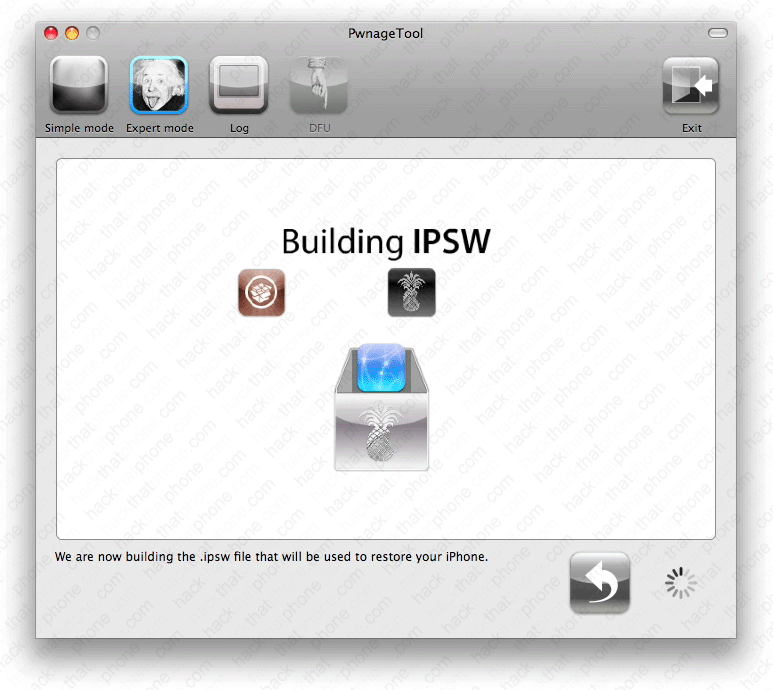
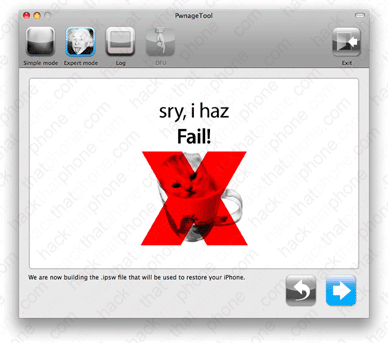
If you should receive a failure message, then start over. Close and restart the PwnageTool program.
You will be prompted to enter your system password. There is nothing nefarious in this request, the reason it is asking is because it is creating your firmware and running commands as the root account (or superuser) on your computer. There are various processes where unmounting and mounting of a file systems is necessary. This is performed while using a system UID of 0 which causes the prompt for a system password. The root access is only for the creation of the ipsw file. So it's completely harmless.

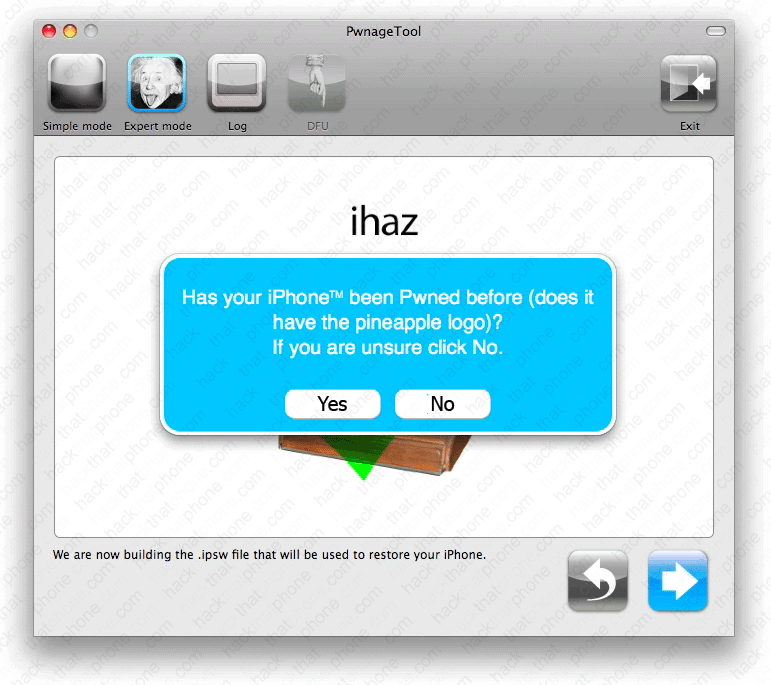
Has your iPhone been Pwned before? If you answer no, then you will be guided through placing the iPhone into DFU mode.
If you answer yes, you will be told to place the iPhone into recovery mode and then connect to iTunes to use your custom firmware. If you do decide to answer yes, I find it much easier just to leave the iPhone on and operating normally. Connect it to iTunes, then press your Option key on your keyboard then click the Restore button in iTunes to install your custom firmware. In fact the iPhone Dev Team recommends that if you are already jailbroken (by any method) don't bother with DFU mode.
I am selecting no at this point to demonstrate how to get into DFU mode.
First turn off your iPhone. iTunes may open (it won't if it wasn't running before now), you can just drag it out of the way.

You will then have 5 seconds to press and hold both the Power (sleep/wake) and Home buttons. Don't do this until told to though.
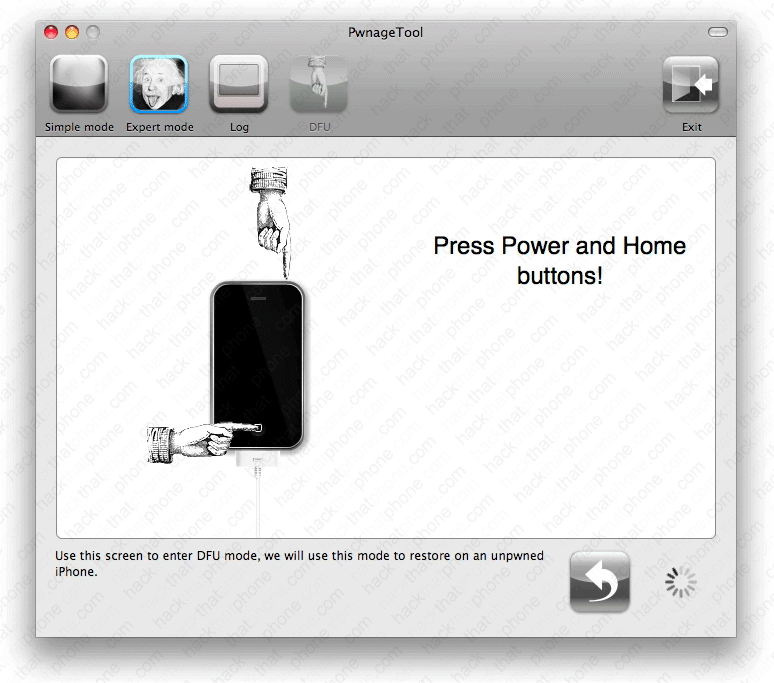
You will then press and continue to hold both the Power (sleep/wake) and Home buttons for 10 seconds.
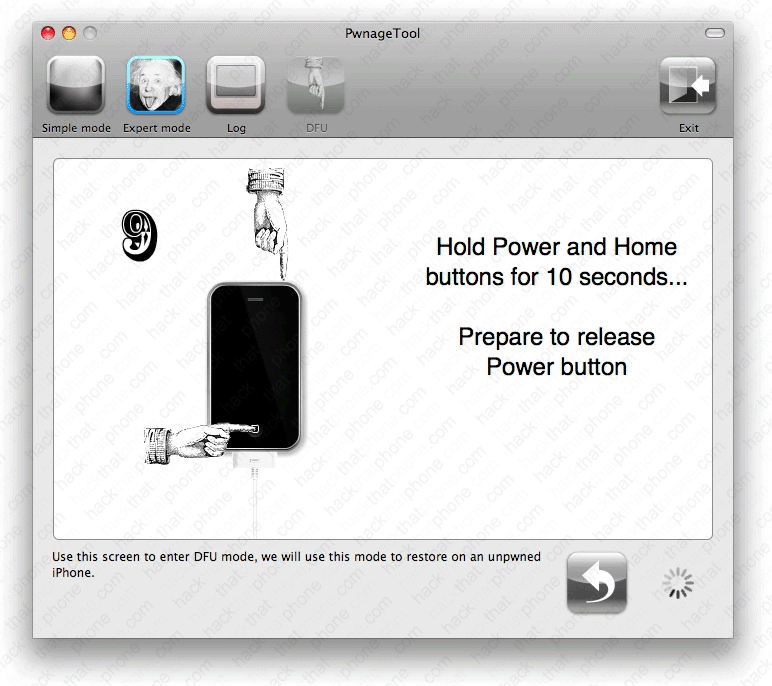
You will be prompted to release the Power (sleep/wake) button.
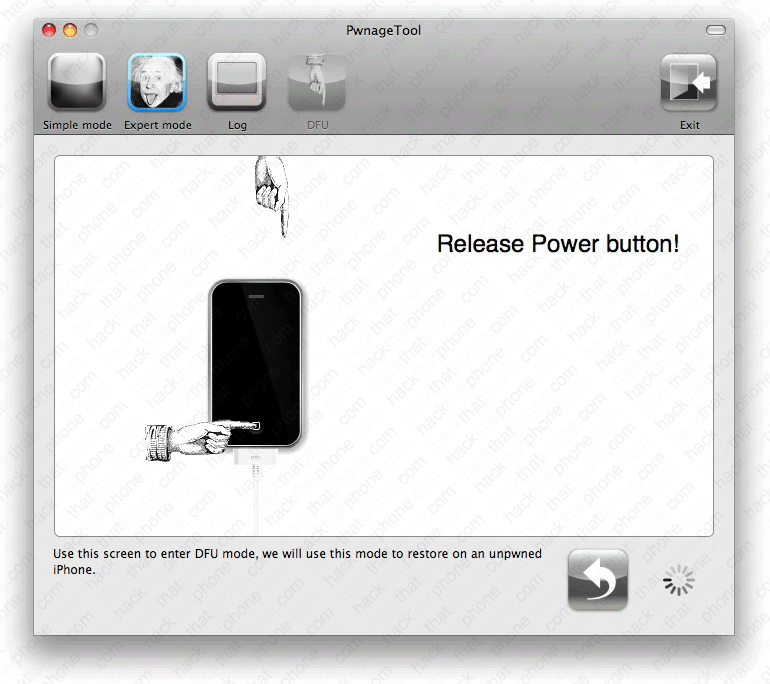
Continue holding the Home button for 10 seconds.
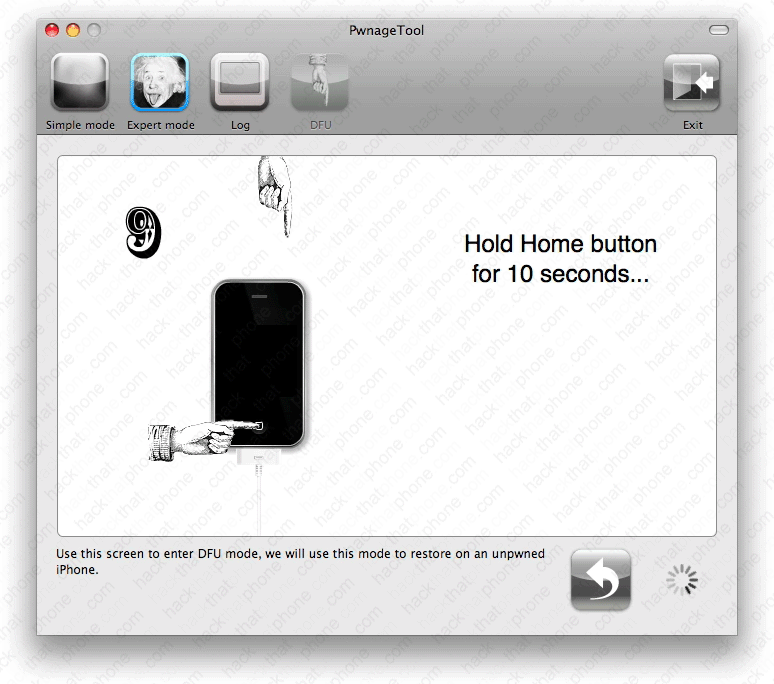
You are now in DFU mode. Click OK. The iPhone's screen will appear black, but it is actually on.

