How to change any graphic with a custom one
Note: This tutorial should only be used if you do not intend to use Cydia, or WinterBoard. These two programs make this tutorial a less preferred method.
You can change most any graphic on the iPhone with any other graphic you want provided the dimensions are the same and you use the .PNG format with a transparent background. The instructions are the same for any graphic you want to change, the only difference is the path on the iPhone where the graphic must go. I've compiled a partial listing of the various graphics on the iPhone right here. The graphics in this list are right off the iPhone. They are the correct size and in the correct format so you can use them if you want without a problem. You should always make a backup of any graphic before replacing/overwriting it.
Attention
I will be using Fugu to upload the files in this tutorial. These instructions can be applied to any files you want to add to your iPhone, provided you already have SSH installed. If you have not installed OpenSSH, or used Fugu before, then you must read this tutorial first.One of the most popular graphics to switch out seems to be the AT&T carrier name at the top of the screen. In this case there are two versions of this logo: one in white that looks good on dark backgrounds, and one in black that looks good on white backgrounds.


Here are some operator graphics I found floating around the 'net. I try to list the name of the creator when it's available. If you have graphics you want to submit, send them my way and I'll post them right here and give you the credit for it. Click the images below to download the files for that design. You could also check Cydia for these graphics. They are kept in the themes sections.
Click to download any graphic.
 designer unknown
 by MirrorminD
 by Britna
 by JakeyBoy
 by Sassha
Here are the stock graphics on the iPhone for AT&T, Cingular, T-Mobile and Vodafone.
Click to download any graphic.


If you download the stock carrier graphics above, you'll see there are two images. The image in black is called Default_CARRIER_ATT.png (substitute ATT for Cingular, T-Mobile or Vodafone as needed), the image in white is called FSO_CARRIER_ATT.png (substitute ATT for Cingular, T-Mobile or Vodafone as needed).


Step 1.
Depending on what carrier you use on your iPhone, ensure your replacement graphics match the carrier name. If you are someone who uses multiple SIMs in your iPhone, you'd need to swap out every pair of carrier graphics with your custom ones, otherwise they will default to the stock graphic when you swap SIMs.Launch Fugu. Navigate to the /System/Library/CarrierBundles/ folder. Depending on which carrier you use, go into that folder and swap out your new graphics. If you are in the U.S. and want to use T-Mobile and change the graphics, you must go into the T-Mobile_Germany.bundle folder.

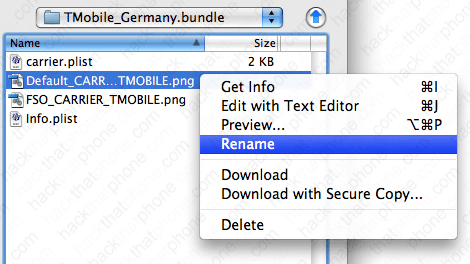
First let's rename the original graphics so we can undo what we are changing, just in case. Right click the first png and select Rename.
I appended a _1 to the original file name.

Now right click and select Rename for the other png.
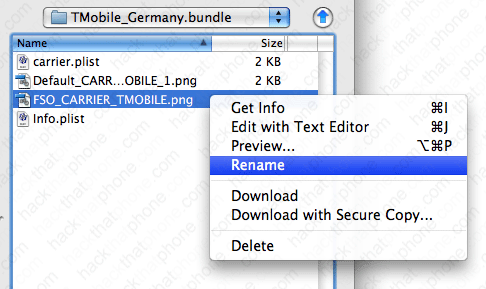
I appended a _1 to the original file name.
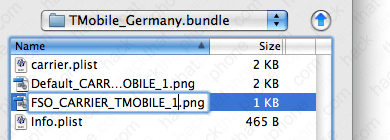
Now just drag your new graphics files into this folder. At the pop up message select Overwrite All.

Your folder should now look like this.
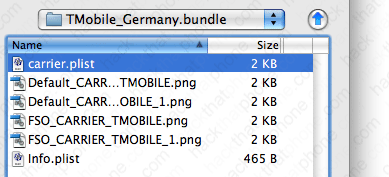
Now either turn your iPhone off and then back on, or use SBSettings to respring the iPhone so you can see the changes.
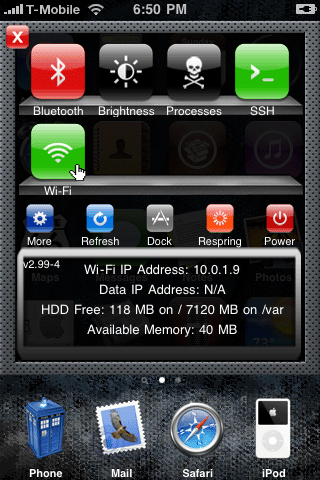
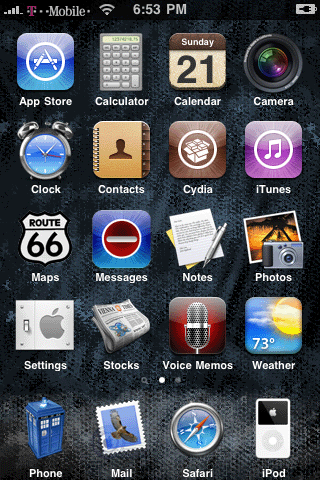
If you want to change the graphics for the AT&T carrier, repeat the above steps, but use the ATT_US.bundle folder.
Ok, let's switch out a couple more graphics...
I'm going to show you how to change a couple SpringBoard icons now. Here's the tricky part, most applications on the iPhone use the name icon.png for the icon that you see displayed on the SpringBoard. There are exceptions to this rule, so make sure to read the end of this tutorial for the list of icons that appear by default on the iPhone.
Step 1.
The best way to deal with changing out a lot of graphics, is to make subfolders for each application and put those into whatever folder you'd care to organize them in.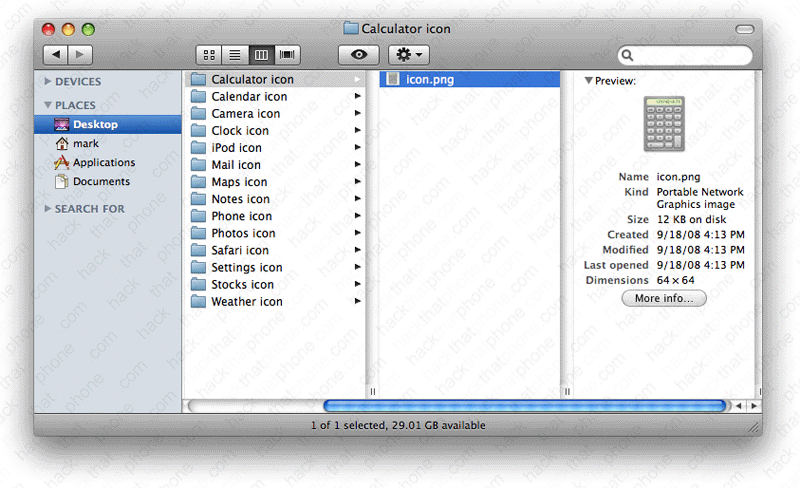
Step 2.
Launch Fugu. I've navigated to my calculator folder on the left, and to my /Applications/Calculator.app folder on the right. Just drag and drop the icon.png file over. Keep in mind, you will be overwriting the original graphic. My graphics location page has the original icons for the default applications on the iPhone.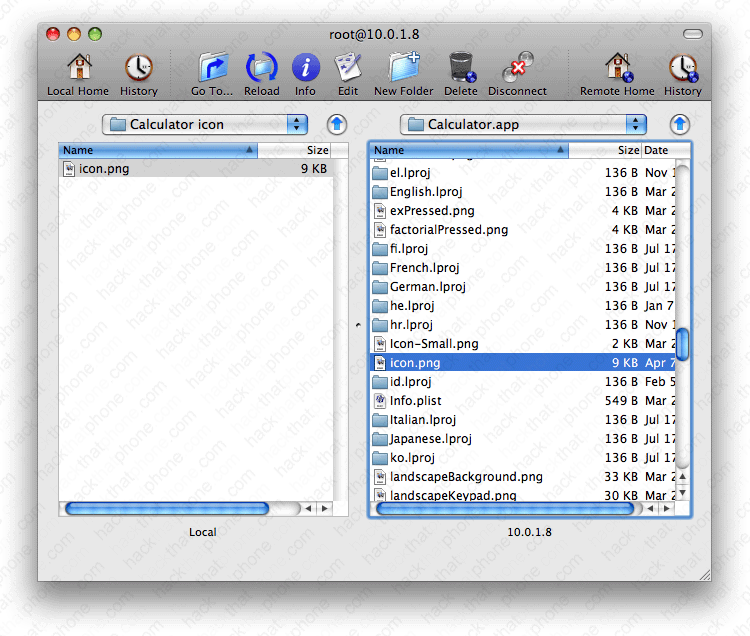
Now confirm the replacement by clicking "Overwrite".

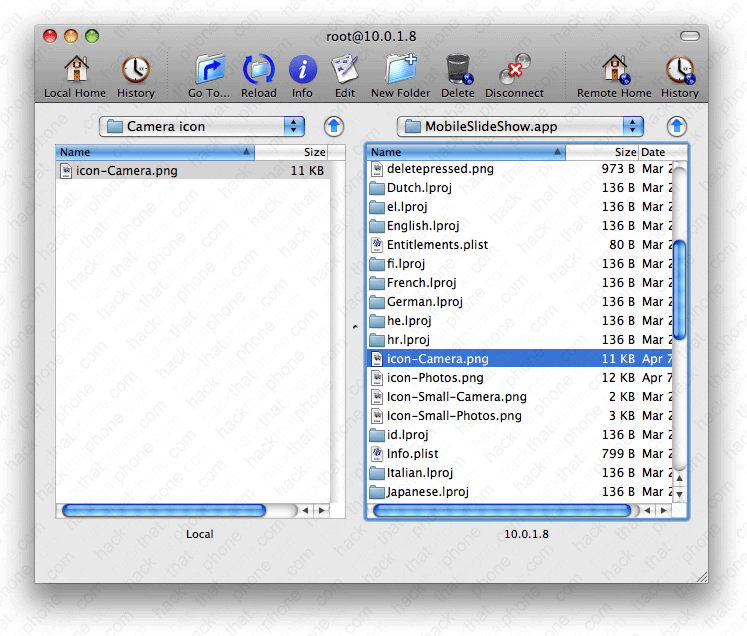
Now just repeat the process. In this screen shot I'm in my camera folder, and the /Applications/MobileSlideShow.app folder. Note, this is one of the exceptions the rule, this is where the camera icon and the photos icon go. Neither one of them is named icon.png.
After a few other overwrites, here's what my before and after of my springboard look like. This is very simple!


Here are the locations of all 20 icons that are on the home screen and dock:
/Applications/AppStore.app//Applications/Calculator.app/
/Applications/Maps.app/
/Applications/MobileAddressBook.app This is the Contacts program
/Applications/MobileCal.app/ This is the calendar.
/Applications/MobileMail.app/
/Applications/MobileMusicPlayer.app/ icon-MediaPlayer.png is the iPod.
/Applications/MobileNotes.app/
/Applications/MobilePhone.app/
/Applications/MobileSafari.app/
/Applications/MobileSlideShow.app/icon-Camera.png
/Applications/MobileSlideShow.app/icon-Photos.png
/Applications/MobileSMS.app/ This is messages.
/Applications/MobileStore.app/ This is the iTunes store.
/Applications/MobileTimer.app/ This is the clock.
/Applications/Preferences.app/ This is settings.
/Applications/Stocks.app/
/Applications/VoiceMemos.app/
/Applications/Weather.app/
/Applications/YouTube.app/
