How to tether the iPhone
Updated: October 26, 2009Page 1 of 3
| Note: This will be the last ever update to this tutorial. Why? As of November 2009 I have cancelled my AT&T iPhone contract, because I can't afford it any more. This decision will also affect other tutorials like this that are unique to having AT&T service. |
Tethering is using your iPhone's EDGE or 3G Internet access to allow your computer to access the Internet when no Wi-Fi is available.
Be warned! This hack may violate your AT&T Terms of Service for your contract. Please check before attempting this procedure.
The question that arises when people hear about this hack is, how does AT&T know you are tethering? AT&T can tell by examining the packets transferred through the iPhone. They can determine how the header is assembled, and they also note sustained data transfers and connections to chat servers as dead giveaways.
There are three pages to this tutorial. Page 1 is for those on 3.1.2 firmware and who want to use a USB connection to tether with. Page 2 is for those on 3.0.1 or lower firmware who want to use a USB connection to tether with. Page 3 is for everyone that wants to use BlueTooth to tether with.
|
Additional resources should this tutorial not work for you:
There is also an iPhone formatted site you may want to visit for tethering (when you don't have
access to a computer)
here.
You may also want to visit this site to try out their custom ipcc generator. It is only for those who are not using an official service provider, or who have a factory unlocked iPhone. There is another mobileconfig generator site here. |
For those on firmware 3.1.2 use the following instructions.
Ever since 3.1 firmware came out, we have been left out in the cold when it came to tethering as the ipcc files are now signed. A hack was discoverd by "CleanAir" when looking in the CommCenter file. Here is a post from the iPhone Dev Team on this method. My tutorial will be based on this article.w1kedZ came up with an important fix to the mobile configuration profile not allowing visual voicemail to work. You can read his article on this here.
An even simpler method of performing this hack may appear on Cydia in the next few days. Who knows?
Step 1.
Download the appropriate CommCenter patch file from the iPhone Dev Team's article here. You should now have a zip file. Decompress it and you'll have a folder. Drag the file out of the folder and onto your desktop. For this tutorial I am using a 3G S, you could also download the 3G file to do this.
Step 2.
Login to your iPhone using an SSH client (like Fugu). If you don't know anything about SSH, then read this tutorial. Navigate to your /System/Library/PrivateFrameworks/CoreTelephony.framework/Support/ folder. Drag the file CommCenter to your desktop. It will copy it here when you do this.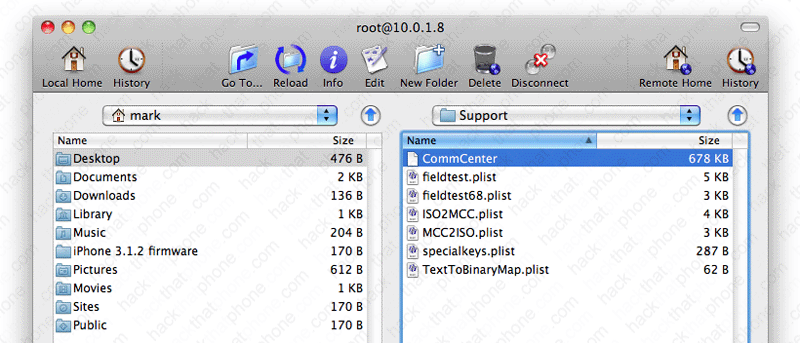
You should now have this icon on your desktop. Yours may appear different.

Step 3.
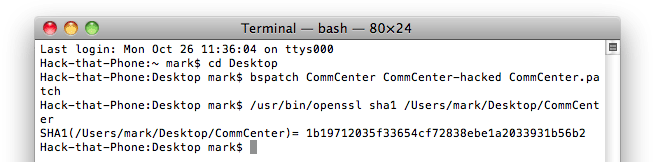
On your Mac, go to your Applications folder, then go inside the Utilities folder. Launch the Terminal.app program. Enter the following commands into the Terminal, pressing return after each:
cd Desktop
bspatch CommCenter CommCenter-hacked CommCenter.patch
bspatch CommCenter CommCenter-hacked CommCenter.patch

A new file will be created on your desktop called CommCenter-hacked. Delete the CommCenter, and CommCenter.patch files. Rename the CommCenter-hacked file to CommCenter. The CommCenter icon may appear different than the original.

MuscleNerd recommends performing an integrity check on the hacked CommCenter file before uploading it. You do this by verifying the SHA hash of the file. To do this, go to your Terminal window and enter the following:
/usr/bin/openssl sha1
Put a space at the end of that, then drag the CommCenter file into the Terminal window. Press enter and you will receive an alphanumeric string. It should display this if you used the 3G S file. If you used the 3G you will receive this string: 063165c3fa3e21d30eb4b486fab924ba3ef0ea5e
Step 4.
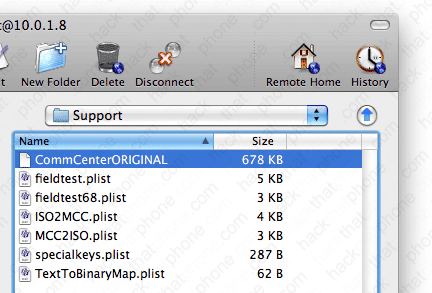
Go back to Fugu and right click CommCenter and select Rename.
I appended ORIGINAL to the end of the file so if I could easily switch back to this version later.
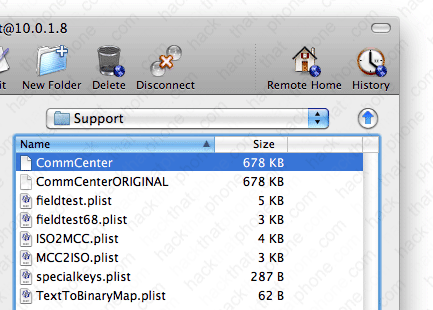
Drag the CommCenter file from the desktop into Fugu. You should now have two CommCenter files.
Right click CommCenter and select Get Info.
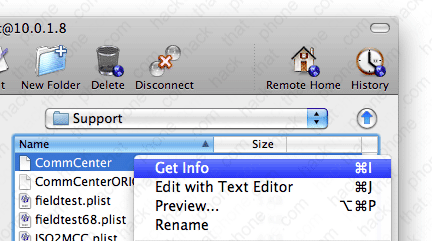
In the pop up window that opens, make sure your check boxes match these. You should also see the number 0755 below this. Click the Apply button.

Step 5.
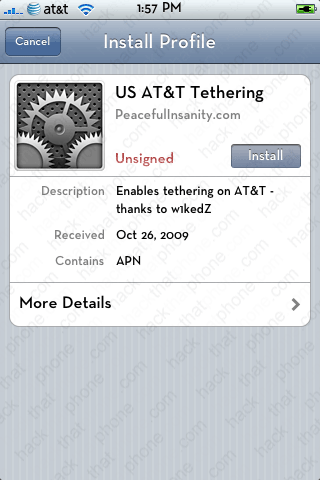
Launch Safari on your iPhone and go to this address: http://m.peacefulinsanity.com/Tether.mobileconfigYou will be prompted to install a profile. Press the Install button. Then confirm that you want to do this by pressing Install Now at the pop up screen. It will then say installing for a few seconds. When it has finished press the Done button.
You may need to reboot or at least respring your iPhone for the changes to take effect. For the record, I'm using the AT&T 5.6 carrier file.
You could also download the mobile configuration file from w1kedZ's site and use the iPhone Configuration Utility to install it (or reconfigure it).

Step 6.
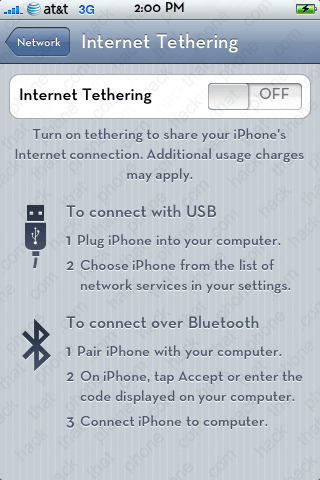
Make sure your USB cable is plugged in. On the iPhone launch Settings. Press General, Network and turn your 3G on and then press the Internet Tethering button. Slide the Internet Tethering slider to ON.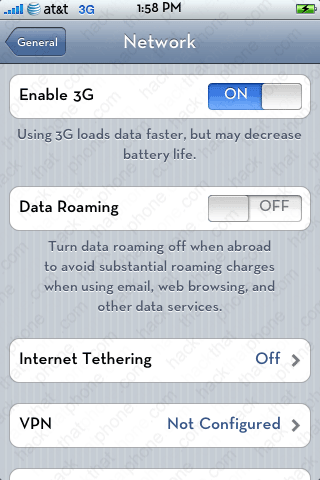

I selected USB Only. You will see a blue bar at the top of the screen when you are tethering.

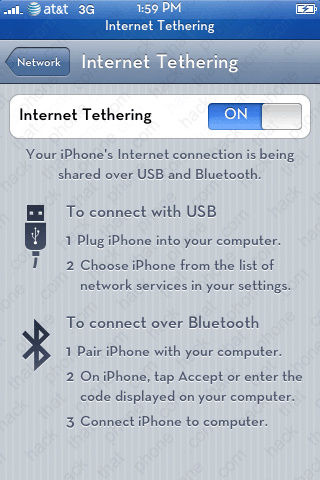
Make sure your Airport is turned off on your Mac, then surf to a website. Look at that, it works!
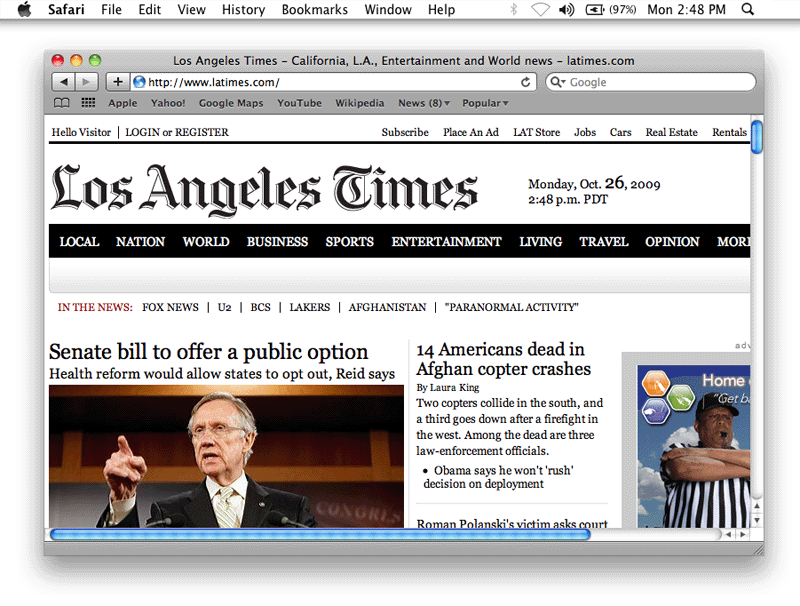
Yes, visual voicemail still works. You will be able to receive a call while tethering. MMS still works.
Don't forget to slide the Internet Tethering slider to OFF when you are done!
Unfortunately your tethering data usage is lumped in with your normal cellular network data statistics. You can check this by launching Settings, pressing General, then pressing Usage.
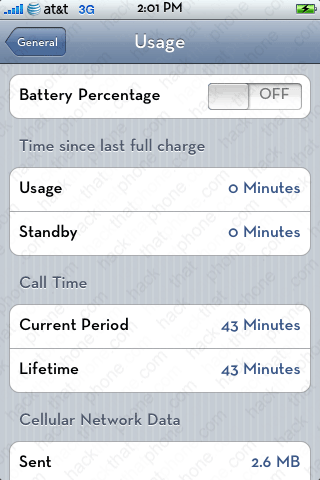

Previously I had used the AT&T 6.0 carrier file created by StealthBravo and I was able to see my tethering statistics. Since using the method I have just described, even after updating my carrier file from 5.6 to 6.0 it doesn't display this information anymore. Here is what it used to look like. You can download the custom 6.0 carrier file here. If you want to use my previous tutorial to try recreate what I had done then click here.


If you want to see how to set this up over BlueTooth, then continue on to page 3 of this tutorial by clicking here.
For those of you using 3.0/3.0.1 firmware click here for tethering instructions.
