Unlocking the 3G iPhone using redsn0w
Updated: July 20, 2009Page 1 of 2
Who is this guide for?
- All 3G iPhones.
- Any firmware version up to 3.0. You will be updating (if you've never jailbroken before) or restoring (if currently jailbroken) to 3.0 firmware first. Then you jailbreak.
- Make sure to sync your iPhone prior to using this tutorial. This way your personal information, and any App Store applications will be preserved.
- Pwned (previously jailbroken) or not.
- Requires iTunes version 8.2, or greater.
- I used OS X 10.5.7.
Thanks again go out to the iPhone Dev Team for providing this amazing, and FREE program for jailbreaking, activating, unlocking, and customizing the 1st generation and 3G iPhones. You can visit their website here, and their blog here.
Step 1.
Download redsn0w from me here, or via the iPhone Dev Team's blog post here.Screenshots below will depict redsn0w version 0.7.2 running. There is no functional difference as far as the 3G iPhone is concerned. I just didn't feel like taking the screen shots all over again.
Download 3.0 firmware from Apple here. Note: Safari likes to open "safe" files by default. You must turn this feature off for this download to work correctly. Click "Safari", select "Preferences", from the "Geneal" tab uncheck the box that says "Open "safe" files after downloading". Otherwise just use Firefox to download this firmware file.
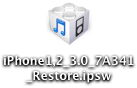
You should now have these two icons on your desktop.

Click on the firmware icon and remove the .zip extension from the file name. Confirm this change when you receive a pop up message warning.

The firmware file icon should now look like this.
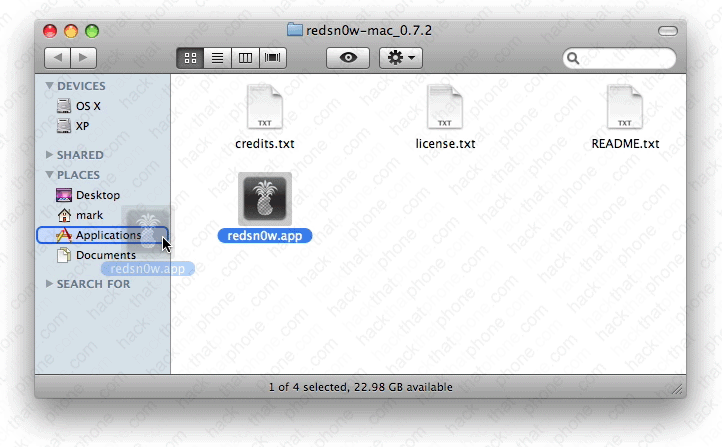
Double click the redsn0w.zip file and you will see this folder appear.

Go into this folder and drag the redsn0w.app file into your Applications folder.
Step 2.
Launch iTunes 8.2 and plug in your iPhone. You should see this pop up. Click Cancel.
Press the Option key on your keyboard and click the Restore button in iTunes. Note: I erased my serial number and phone number for privacy reasons.

Now navigate to where your 3.0 firmware .ipsw file is. Select it, and click Open.

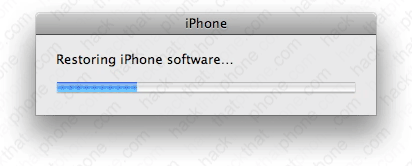
You will see various status bars, while the restoring process proceeds. The iPhone's screen will turn white, and you will see the Apple logo.
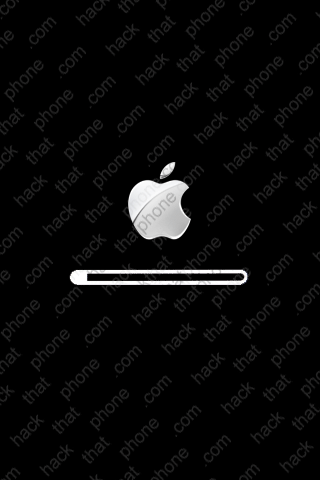
During the restore process you will see a status bar graphic on the iPhone.
When it has finished restoring, you'll receive this message.
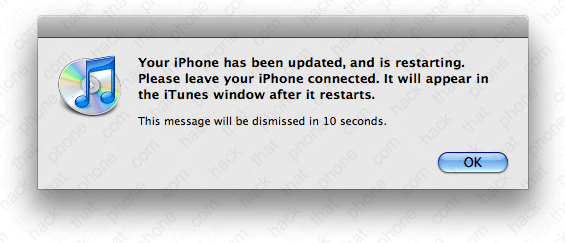
iTunes should prompt you to set up the iPhone. This is your big chance to restore your backup (personal settings, programs, et. cetera) to the iPhone. Make your selection and click Continue. Note: I erased my phone number for privacy reasons.

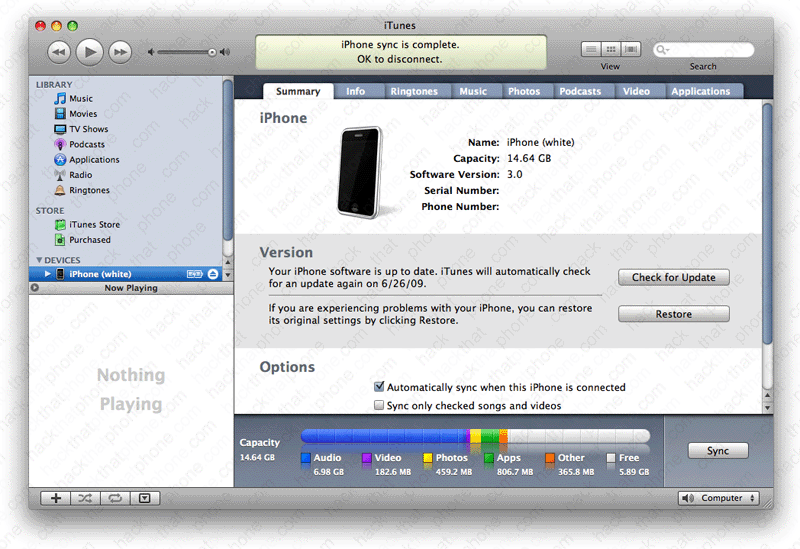
iTunes will confirm the iPhone is on 3.0 firmware. Note: I erased my serial number and phone number for privacy reasons.
Step 3.
Launch redsn0w. It will automatically close iTunes if you have it open. Click Browse.
Navigate to where your 3.0 firmware file is. Select it and click Open.

If you blink you will miss the lines of text that say: Processing firmware, and IPSW successfully identified. Click the Next button.

A pop up will appear and display several messages quickly.

