Make and use themes with WinterBoard
Section 12: Changing the SpringBoard page indicators and the Spotlight search indicator
Updated: July 23, 2009
I got the idea for this section when I ran across a theme on Cydia called No Page Dots. These "dots" appear on the SpringBoard when you have more than one full screen of program icons, they are normally white and gray in color. They are technically called page indicators. All this No Page Dots theme does is make these page indicators trasnaparent. You could make these indicators any shape or color you want. The original images are only 6 pixels in width by 6 pixels in height, so you don't have a lot to work with.
Here is what the page indicators look like normally, and after installing the No Page Dots theme. I'll cover what to do with that pesky magnifying glass later.


Step 1.
Once you have your images created, make a folder for them in your Themes.xxxxxx folder. I'm calling mine Colored page indicators.Now go into this folder.
Create a folder called UIImages.

Now go into this folder.
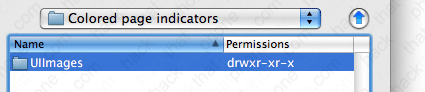
Now copy your images into this folder.

Step 2.
Launch WinterBoard, and check out your new theme.

Step 3.
Let's combine the No Page Dots theme (from before Step 1), with this idea I came up with to hide the magnifying glass. Make sure to have the No Page Dots theme already installed, or just customize your colored dots theme. Note: there is a second No Page Dots theme that does this as well on Cydia, but I beat him so I'm still covering my method.The images we need are found in /System/Library/CoreServices/SpringBoard.app They are named SBSearchPageIndicator.png, and SBSearchPageIndicatorCurrent.png. They are only 10 pixels square.
I wanted to hide my icons like the page indicators, so I made black squares to replace them. All that needs to be done now is add them to the No Page Dots theme. Note: depending on the color of your wallpaper, you may want to make them clear.

Click the New Folder button and create a folder called Bundles. Make sure it is created Remotely.

Go into the Bundles folder.

Click the New Folder button and create a folder called com.apple.springobard Make sure it is created Remotely.

Go into the com.apple.springboard folder.

Place your custom graphics into this folder.

Step 4.
Launch WinterBoard, and select the No Page Dots theme.
Ready to customize your lock screen?
