Make and use themes with WinterBoard
Section 20: Animated SpringBoard images
Updated: July 23, 2009
There are a few animated SpringBoard images on Cydia you can use WinterBoard to install. I know nothing as far as file size limitations that may slow down your iPhone's performance when using a custom animated SpringBoard. It could be possible that you could create such a complex animation, or exceed some unknown file size barrier, that the iPhone is prevented from running it properly. Experiment and have fun is all I can say.
I'm going to provide an extremely simple analysis of how one such SpringBoard animation works. I will be showing you the Falling Leaves theme from Cydia. Note: animated Springboards are battery drainers.
Keep in mind Falling Leaves is is an animated graphic. Here is a still shot of what it looks like. It consists of multiple instances of four different styles of leaves falling from the top of the screen over a static background.
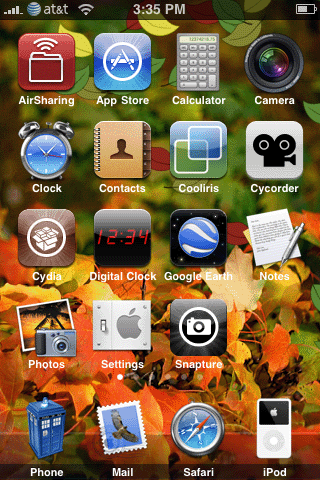
After installing this theme, navigate to your Themes.xxxxxx folder. Download the folder Falling Leaves.theme to your desktop folder.

You should now have an icon like this (or similar).

Right click the theme, and select Show Package Contents.

There are a lot of components to this particular theme.

The Bundles folder holds a custom dock image.

The images folder contains four different leaves.


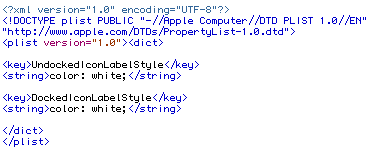
The info.plist file sets all icon text on the SpringBoard to white for better visibility.
The leaves.css file aids in setting the style for this theme.

The leaves.jpg is the background image.

The leaves.js file aids in controlling the motion of the falling leaves, and where they appear on the screen.

The Wallpaper html file sets the maximum number of leaves that can appear on the screen at the same time, and sets the file that will be used as the background image, and calls the .css and .js files to handle the motion.

Ready to expand the dock to hold more than four icons?
