Make and use themes with WinterBoard
Section 28: Whitoken theme
Page 2 of 3
Step 5.
Launch the FiveIRows application. You may have used Categories to put this in a subfolder somewhere. Make sure FiveIRows and Hide SpringDots are set to ON. The word on will be highlighted in red when it is on. Press the Respring button when you are done.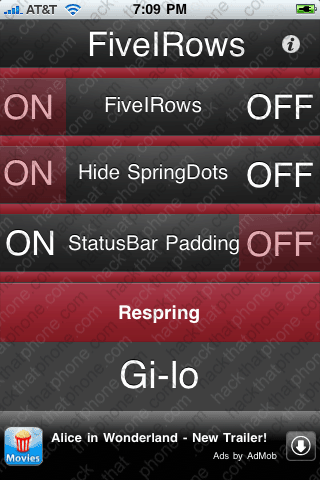
Step 6.
Launch the SpringJumps application. You may have used Categories to put this in a subfolder somewhere. Press the General button. Make sure Page titles and Jump dock are set to off.

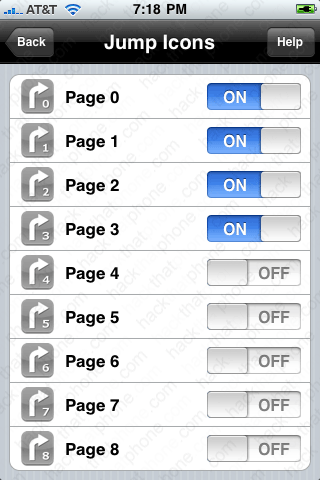
Press the Back button, press the Jump Icons button. Slide the switches for pages 4 through 8 to the OFF position. Press the Home button when you are finished and the iPhone will respring.

Step 7.
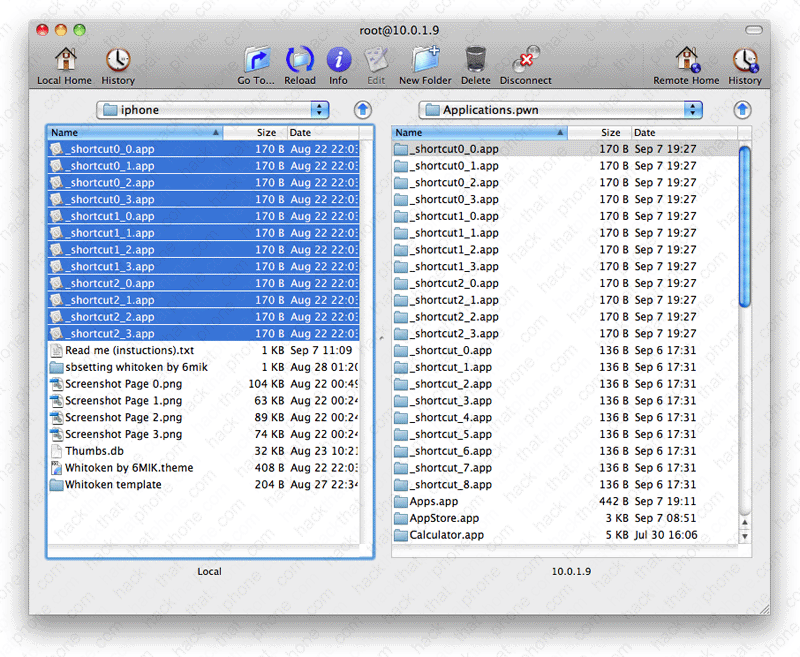
Next use Fugu to SSH into the iPhone. If you do not know how to use Fugu, then read this tutorial.Copy all the _shortcutX_X.app files from the Whitoken iphone folder into the iPhone's application folder. It must look like this when you are done. Do not mistakenly place these files into another folder in the Applications folder.
Step 8.
Launch the iBlank application. You may have used Categories to put this in a subfolder somewhere. You need to create 44 blank icons. Press the 10 button four times. Press the 4 button one time. Each time you press a button, it will create the icons and confirm how many icons it has created in total. Press the Home button when you are done and the iPhone will respring.

Step 9.
This is the most time consuming step. You must arrange your icons to match the screenshots below. The blank icons (created with iBlank) are critical where they are placed, and are indicated by an X in their top left corner. You will use eleven of these icons per page.This is what page 0 should look like when you are finished. You may have substituted other applications for the ones I chose.


This is what page 1 should look like when you are finished. You may have substituted other applications for the ones I chose.
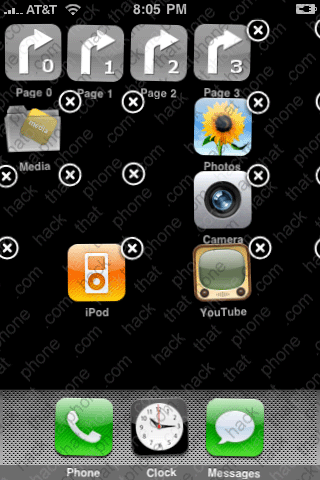
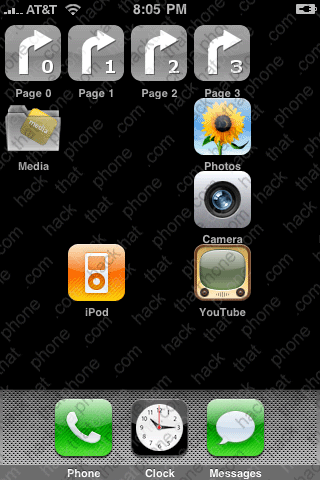
This is what page 2 should look like when you are finished. You may have substituted other applications for the ones I chose.
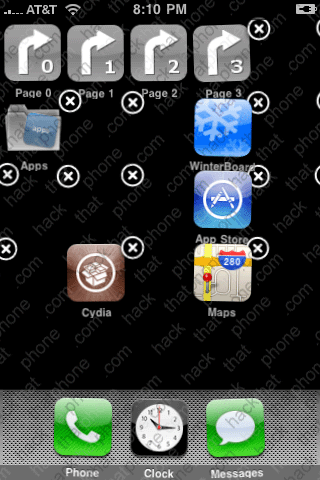

This is what page 3 should look like when you are finished. You may have substituted other applications for the ones I chose.
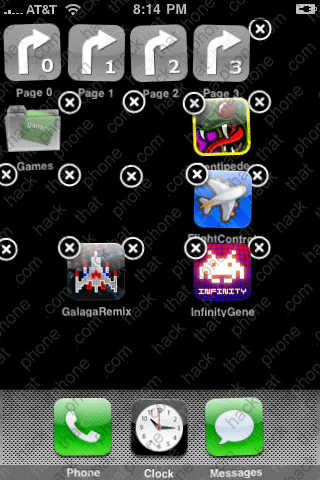
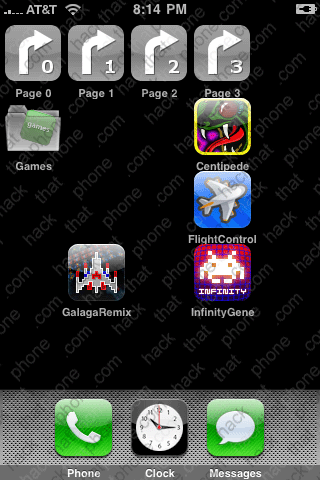
Step 10.
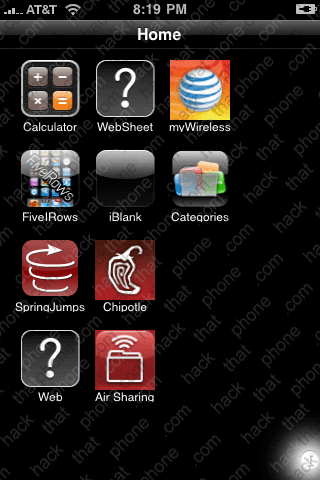
Press the Home button. Press the folder you chose to represent home. You'll see some of your applications in here. Press the i button in the lower right corner.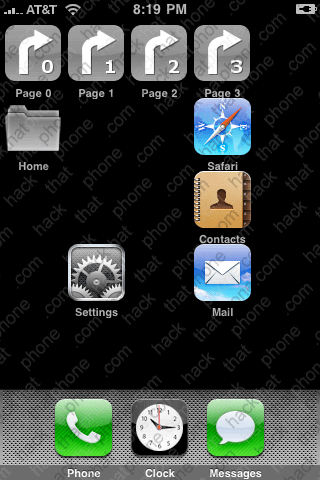
Make the following settings: Folder Title ON, Icon Labels ON, Use bakcground.png ON, Left / Right Scroll ON, Keep Resident OFF, Rows (L/R Scroll Only) 3, Icon Font Color: set the slider to the far left, Icons Theme: No Theme. Press the Done button when you are finished.
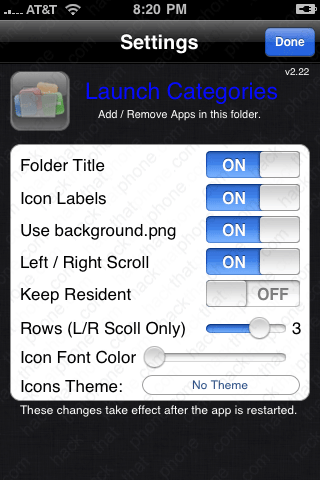
Repeat this process for the Media, Apps and Games folders.
Step 11.
Go back to Fugu, and upload the Whitoken by 6MIK.theme file to your Library/Themes folder on the iPhone.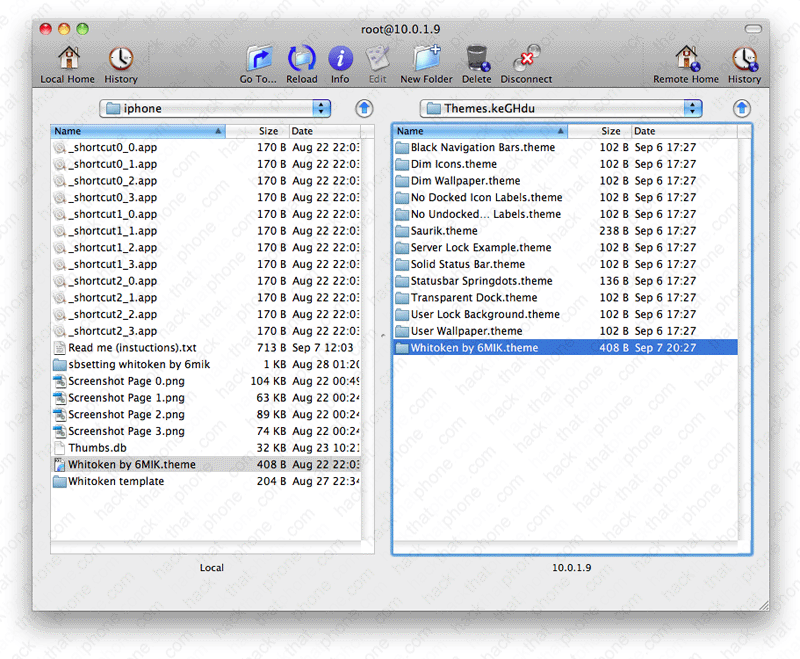
Step 12.
Launch WinterBoard. Select Whitoken by 6MIK, No Undocked Icon Labels, and No Docked Icon Labels. Then press the Home button to respring.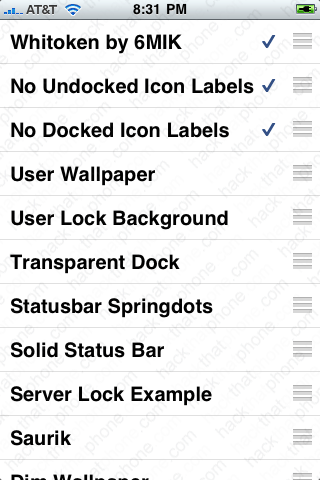
Enjoy your new theme! This concludes the basic setup of the theme. For more information on customizing the theme and other add ons, continue reading page 3.
