Make and use themes with WinterBoard
Section 4: Changing battery icons
Updated: July 23, 2009
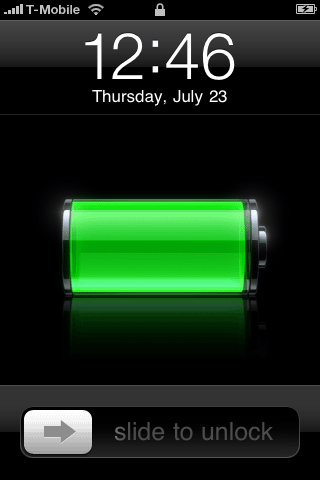
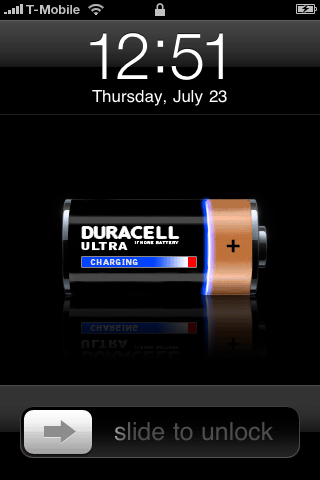
Let's change the battery icon next. This is the main battery graphic that appears only when the iPhone is plugged in to a power source. I have undone all changes since the previous tutorial. I will continue to do this throughout this series so it is less confusing about what I'm doing.
Step 1.
The easiest way to swap out the battery graphics are to turn them into their own theme. With WinterBoard you can mix and match different theme sets into your own unique arrangement. As you select which elements you want to display on the iPhone, WinterBoard will combine them all together, making a new theme.Let's go back to the folder where we created the folder My first theme (which I have since deleted along with all other stock WinterBoard themes except for User Lock Background.theme).

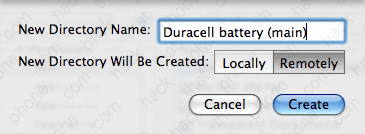
Click the New Folder icon and name your battery theme whatever you'd like. Make sure the folder is being created Remotely, then click Create.
Double click the folder you just created to enter it.
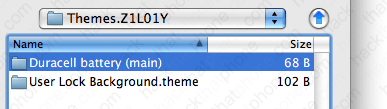
Now create a folder called Folders.

You should now see this.

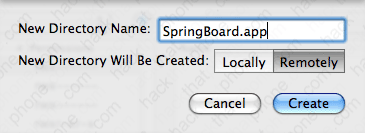
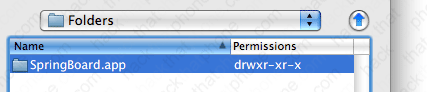
Double click this folder to enter it. Create a new folder and call it SpringBoard.app.
Now double click this folder to enter it.
Step 2.
Place all of your custom battery images in this folder. Your folder should look like this when you are done. Just to double check, your battery images are in /private/var/stash/Themes.xxxxxx/Duracell battery (main)/Folders/SpringBoard.app.
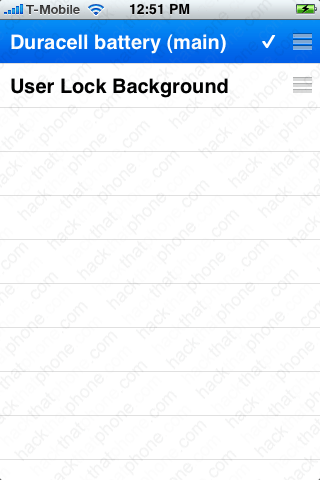
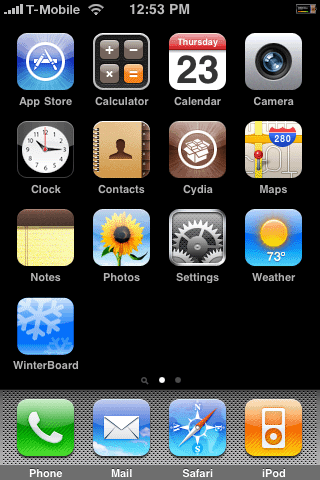
Launch WinterBoard, and select your battery theme.
Step 3.
Let's change the small battery icons now. The ones I am changing will only display when the iPhone is being charged. We will repeat the same process as above. Make a new theme folder and call it Duracell battery (small). Make a Folders folder, and a SpringBoard.app folder. Place your images in this folder. When you are done it should look like this.
Step 4.
Launch WinterBoard, and select the new theme to be added. You are now combining two themes to display as one.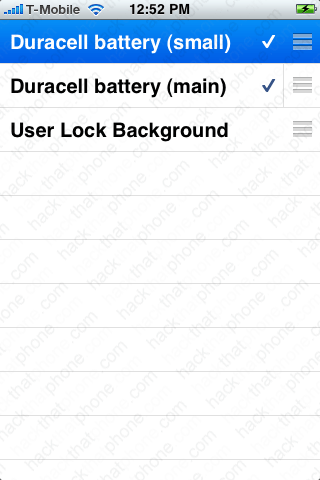
Here's what the battery looks like on black and on white.
Ready to change the carrier logos?
