Make and use themes with WinterBoard
Section 19: Animated lock screen images
Updated: July 23, 2009
There are a few animated lock screens on Cydia you can use WinterBoard to install. I know nothing as far as file size limitations that may slow down your iPhone's performance when using an animated lock screen. It could be possible that you could create such a complex animation, or exceed some unknown file size barrier, that the iPhone is prevented from running it properly, and or not even letting you slide to unlock to unload the animation, as the iPhone is bogged down. Experiment and have fun is all I can say.
I'm going to provide an extremely simple analysis of how one such lock screen animation works. I will be showing you the Clownfish Lockscreen from Cydia. Note: animated lock screens are battery drainers.
Keep in mind the Clownfish Lockscreen is is an animated graphic. Here is a still shot of what it looks like. It consists of two fish swimming in opposite directions.

After installing this theme, navigate to your Themes.xxxxxx folder. Download the folder Clownfish Lockscreen.theme to your desktop folder.

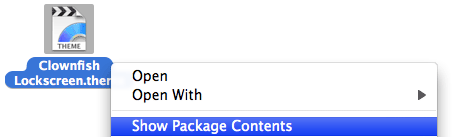
You should now have an icon like this (or similar).

Right click the theme, and select Show Package Contents.
Here are the files within the theme. The jpg is the wallpaper background image. The two clownfish gifs are the animated parts, and the html file contains the code that makes this work.

To make your own animate gifs you'll need a program like Adobe ImageReady. For a cheaper alternative, I hear that Graphic Converter, made by Lemkesoft, is an excellent program. You can purchase this program here: http://www.lemkesoft.com/
As you can see, the clownfish.gif is a simple animation consisting of only eight frames. The other clownfish animation file is just a flipped version of the first file.

The html file contains the code that brings all the elements together, and makes the iPhone animate everything.

Want to see how an animated SpringBoard graphic is constructed?
