Make and use themes with WinterBoard
Section 7: Changing cellular signal strength bars
Updated: July 23, 2009
I am going to use a theme in Cydia called Color Signal Bars, to demonstrate how to change the cellular signal strength bars. In this case, 12 graphics must be created to replace the various signal levels on both a black and a white status bar. These files are named: Default_0_Bars.png, Default_1_Bars.png, Default_2_Bars.png, Default_3_Bars.png, Default_4_Bars.png, Default_5_Bars.png, FSO_0_Bars.png, FSO_1_Bars.png, FSO_2_Bars.png, FSO_3_Bars.png, FSO_4_Bars.png, and FSO_5_Bars.png.
Step 1.
You should be at your Themes.xxxxxx folder. Create a new folder called Cellular signal icons. Now go inside this folder
Make a folder called Bundles
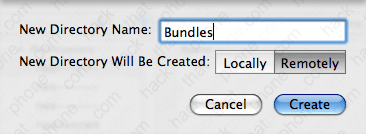
Now go inside this folder

Make a folder called com.apple.springboard

Now go inside this folder.

Now place all your cellular signal icons in this folder. It should look like this when you are done.

Step 2.
Launch WinterBoard and select your Cellular signal icons theme. Here's what it looks like.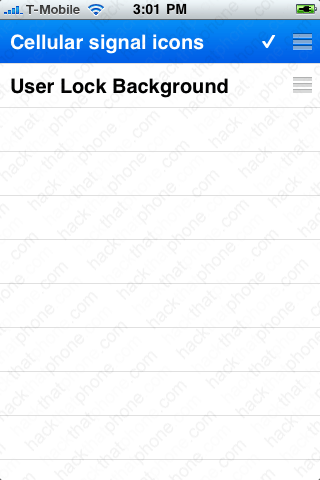

Want to un-App Store your App Store icons?
