InstallerApp (desktop application)
intel MacWho is this guide for?
- All jailbroken 1st generation and 3G iPhones, unlocked or not.
- Make sure to Sync your iPhone prior to using this tutorial. This way your personal information, and any App Store applications will be preserved.
- Official contract, or not.
- Pwned or not.
- I used iTunes 8.1
- I used OS X 10.5.6.
Ripdev has released a desktop client for the Installer application called Installer App. You can read more about it here. What it allows you to do is jailbreak and activate the iPhone (if you need to), it will allow you to browse the repositories for Cydia and the Installer. You can read about the packages, and download them. It will then sync your downloads to your iPhone. You must purchase a license (it's $7.00), for the sync process to work.
Once your iPhone is set up with all the applications you like, and a new firmware comes out and you restore, all you have to do is sync with Installer App, and it puts all your Cydia and Installer programs back on the iPhone. I've done it, it worked pretty well. I just needed a reboot to allow for the installation of some of the programs that didn't show up right away.
There are two ways to use this program:
- If you have a non-jailbroken iPhone, then only the Installer icon and program will be installed onto your iPhone. The Cydia icon and program will not be installed. You can still access the Cydia repositories with the Installer App desktop program only.
- You already have a jailbroken iPhone. You will be able to use both the Cydia and Installer programs on the iPhone. This is the method I will demonstrate in this tutorial.
Step 1.
Quit iTunes if it is running.Step 2.
On your Mac, go to your Applications/Utilities folder. Launch the Activity Monitor.app.
Click on iTunes Helper to select it.

Then click Quit Process. At the drop down window, click Force Quit.

Step 3.
Plug your iPhone in to your Mac.Step 4.
Download InstallerApp here. You will now have this icon on your desktop.
Double click it to decompress it, and you should now have this icon. Place this icon into your Applications folder on your Mac. Double click it to launch InstallerApp.

Step 5.
InstallerApp will load its sources. When it has finished, click the Install button.
Push the button.

Various messages will appear next, like "Looking for firmware", "Assembling", and "Preparing iPhone". You will then be asked to turn off your iPhone.
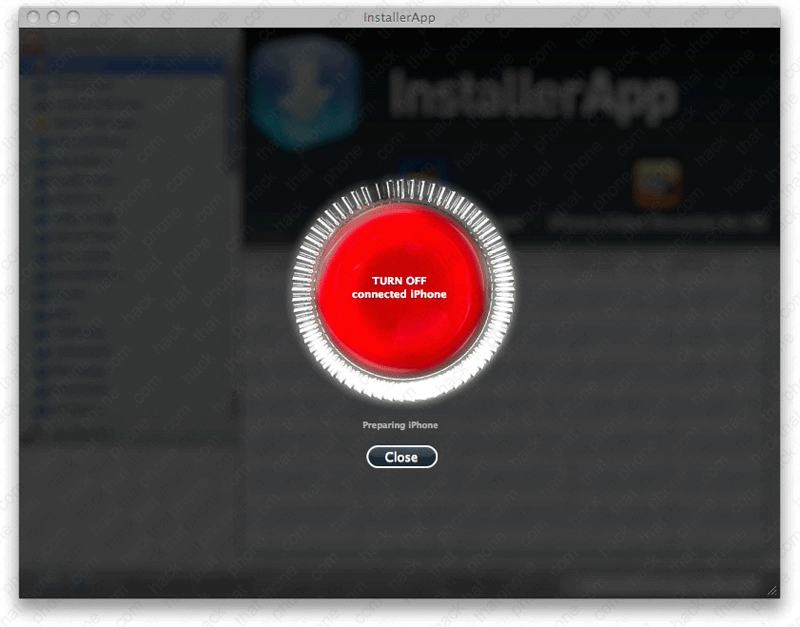
Press and hold the Power (sleep/wake) button until the slide to power off message appears.

You will then be walked through DFU mode. Just read the screen and follow the instructions. I did not have any issues getting into DFU mode.
Note there are many ways to get into DFU mode since OS X 10.5.6 complicated the process.
|
If you are unable to enter DFU mode, the iPhone Dev Team posted the following information
(Warning, many Mac users complain of loss of trackpad and keyboard use and USB issues):
OS X 10.5.6 introduced a bug that affected the use of DFU mode. with some Macs. There have been previously published hacks and techniques to fix this, but here is another method that can be used to temporarily restore DFU functionality in order to use QuickPwn or PwnageTool.
|
| Another option is to use a USB hub (powered or unpowered) to get into DFU mode. |
Once you are in DFU mode, InstallerApp will begin installing applications.

You should see the Installer logo on your iPhone at this point.

You will then be prompted to disconnect the iPhone.

Click the Close button.

You will return to the program interface screen.

The iPhone will reboot. You should see these two icons on your SpringBoard.

Step 6.
Launch Cydia, and install any essential updates. I don't know that you have to do this, I just felt better doing it before adding applications. You may have to launch Cydia more than once, to install all the needed updates.

Step 7.
Let's install an application. Plug your iPhone into your Mac. I'm using the All Packages tab to search for packages. I've also modified my screen to maximize the name field, since everything else it displays is trivial information. I'm going to install Cycorder. Click it to highlight it, then click the Install button up toward the top right.
An informational message will appear. Read it, then click Install.

You will now go through the "Push" process again, including the walk through for DFU mode. I will not be displaying the pictures and instructions. You can go back in the tutorial if you need to see that information again.
Once the iPhone has rebooted, don't forget to plug it back into your Mac. Click Continue when you receive this message.
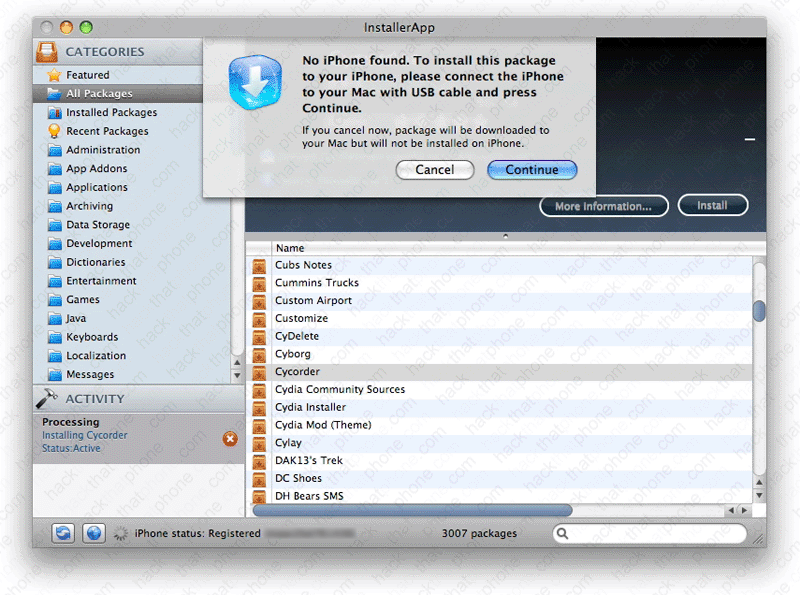
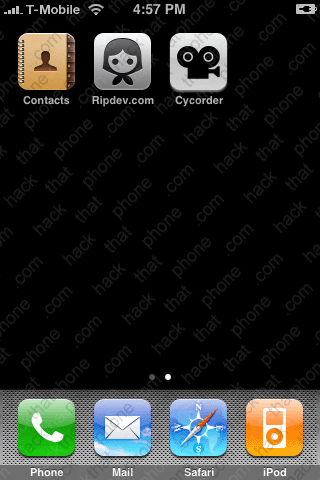
The program will disappear from the list in the Installer App. The application icon will shortly appear on your iPhone.