Customizing your outgoing message
intel Mac & PPCRecording your outgoing message for voicemail sounds less than stellar when you use the microphone on the iPhone. There is a way where you can record your message on your computer instead, to produce a high quality sound file. You can then upload this file to the iPhone via SSH.
This tutorial came from an email I received pointing me to this post at iPhoneAlley.com.
Attention
I will be using Fugu to upload the files in this tutorial. These instructions can be applied to any files you want to add to your iPhone, provided you already have SSH installed. If you have not installed OpenSSH, or used Fugu before, then you must read this tutorial first.This tutorial is ONLY for those iPhone owners that have access to visual voicemail (i.e. you have a contract with an authorized service provider). It will not work if you don't.
Step 1.
Launch QuickTime (or your favorite audio recorder). Click File and select New Audio Recording.
Click the big red button to record.

Click the big red button again to stop. The recorder will now look like this.

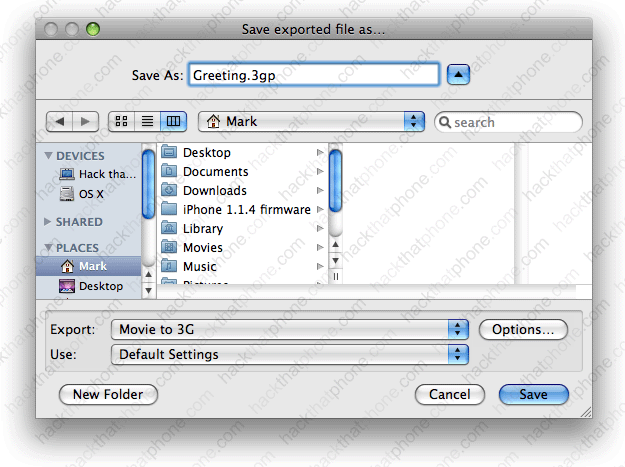
You now have a .mov file. You need to convert this to a .3gp file. Click File, Export...

Name your file Greeting, and set the Export drop down box to Movie to 3G, then click Save. You can now close QuickTime.
Step 2.
Now you need to convert your .3gp file to .amr which is the format used on the iPhone for voicemail messages. I'm not aware of a free, standalone program that does this, but there is a website that will do this: Media-Convert.com Click the Choose File button.
In the pop up window, navigate to where you saved your .3gp file, select it and click Choose.

A pop up alert will appear. You can ignore it. You should now see 3GP in the Input format drop down box.

Scroll down and select amr in the Output format drop down box and click the OK button.

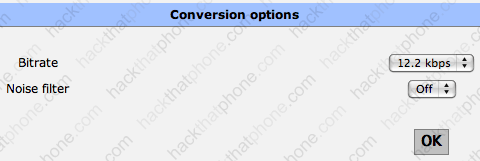
At this scren select 12.2 kbps for Bitrate and click OK.
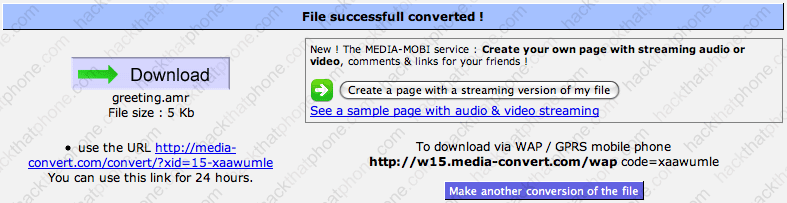
Click the Download button to receive your converted message.
Step 3.
Launch Fugu, and navigate to /private/var/mobile/Library/Voicemail You may or may not see the file Greeting.amr.
Launch the phone application and press the Voicemail button. Press the Greeting button.

You can check your current outgoing message by pressing the Play button. You can even back it up by copying the file Greeting.amr out of your Voicemail folder.

Press Record.

Press Stop.

Back in Fugu, copy over your custom Greeting.amr file into the Voicemail folder. Confirm the overwrite.

Now press Save. It will say Saving greeting... and display a spinning wheel.

You will get confirmation that the message was saved.
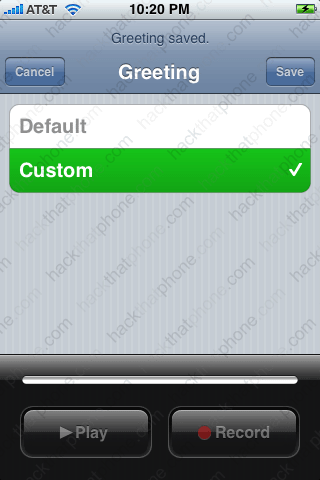
Press the Greeting button again.
Press Play. It will say Retrieving greeting... briefly, then play your new message.

