Restoring to any firmware version
intel Mac & PPCUpdating firmware is meaningless to hacked or unlocked iPhones. Sure, you can click the Update button in iTunes. It will go through the motions and promptly fail. You'll then be told you must restore your iPhone because a "problem" was encountered. So I won't be covering updating. Updating is really only for people who don't modify, or unlock their iPhones. Plus with a new firmware always on the horizon, you may need to work with a specific version. I hear that (insert version number of upcoming firmware here) is coming out soon, and with PwnageTool and QuickPwn only working on (insert current firmware version here), you could lock yourself out of your iPhone until PwnageTool is updated. In this example I will demonstrate how to restore to 2.0 firmware. Yes I realize 2.0 firmware is out of date, but I'm not interested in updating the graphics in this tutorial for every new firmware that comes out, as the process is exactly the same.
Step 1.
Regardless of what firmware you are on, if you click the Restore button it will restore and update your iPhone to the latest firmware. This firmware is downloaded over your Internet connection from the Apple server. Since a new firmware could come out, it's safest to download the current firmware to your computer and keep it some place where it won't get deleted on accident. This method is also faster since iTunes doesn't have to download anything.I have links to every version of iPhone firmware on this page.
When you download a firmware file, do not decompress this file. It should have a .ipsw file extension on it. If it decompressed, rename the .zip to .ipsw. If you use Safari, make sure to go into preferences and set it to not open "safe" file types.
In this scenario I'm connecting an iPhone with 2.0 firmware on it, (that is already unlocked) and Option clicking Restore.

A file browser window opens. In this case I'm going to put 2.0 back on to the iPhone. I navigate to the folder where I have the 2.0 firmware already stored. I select the .ipsw file and click Open. Note: if you have used PwnageTool you might want to restore your custom firmware file and not the stock file.

Here are all the messages that go by while this process takes place.


Once the restore is finished you will see this screen on iTunes (only if you put an AT&T SIM in it).

Here's what you'll see on the iPhone if restored to 2.0 firmware. If you restored to stock firmware, or your custom firmware, you should have a carrier logo and signal bars, this restore will not wipe out your unlock since you are staying on the same firmware you unlocked on.
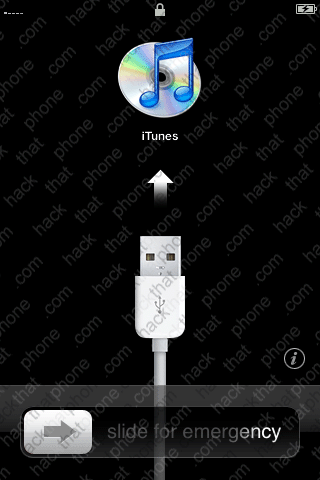
At this point simply follow my Step 1 tutorials and use PwnageTool or QuickPwn to do what you need to to your iPhone.
