GSM information
Since the iPhone is a GSM (Global System for Mobile communications) phone, you potentially have access to numerous codes that can be entered on your phone's keypad to either give you information about your phone (like your IMEI) or to activate or deactivate features (like call forwarding, barring and SMS delivery reports to name a few).
Here's a sample of some of the codes you can try.
*#06# - Displays your International Mobile Equipment Identity (or IMEI for short). The IMEI number is used by the GSM network to identify valid devices and therefore can be used to stop a stolen phone from accessing the network.
*#21# and press Call. Settings for call forwarding for calls, data, fax and sms.
*#30# and press Call. Calling line presentation check.
*31# (followed by the number you are dialing) - Sets outgoing "Caller ID" to be private.
#31# (followed by the number you are dialing) - Sets outgoing "Caller ID" to be visible.
*#31# (followed by the number you are dialing) - Displays current setting of outgoing "Caller ID". (Disabled = visible, Enabled = private).
*#33# and press Call. Check for call all barring.
*#43# and press Call. Determine if call waiting is enabled.
*#61# and press Call. Check the number for unanswered calls. Shows the number for voice call forwarding when a call is unanswered. Also shows the options for data, fax, sms, sync, async, packet access and pad access.
*#76# and press Call. Check whether the connected line presentation is enabled or not.
*225# and press Call. Bill balance for postpaid accounts only.
*646# and press Call. Check the minutes for a postpaid account only.
*777# and press Call. Check the account balance for a prepaid iPhone.
If you'd like an easy method of using these codes, then download this vCard and import it into your address book, then sync the address book with iTunes. It will then add these codes as contacts in a group labeled "123" at the end of your address book list. You can then merely pick the on you want and press it to activate it and not have to enter a code.
Here are some sites that list some more of these codes:
- Codes to be used with GSM phones.
- GSM codes.
- GSM feature codes.
- GSM features that aren't widely known.
- iPhone Dev Wiki - Phone codes.
- More secret iPhone codes.
I know the GSM codes are impossible to remember, so a reader (thanks Foob!) whipped up this pocket guide (and a handy to do list and calendar to boot) that you could bring with you to jog your memory.
Here's a blog on how this pocket guide is made, with plenty of images to show you how to fold it up. PagePacker makes pocket-sized books.
Field Test menu
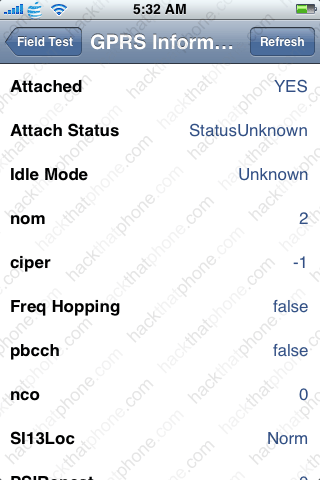
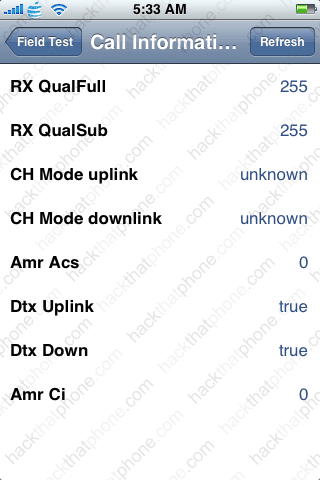
The Field Test menu is used to view various engineering parameters, such as signal strength, frequency band, tower ID, et cetera. This is a menu that lets you look at the inner workings of the iPhone from a telephone technician's view. The great majority of iPhone users will never need access to this menu.You get to this menu by entering *3001#12345#* and press Call. If you'd like to see what all the screens look like in this menu click the images below.


To exit the Field Test menu push the home button.
The screen labeled "Cell information" contains information regarding cell phone towers in your area, your signal strength to those particular towers, and what band your iPhone is running in (among other things). The following information is copied from the Griffin Technology website, from a product they sell which is claimed to boost your iPhone's signal. See this page to read more.
"Listed in the "Cell Information" screen are the cell towers the phone is in contact with. The strongest signal tower is listed at the top, the weaker ones below. The information reported about the towers you are in contact with will look something like:
RX: -90 FQ:188 ST:3 CI:31552 N:410 #310
The first set of numbers, the ones after RX, represent the amount of signal your iPhone is receiving from that specific cell tower, measured in dBm. This is the number set you should watch when comparing the reception benefit of the case. Since this number is a negative value, the closer you are to zero, the better. -111 would indicate that there is very weak reception, whereas a -60 would be very good reception. If a tower is showing a value at or below -106 dBm, you will most likely not be able to place a call using that tower.
To put the RX: measurements in perspective, a change of signal strength of just 3 dBm, represents a doubling of the amount of RF energy reaching the iPhone's built-in antenna.
The second set of numbers, displayed after FQ, show what frequency band the phone is currently using. If your iPhone is currently on the 850 MHz band, the FQ value will be in the 100-200 range (Editor's note: I checked my AT&T SIM equipped iPhone and it was running in the 500-700 range). If the FQ value is in the 500-700 range (Editor's note: I checked my T-Mobile SIM equipped iPhone and it was running in this range), you are in a 1900 MHz area."
This is one of the nicer icons I've found for this program.

For more information about the technical side of this menu check out this site, and this site.