Unlocking 1st generation iPhones (with 2.2 firmware) using PwnageTool in Simple mode
intel Mac & PPCPage 1 of 2
Updated: December 20, 2008
Who is this guide for?
- 1st generation iPhones (3.9 or 4.6 bootloaders). Official contract, or not.
- Pwned or not.
- Any firmware version.
- I used iTunes 8.0.2
- Make sure to Sync your iPhone prior to using this tutorial. This way your personal information, and any App Store applications will be preserved.
- The "late 2008" MacBook Air and MacBook Pro lines of computers have an issue with DFU mode. While it's possible to go from Pwned 2.1 firmware to Pwned 2.2 firmware (using PwnageTool), you can't yet go from stock firmware to Pwned firmware. If in any doubt use a different machine.
Thanks again go out to the iPhone Dev Team for providing this amazing, and FREE program for jailbreaking, activating, unlocking, and customizing the 1st generation iPhones. You can visit their website here.
I was already Pwned on 2.1 firmware. If you are not currently Pwned, you can still use this tutorial, just pay attention to the information in the bordered area, that will contain additional instructions for you. Also note, my iPhone was already unlocked as well.
Apple has an excellent support document regarding update and restore error messages on the iPhone. Should you have any troubles, consult this article.
Step 1.
Download PwnageTool 2.2.1 from me here, or via the iPhone Dev Team's download link list here.Download the 3.9 and 4.6 bootloaders from the Internet. You'll have to find them yourself, I won't provide them.
If you haven't already downloaded 2.2 firmware from Apple, then you can download it here.
You should now have these three icons on your desktop:

Step 2.
Install PwnageTool. Make sure to drag the program icon from the disk image into your Applications folder! Do not attempt to run the program from the disk image window, it will cause problems.
Step 3.
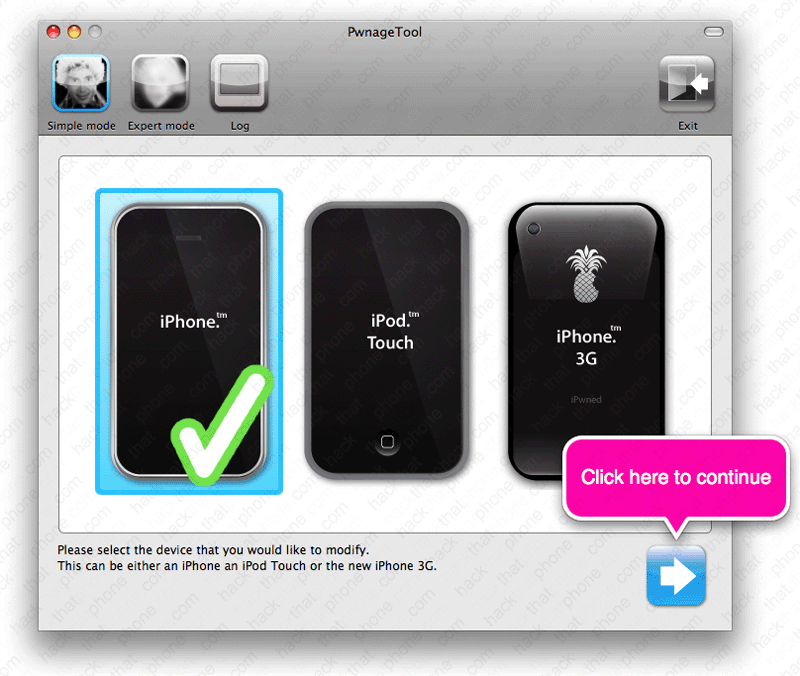
Launch PwnageTool. Make sure the Simple mode button in the top left corner is selected. Click the iPhone on the left.
You should get a green check mark on the iPhone you selected. Click the blue arrow button in the lower right corner.
PwnageTool will search for the 2.2 firmware on your computer first, then from the Internet. When it displays the firmware file, click on it. Multiple firmwares may be displayed, so make sure you select the correct one. Then click the blue arrow in the lower right corner.

You should now see a message about the 3.9 bootloader file being missing (unless you've previously installed
the bootloaders into PwnageTool). You downloaded the bootloaders earlier.
Click No, since you have this file on your computer already.

The next prompt will ask if you'd like to browse for the bootloader. Click Yes. 
Navigate to where you decompressed the bootloader download. Select the BL-39.bin file and click Open. 
You should now see a message about the 4.6 bootloader file being missing. Click No, since you have this file on your computer already. 
The next prompt will ask if you'd like to browse for the bootloader. Click Yes. 
Navigate to where you decompressed the bootloader download. Select the BL-46.bin file and click Open. 
|
Click Yes at this prompt.

If you have an official contract on your iPhone, then you must answer Yes, otherwise your iPhone will not activate correctly. If you want to have an unlocked iPhone, or have one already, then select No.

Your custom firmware file will now be built. This will take several minutes.

You will be prompted to enter your system password. There is nothing nefarious in this request, the reason it is asking is because it is creating your firmware and running commands as the root account (or superuser) on your computer. There are various processes where unmounting and mounting of a file systems is necessary. This is performed while using a system UID of 0 which causes the prompt for a system password. The root access is only for the creation of the ipsw file. So it's completely harmless.

Has your iPhone been Pwned before? If you select Yes, then go to Step 4 next. If you select No, then skip to Step 5 next.

