Make and use themes with WinterBoard
intel Mac & PPCUpdated: June 5, 2009
This tutorial has become so large that I'm breaking it down into several sections. I plan to add more sections as I figure out how to do more things with WinterBoard.

Section 1: What is a theme? Introduction to WinterBoard.
What is a theme? A theme is the graphical "look" of a phone. In the case of the iPhone, a theme consists largely of the way the SpringBoard, dock and all the program icons look. A theme can ultimately involve every single graphic being changed. Usually no one goes to that extent to customize their iPhone - it's just too many graphics to change. There are a handful of graphics you can change to create a dramatic look, however.You can change the iPhone's appearance with a couple programs. You need Cydia, WinterBoard, OpenSSH (if you want to upload your own personal images), and a program to make your graphics with. I use Adobe Photoshop. GIMP is a free alternative to Photoshop, which is also a very powerful program. You can download GIMP here. If you don't want to create your own images, you can use the themes that are already available through Cydia in the various "Themes" folders.
Here are some examples of themes that are available for 2.x firmware. In order are: iWood-Realize, CandyMilk, VendingMachine, and iVintage.
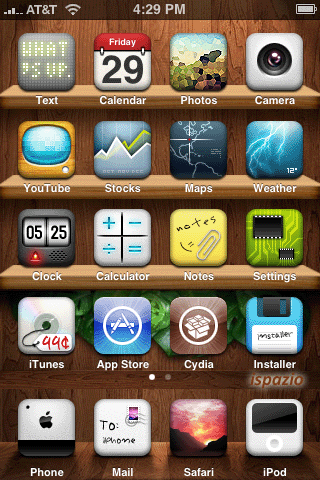


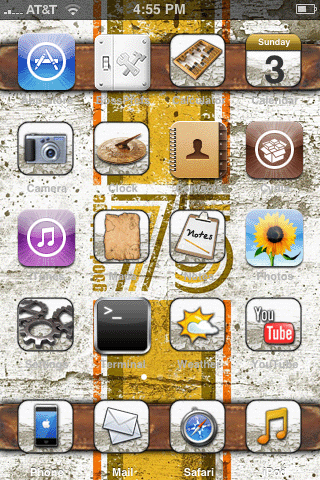
Once you have installed WinterBoard (I'll cover this in the next section), and launch it, you will see you are given several options in the main menu. First let's press Saurik. This is the only theme that comes with WinterBoard by default. It will only change the background wallpaper in the SpringBoard, but it will use scripting to dissolve between two different images. When you have selected a menu item a check mark will appear next to it. To undo a selection, just press it again. Then press your Home button and WinterBoard will load your changes to apply the new theme.


The iPhone will display the spinning wheel, and chirp. It will then send you back to the slide to unlock screen.

Once you slide to unlock, you should now have a new wallpaper image on your SpringBoard. If you wait a few seconds it will blend into another background image. You can also do this with your own images. At this point, you could just continue to use Cydia and check the various themes folders to install themes automatically.
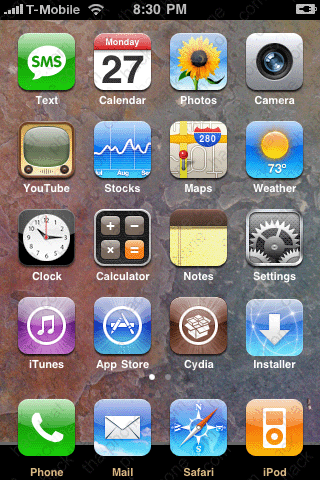

Let's explore the other options in WinterBoard. The first one is Black Navigation Bars. Here's the before and after.


Dim Wallpaper reduces the brightness of your wallpaper graphic. I'm guessing this is intended for those that do not own an image processing program. Here's the before and after.
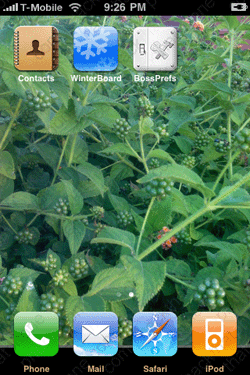


No Docked Icon Labels, removes the text from any applications in the dock (by default, these applications are: Phone, Mail, Safair, and iPod). Here's the before and after.
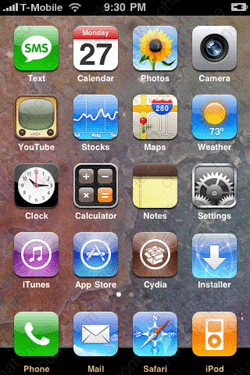
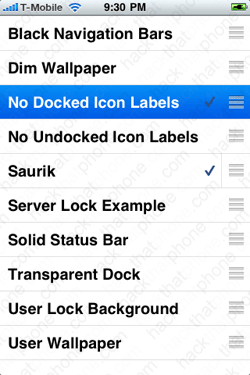

No Undocked Icon Labels, removes the text from any applications that are not in the dock. Here's the before and after.
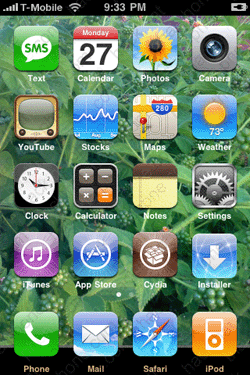


Server Lock Example uses an HTML file to call some text from a server and display it on your lock screen.


Solid Status Bar, makes the status bar appear white at all times.
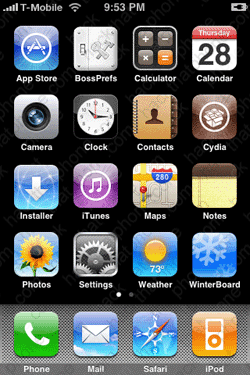
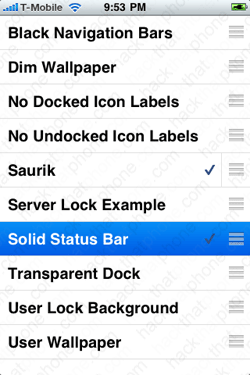

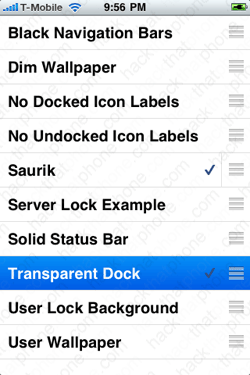
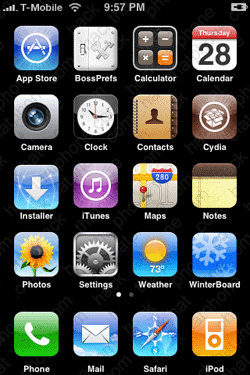
Transparent Dock, before and after.

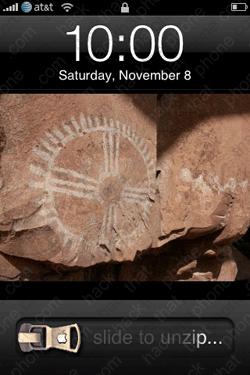
User Lock Background. If you go to Settings, Wallpaper, you will see you have a choice of using (currently 19) stock images which can be used on your "slide to unlock" screen, or you can use photos from your iPhone's camera roll, or from your synced iPhoto library. If you happen to download a WinterBoard theme (like Brilliant for example) that comes with its own "slide to unlock" screen background image, this will keep your image set as the priority image. On the left is my personal photo set as my "slide to unlock" screen background. On the right is the image set by the Brilliant theme.

All you have to do to enable this feature, is make sure you drag the menu item "User Lock Background" above the menu item for Brilliant. Remember, WinterBoard processes theme items in this menu based on their order of priority. In the image on the left, the Brilliant theme will set the graphic for the "slide to unlock" screen, simply because User Lock Background isn't selected. In the image on the right, the User Lock Background option has been selected, and appears above Brilliant in the priority list, so it will override any changes made to the "slide to unlock" screen.

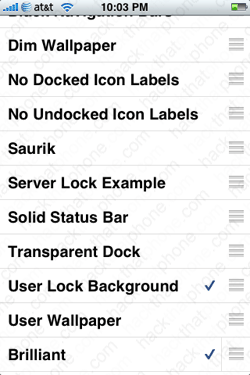
User Wallpaper will set whatever image is on your lock screen as your SpringBoard wallpaper.
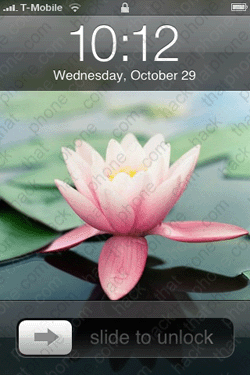

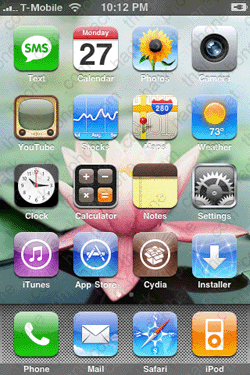
One final note, and I'm probably getting ahead of myself here, but this didn't seem to fit anywhere else. WinterBoard processes themes from the top of its list to the bottom. You can drag and drop themes, changing their order of execution on the list. Why does this matter? Let me demonstrate.
In this screen shot I have a lot of themes in my list. I like using Cool Notes, which changes the standard Notes application to white paper with blue lines and it changes the program icon on the SpringBoard.
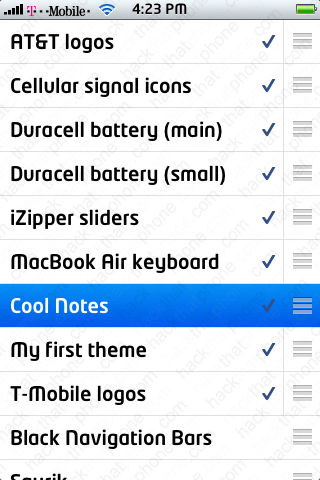

I have my own theme "My first theme" which uses another icon that I prefer to use with Notes. So I simply drag Cool Notes, below My first theme, and note the change. You can download my theme here. I did not make this theme. I simply compiled the icons from various other themes.

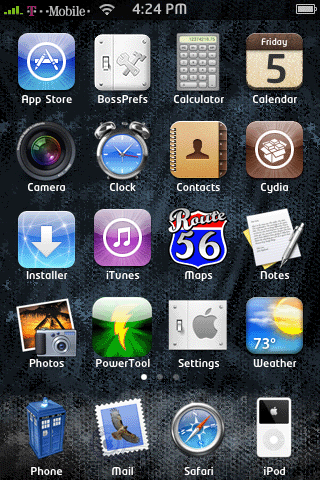
That's ordered priority. Are you hooked yet? The sky is the limit with themes. Let's try creating our own...
