Step 2: Okay I've jailbroken, now what?
intel Mac & PPCPage 1 of 3
Updated: June 3, 2009
So you finally decided to jailbreak your 1st generation or 3G iPhone and now you are wondering what to do next. I'll introduce you to Cydia - the third party application distribution program specifically for jailbroken iPhones. I'll also recommend some must have applications, if you are interested in further personalizing your iPhone. I'll also list a few great programs that have nothing to do with hacking, but they are for jailbreakers only.
Note: If you already know how to update Cydia, install and remove applications, then you can skip ahead to the recommended applications, and recommended tutorials section by clicking here.
On page 3 I will discuss Installer. It was the original database for free programs for jailbroken iPhones. It has a dramatically smaller database than before, any offers many paid programs.
Step 1.
Launch Cydia. you will then be asked this question. I always choose developer. You can change your answer to this later if you'd like by going to the Manage tab at the bottom, then press Settings.

This is the default screen on Cydia, the Home page. If you see a red badge on the Changes tab below, press it. It means there are updates to be installed. Cydia is very well maintained, so you will probably see updates regularly. That's a good thing. On the Changes screen you'll see a list of updates that need to be installed. Just push the Upgrade button. In this example, my upgrades are essential items so you'll see a pop up message like this.


Press Confirm at the next screen. You'll see a status report of the upgrade process like this.
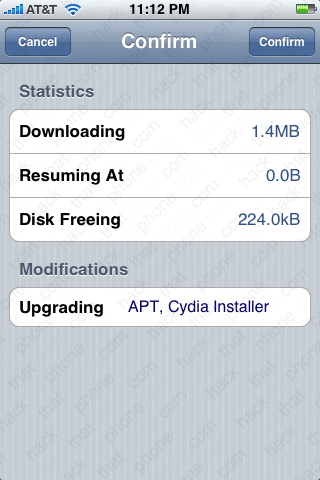

When it has finished, you will see a Close Cydia (Restart) button. Some upgrades will show a Reload SpringBoard button. The SpringBoard is the official name for the iPhone's screen. Since we closed Cydia, let's reopen it.

Step 2.
There are two lists of packages on Cydia. From the Home tab, you can press the Featured Packages button. This will show you the latest and greatest programs.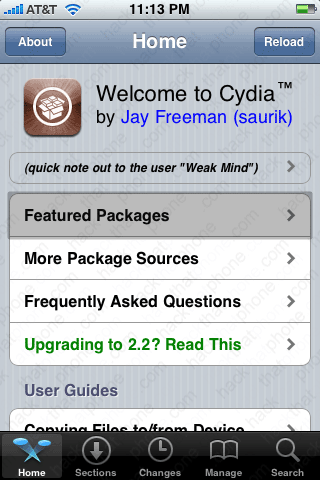

The more comprehensive list of programs is in the Sections tab. You can either browse by category, or see everything by going to the All Packages folder.


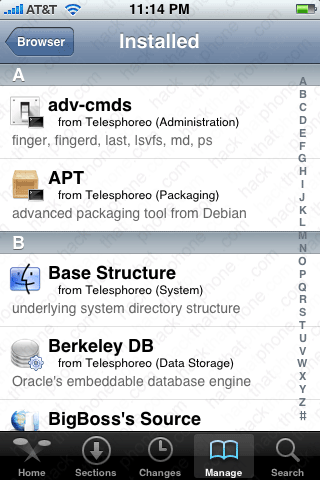
If you press the Manage tab, then select Packages, you can see what Cydia has installed on your iPhone.

Step 3.
Let's install a program. OpenSSH is critical to many of the tutorials on this site. It's one of the best ways to move files to and from the iPhone, and to install programs that are not available on Cydia or the App Store or the Installer. Go back to the Sections tab and press All Packages. Scroll down the list (it's faster to press and hold on the far right of the screen) to OpenSSH. Then press it.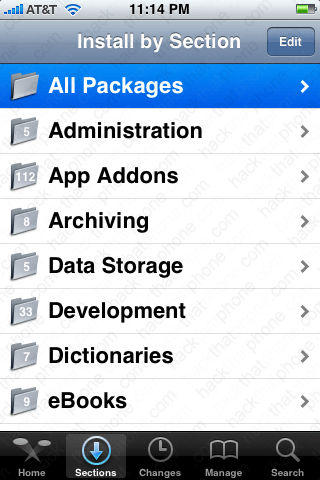
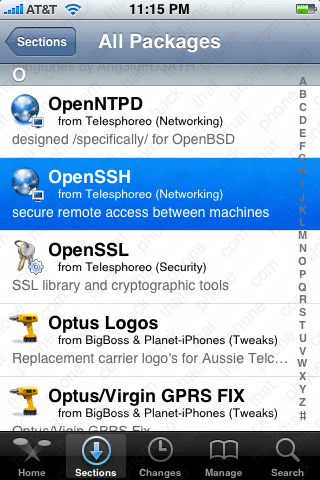
Press the Install button. Then press the Confirm button.


You'll see a status report of the install process like this. When it has finished, press the Return to Cydia button.


To uninstall a program do the following: press the Manage tab, then press the Packages button. Scroll down the list and find the program you want to remove.


Press the Modify button in the top right corner. Press the Remove button.


Now press the Confirm button. Press the Return to Cydia button and you are done. You've just learned what Cydia is, how to maintain it with updates and how to look for programs and install and uninstall a program.


Cydia has recently started selling programs directly. You can easily identify applications that are for sale, as the program name will be displayed in blue, like the example below.


Step 4.
You can also see how much free space you have on the two paritions of the iPhone's storage card. Press the Manage button, then select Storage.

Step 5.
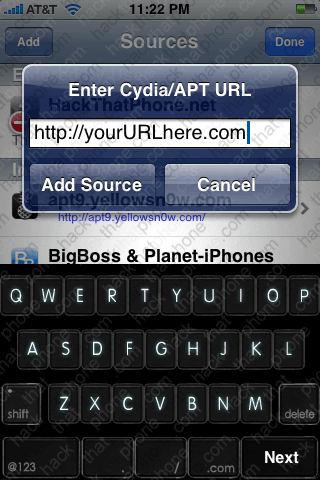
While Cydia comes with many "sources" preinstalled, you can add sources that are not included by default. Howard Forums has a thread here, which has a list of many Cydia sources, and what they host. To add a source do the following: Press the Manage tab at the bottom, then press Sources. Press the Edit button.

Press the Add button. Then enter the source's URL. Press the Add Source button. Your source will be added to your list. Press the Done button.