Killing Apple's "kill switch"
intel Mac & PPCUpdated: October 29, 2008
Jonathan Zdziarski (aka NerveGas), recently wrote about the kill switch that is buried within the iPhone. This kill switch has been purported to do everything except wash your dishes. NerveGas decided to write more at length about what it does, and doesn't do at his site. You can read his full article here.
The following is an excerpt:
| "The locationd cache, stored in /var/root/Library/Caches/locationd/, includes a cached list of unauthorized applications fetched from a URL on Apple's servers during GPS fix. Only a list is downloaded; it doesn't "tell Apple" what applications you are running. We do not know just how active this mechanism will be in the future. It could vaporize applications, but so far we can only make it kill the ones using the GPS. We don't know what else it might do....This definitely warrants some questions to Apple, and merits further research to determine what else, if anything, this means for iPhone users." |
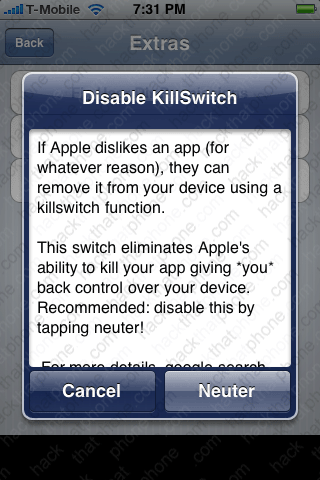
With the release of SBSettings, this killswitch can be deactivated with the push of a button. Using Cydia, Install SBSettings. Launch SBSettings and press the More button. Then press Disable Apple Killswitch.


You will receive some more information on the killswitch. Press Neuter to continue. If you want to reenable this switch just press the Enable Apple App Killswitch button.

For those of you who like doing things the hard way, here is the original method I wrote about:
I will show you how to implement NerveGas' solution for killing the kill switch. You must have already performed two of my earlier tutorials:
Using PwnageTool for 1st generation iPhones or Using PwnageTool for the iPhone 3G and Installing OpenSSH.
Step 1.
Launch Fugu and log into your iPhone. You should be at the root (/) level. Double click on etc.
Click on the file hosts, and drag it off to your desktop.

Right click the hosts file on your desktop, and use TextEdit, or your favorite editor, to open the file.
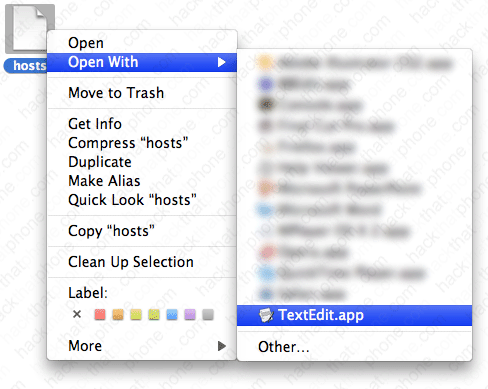
You should see this in your hosts file.

Now add this line to the file:
127.0.0.1 iphone-services.apple.com

Save the file. Then drag it back from your desktop into the etc folder in Fugu. Fugu will prompt you to overwrite the file. You are now done.

