Installing OpenSSH, using Fugu, and changing the root password
intel Mac & PPCPage 2 of 2
Step 3.
Download Fugu here. Note: many FTP programs can be used to make this connection as well. I know Transmit is a popular application used to connect to the iPhone.Note: if you have used Fugu before, then click on Fugu in the toolbar, then Preferences, then select Known Hosts. Look for your IP address in here. If it appears, then select it, click Delete and then click Save.

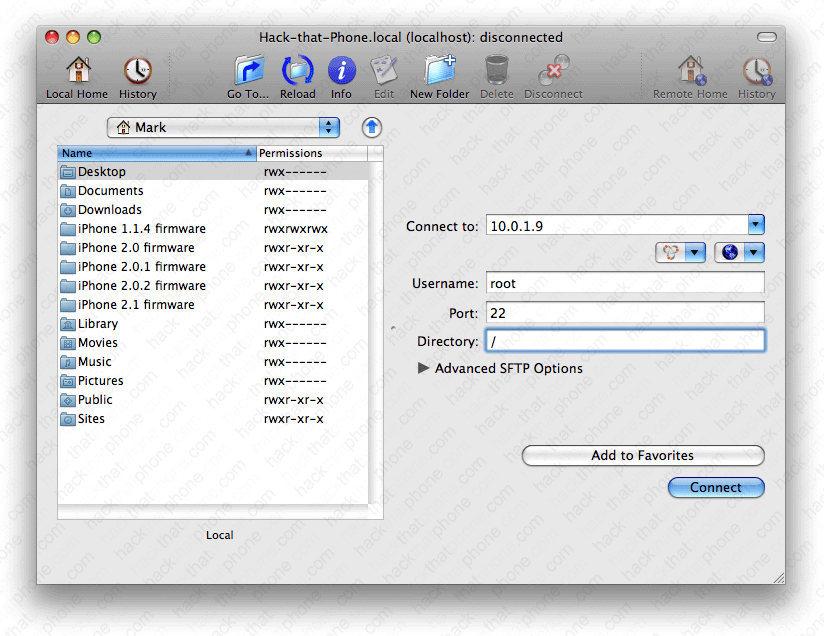
Launch Fugu. In the Connect to: field enter your iPhone's IP. In the Username: field enter root. In the Port: field enter 22. In the Directory: field enter /. Click Connect.
You should see this status bar for a while as Fugu connects to your iPhone. This could take up to 60 seconds to complete.

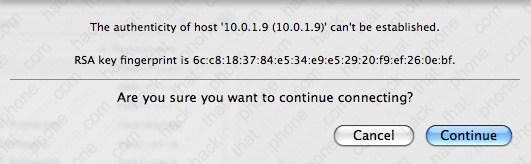
You will get this pop up. Just click Continue.
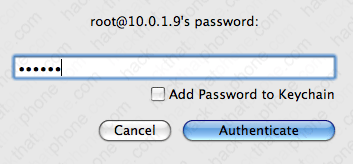
At this screen enter your password. If you haven't already changed the password, then the default one is alpine. Enter it and click Authenticate.
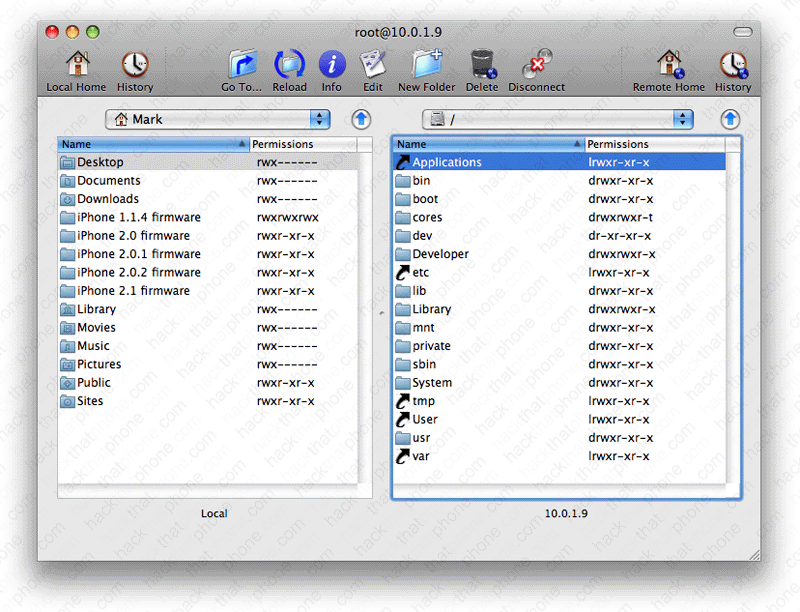
You should be at this screen. Your computer is on the left, your iPhone on the right. You can now transfer files between the two, install programs, make folders, set permissions, and delete anything you want with Fugu. I'll cover its use in other tutorials. This is a drag and drop method of transferring files which is nice.
There is one other way to log into the iPhone using OpenSSH. We are going to use it to change the root and the mobile passwords (which are alpine by default) to anything else. On your Mac, go to your /Applications/Utilities folder and launch a program called Terminal. You will see a window like the one below. Enter the following commands:
ssh root@10.0.1.9 (or whatever your IP address is)
alpine
passwd
You will now be prompted to enter a new password. You will then be prompted to enter the password again. Your root password is now changed. Remember this when you log in using Fugu or Terminal again. If you forget your password, then you will have to restore the iPhone.
Now enter the following:
passwd mobile
You will now be prompted to enter a new password. You will then be prompted to enter the password again. Your mobile password is now changed.

Don't forget to launch SBSettings again, and turn off OpenSSH if you are done working on the iPhone.
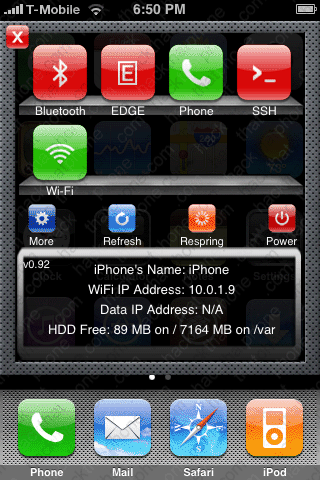
You can verify that OpenSSH is shut off by attempting to login with Fugu. You should now see this pop up.

