Jailbreaking the 3G iPhone (on 2.0.1 firmware)
intel Mac & PPCPage 1 of 2
Who is this guide for?
- 3G iPhone owners Official contract, or not
- Pwned or not
Thanks again go out to the iPhone Dev Team for providing this amazing, and FREE program for jailbreaking, activating, unlocking, and customizing the 1st generation iPhones. You can visit their website here.
Note: you can put other AT&T SIMs (GoPhone - prepaid) into the 3G iPhone and they will work.
Note: If you should have any issues with Mail, try using BossPrefs to fix it. Press the More button, and then press Fix User Dir Permissions.
BigBoss has compiled a FAQ for issues with 2.0 and 2.0.1 here.
Step 1.
If you have not already downloaded PwnageTool 2.0.1, then do so here. If you have installed the previous version of PwnageTool then delete or rename it so there are no conflicts with this newer version.If you haven't already downloaded 2.0.1 firmware from Apple, then you can download it here.
Step 2.
Launch PwnageTool. Click PwnageTool in the menu bar and select Check for Updates...
At this screen click Install Update.

Step 3.
Launch PwnageTool. Make sure the Expert mode button in the top left corner is selected. Click the iPhone on the right.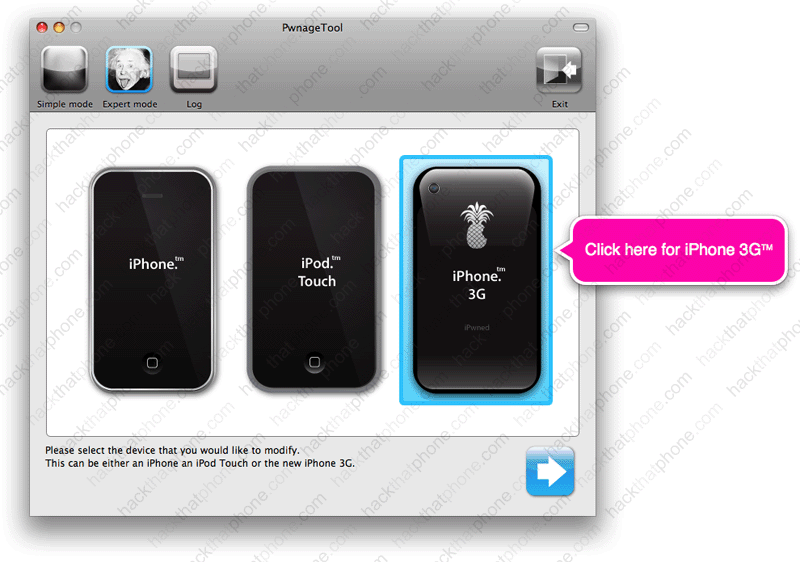
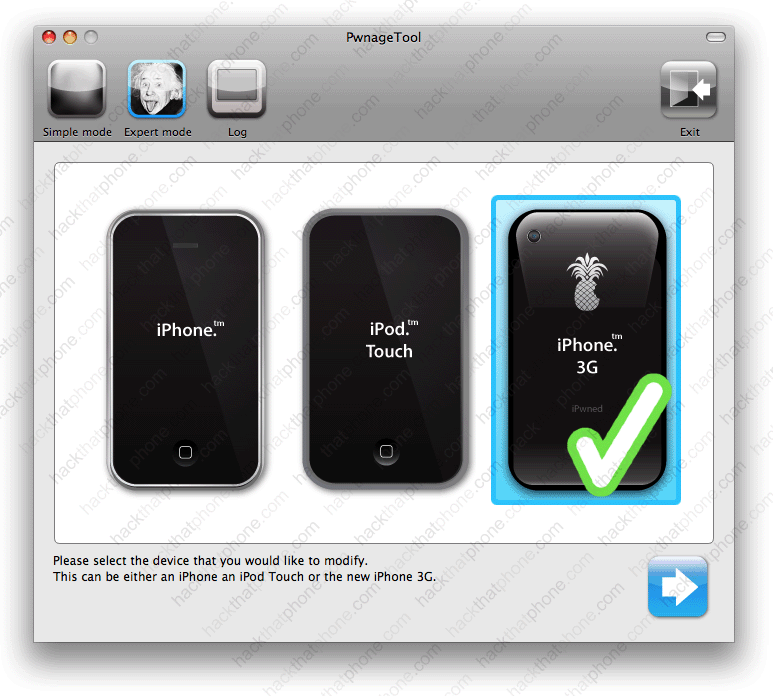
You should get a green check mark on the iPhone you selected. Click the blue arrow button in the lower right corner.
PwnageTool will search for the 2.0.1 firmware on your computer first, then from the Internet. When it displays the firmware file, click on it, then click the blue arrow in the lower right corner.

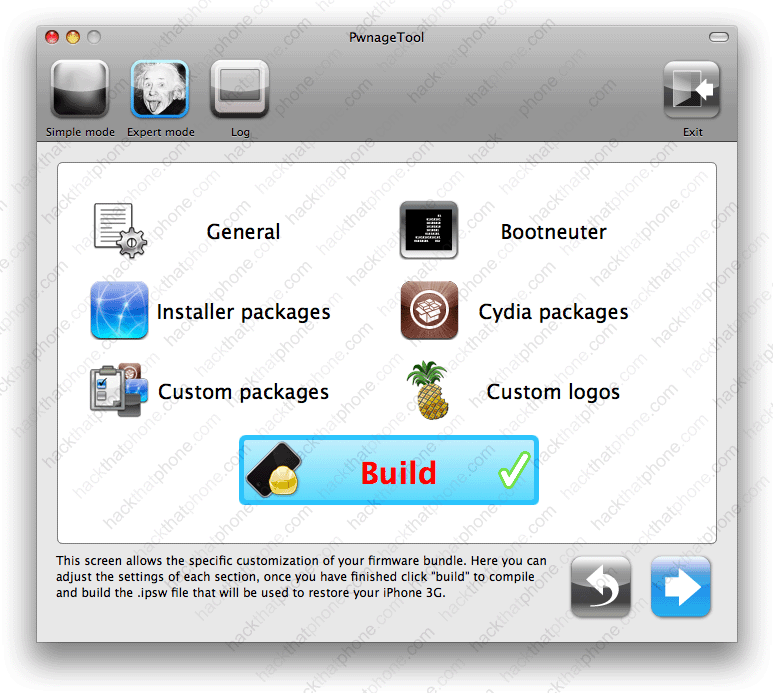
You will be at this screen and have many choices you can make. Click on General. Then click the blue arrow at the bottom.

At the General Settings screen, if you are using an authorized carrier, then you must uncheck the Activate the phone box. If you are not using an authorized carrier, then check the box for Activate the phone. Check the box for Disable partition wipe-out. Click the blue arrow in the lower right corner.

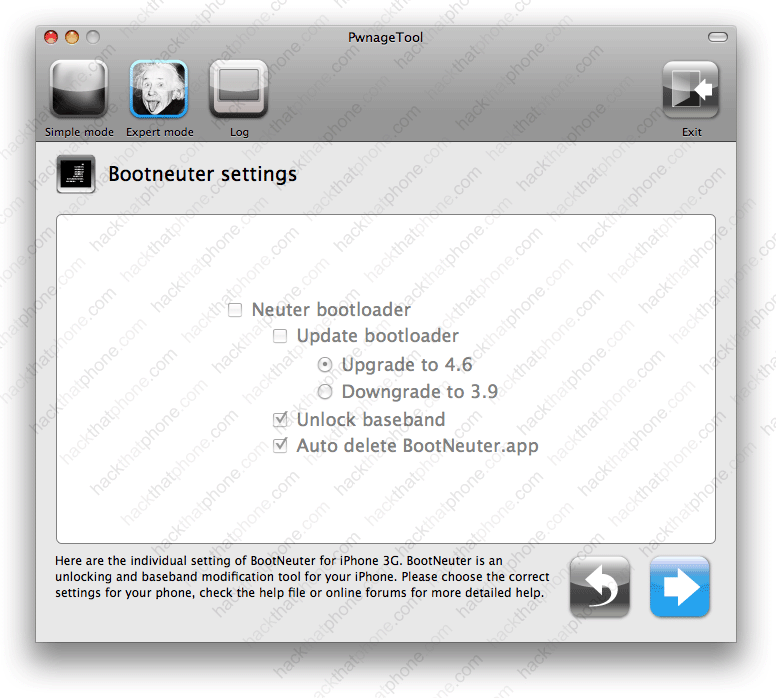
At the Bootneuter settings screen, do nothing. The 3G iPhone has not been unlocked, so there is nothing to do here. Click the blue arrow in the lower right corner.
At the Cydia settings screen, go to the Download pakcages tab and click refresh. You should see a list of packages. Anything you select from this list will be added into your custom firmware so you won't have to download the package later. Make your selections and click Add to queue.

At the Select packages tab, make sure all your packages are checked. Click the blue arrow in the lower right corner.

At the Custom packages settings screen, make sure your packages are checked. Click the blue arrow in the lower right corner.

At the Custom logos settings screen, you can choose to use the suggested images by leaving their boxes checked, or uncheck them and use the stock images. If you click on Browse... you can add your own images in their place. Click the blue arrow in the lower right corner when done.

Here is a template image you can use. It is 320 by 480 in size. It has a one pixel, transparent border on all sides. All you have to do is paste in your 318 by 478 image onto it and center it. Then just save the image with the transparency intact and your image will work. Make sure your saved image is 100kb or less.

Finally, click the Build button and the blue arrow in the lower right corner.
Now name your custom firmware file and select where to save it.

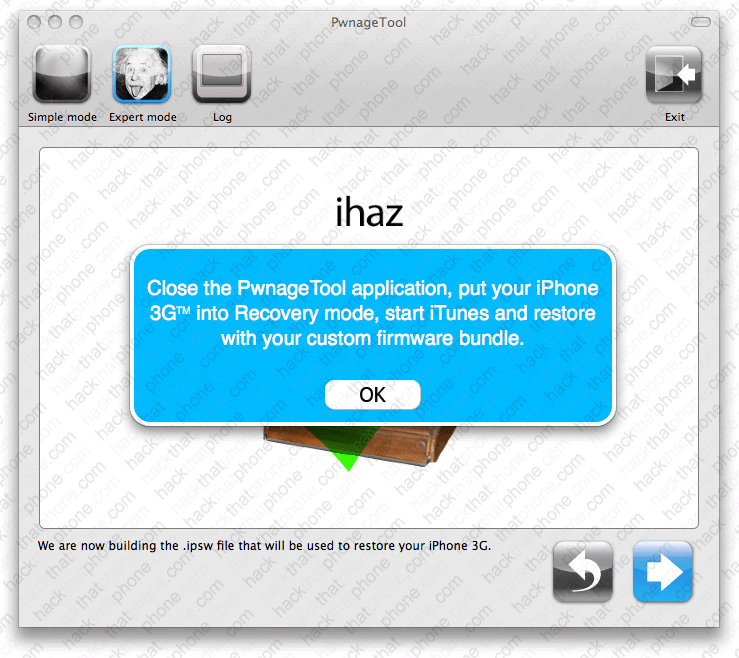
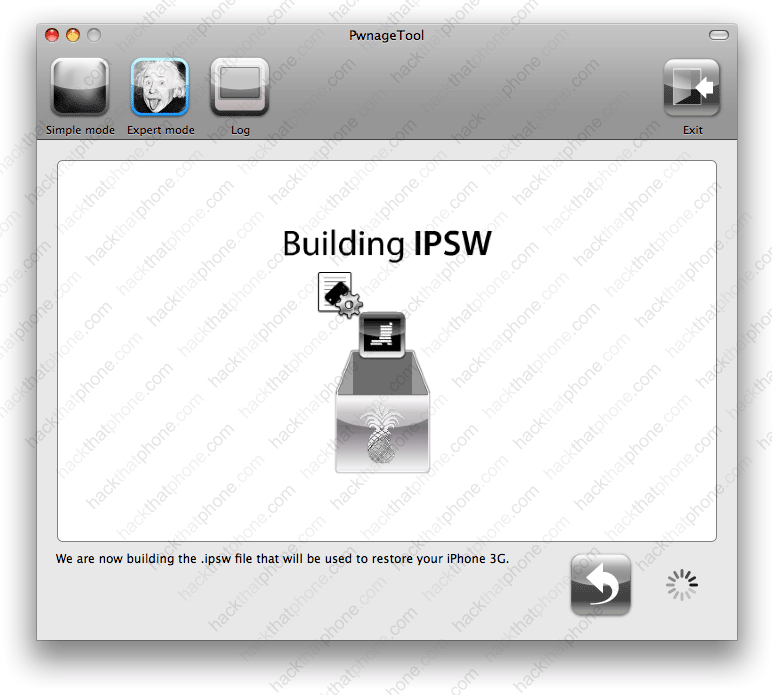
You will now see this screen while your custom .ipsw is assembled. This stage is about four minutes long.
You will be prompted to enter your system password.

You are then asked if your iPhone is CURRENTLY Pwned. I happened to answer Yes, even though the iPhone was just wiped and restored.
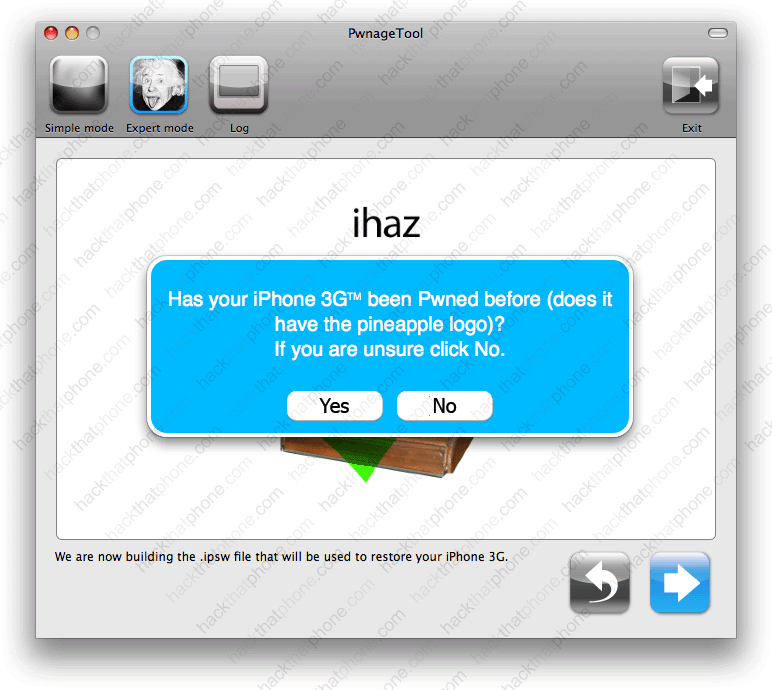
This screen appeared next.