Jailbreaking the 3G iPhone (with 2.2 firmware) using PwnageTool in Simple mode
intel Mac & PPCPage 2 of 2
Step 5.
Put the iPhone into recovery (restore) mode by doing the following: with the iPhone off, press and hold the Home button, and then plug the iPhone into your Mac.
You should now see this on your iPhone.

Step 6.
Launch iTunes. If it was already opened, you may need to unplug, and then replug in the USB cable. You may see this pop up message next. Just click OK.
A pop up from iTunes will appear. Click OK.

You should be at this screen.
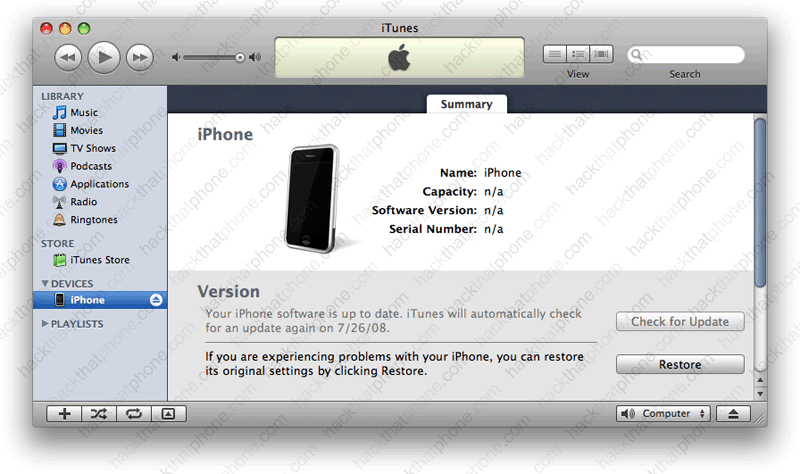
Press the Option key on your keyboard, and click the Restore button in iTunes. In the pop up window that opens, navigate to the custom .ipsw file that was saved to your dekstop by PwnageTool during Step 3.

You will see various status bars, while the restoring process continues.

You will also see this status bar graphic on the iPhone as the installation process continues.

Once the restore process has finished you will get this message.

The iPhone will reboot at this point and display your new boot logo. You should soon see an activation message on your iPhone.

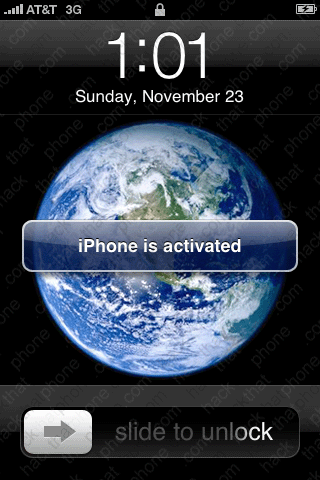
iTunes should prompt you to set up the iPhone. This is your big chance to restore your backup (personal settings, programs, et. cetera) to the iPhone.

Now you can name your iPhone and choose some options.

Then this screen will appear, confirming you are on 2.2 firmware.

By default, Cydia and the Installer are installed in simple mode.
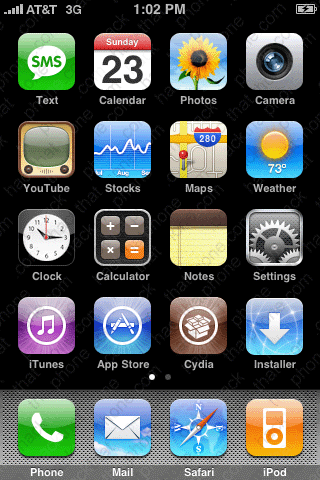
You can verify your firmwares in the About screen. You are finished.


