Make and use themes with WinterBoard
intel Mac & PPCSection 15: Changing SpringBoard fonts, font sizes, and font colors.
WinterBoard has made changing certain fonts on the iPhone very easy. There is a package of fonts on Cydia called WinterBoard Font Pack, which contains 19 fonts. These fonts will only work for the text for your program icons, they do not work in the Notes application or on other screens like Settings. I do have another tutorial that covers how to change the Notes application text, and other system fonts here.
Here is a sample of some of the better looking fonts in this package:

Step 1.
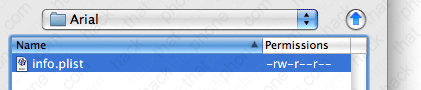
Now that Cydia has made changing fonts push button easy (like every thing else), I want to show you how this is done. You only need one file, and it's called info.plist You can change the font type, and change the font pixel size for icon names that appear on the SpringBoard. There are two types of icons: undocked icons, which are above the row where Phone, Mail, Safari and iPod live, and the docked icons which are the programs I just mentioned. This is what the file looks like.
Once you've made your info.plist, go to your Themes.xxxxxx folder.

Then make a new folder named after your theme.

Now put your info.plist file into this folder
Try out your new theme.

Step 2.
The fun doesn't stop there. You can also change the colors of your SpringBoard font. There is a package on Cydia called Font Colors. Here are what a couple of the colors look like. It not only changes the program name color, but the time as well.

Note in this particular color theme, the Navigation Bar is set to a value of 1, which makes menu titles like "Settings", appear on a black background instead of the default blue gradient. You can mix and match this style as well. Change the value to 0 and you will have the default background color. Also note the TimeStyle setting. This changes the color of the clock on the SpringBoard only.

Once you've made your info.plist, go to your Themes.xxxxxx folder.
Then make a new folder named after your theme.
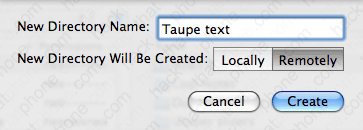
Now put your info.plist file into this folder

Try out your new theme.

Step 3.
There is one last thing you can change and that is the Calendar icon text. The day and date are both displayed, and you should be able to change the font type, size, and color. I didn't have any luck changing font families, but could change the size, and color. Here is my before and after.
Once again, you modify this with an info.plist file. At a minimum, here is what that file looks like.

Once you've made your info.plist, go to your Themes.xxxxxx folder.
Then make a new folder named after your theme.

Now put your info.plist file into this folder

Try out your new theme.
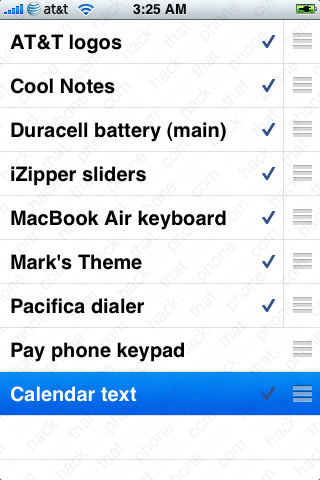
Ready to rotate your own photos on the SpringBoard?
