Make and use themes with WinterBoard
intel Mac & PPCUpdated: June 3, 2009
Section 23: Changing the lock screen clock font (or removing it).
I stumbled across a post on a forum made by Sakurina, discussing how you could change the font used for the clock on the lock screen of the iPhone. You can read that original discussion here. There are two ways to accomplish this, and I'll cover them both.
Attention
I will be using Fugu to upload the files in this tutorial. These instructions can be applied to any files you want to add to your iPhone, provided you already have SSH installed. If you have not installed OpenSSH, or used Fugu before, then you must read this tutorial first.Method 1.
The easiest way to change the font for the clock, is to call another system font already on the iPhone. The iPhone only comes with a handful of fonts. They are: American Typewriter, American Typewriter Condensed, Arial, Arial Rounded MT Bold, Courier New, Georgia, Helvetica, Marker Felt, Times New Roman, Trebuchet MS, Verdana and Zapfino.Create a file called Info.plist with your favorite text editor. I use BBEdit. This file will contain the font name for the clock. Select the font you want, and enter it here. In my example, I'm using American Typewriter. You can download my Info.plist file here. You'll have to decompress it before use.
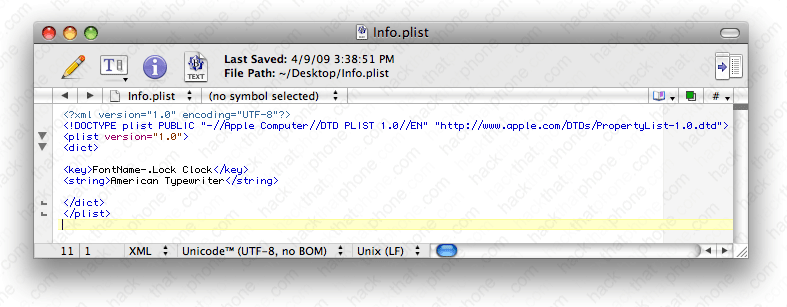
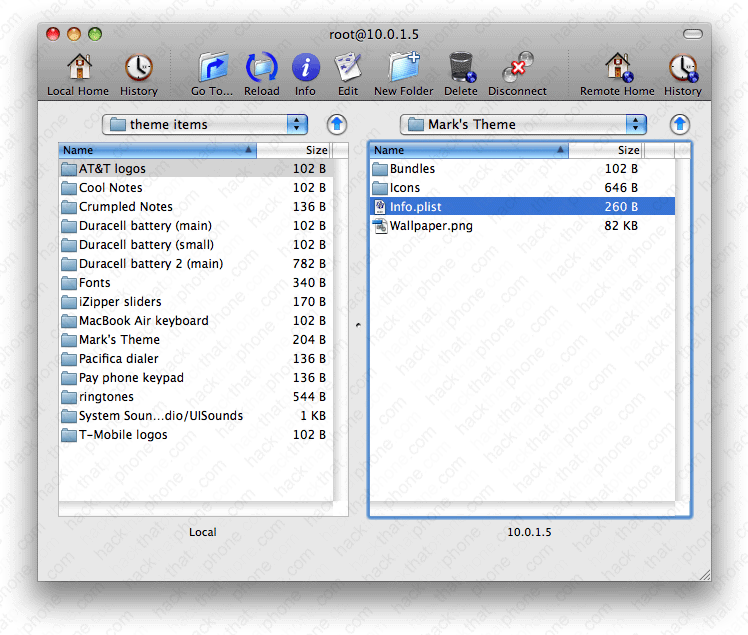
Place your Info.plist into your theme folder.
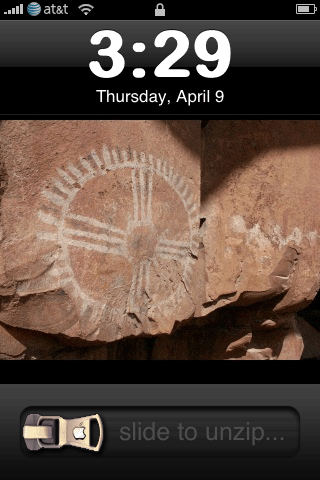
Repsring your iPhone. You can either use SBSettings which is easiest, or just launch WinterBoard, unselect your theme, then reselect it. Then press the Home button. This will force WinterBoard to reload the change to your theme.
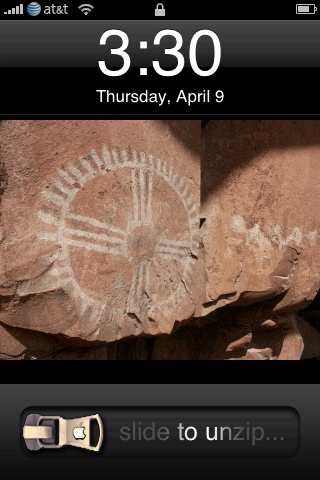
Here are a few examples with their associated font names so you can see the changes.

|
|
| American Typewriter | Arial rounded MT Bold |
|

|
| Helvetica |
Marker Felt (note the clock is being pushed up,
I have a tutorial for how to remove the day, month and date text). |
Method 2.
The only other way to change fonts, is by using fonts Apple doesn't provide. There are many fonts that have been created for the iPhone floating around the Internet. One of these is a font made by Gaurav called NeoTech. You can download it here.When you download the file you'll see there are two font files inside it: Helvetica, and Helvetica Bold. We will be replacing the stock fonts on the iPhone with these two. Of course we will rename the original font files first, so we can always go back to them later on if we want.
Keep in mind, when you use this method, anything on the iPhone that calls the Helvetica font will now use this new font we are installing. This will affect more than the clock font we are trying to change.
Warning!
If you try renaming this font you downloaded to something else (i.e. NeoTech is what it is called) and just place it into the iPhone's font folder, and then install a .plist to call it, the iPhone will go into safe mode. You'd need to undo this change, or you will wind up having to restore the iPhone. If you try renaming this font to LockClock.ttf (what the iPhone uses to display the time with), you will also get stuck in safe mode.First make your plist. You can use the download link from Method 1, just change the font name to Helvetica.

Copy the Info.plist to your theme folder.
Now go to the /System/Library/Fonts/Cache folder. Locate the Helvetica font, right click it, and select rename.

I appended ORIGINAL to the end of the name. This is so you can switch back to it later if you want.

Repeat this process for HelveticaBold.ttf.
Now copy the font files you downloaded earlier, into this folder.
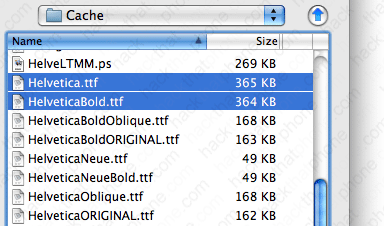
Repsring your iPhone. You can either use SBSettings which is easiest, or just launch WinterBoard, unselect your theme, then reselect it. Then press the Home button. This will force WinterBoard to reload the change to your theme. Here is what the NeoTech font (renamed to Helvetica) looks like.

Removing the lock screen clock.
Just in case you wanted to do this (I'll have another tutorial on how to remove the day, month and date later), here's how.First, download this modified LockClock.ttf file. Decompress the file and you will be left with this.

Now log into your iPhone with Fugu. Navigate to /System/Library/Fonts/Caches/ Rename (or even back up) the LockClock.ttf file. I changed mine to LockClockOriginal.ttf.

Now copy the new LockClock.ttf file you just downloaded into this same folder.

Respring the iPhone (you could use SBSettings to do this), and the clock will be gone.

Would you like to learn how to add an extra column of icons to the SringBoard?
