Make and use themes with WinterBoard
intel Mac & PPCSection 26: Multi bar lock screen.
I stumbled onto this hack purely on accident, and boy am I glad I did. A poster by the name of DouweM took a concept of a two bar lock screen and made it even more functional, and rewrote all the code needed to execute it making it more user configurable. This tutorial is directly based on the thread (which is still being discussed actively) here.
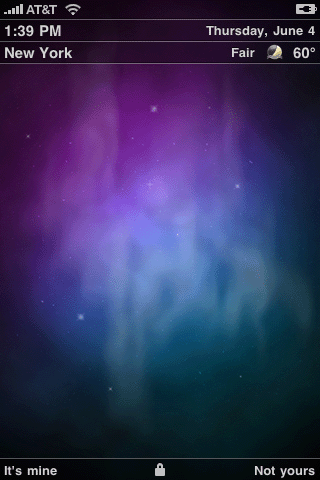
Enough talk, here is what it looks like with all the bells and whistles turned on at once. The second picture is my simpler implementation of it.


Now this theme is not without its drawbacks (I'm referring to version 1.6.6).
- If you require a PIN to unlock your iPhone, the phrase Enter Passcode (and others) will overlap the bars. Post #419 and #597 in the above linked thread will show you how to delete the text so it won't show.
- When you open the Photos application your status bar will turn white and text will be unreadable there.
- When you receive a call, the callers name, location and picture will replace your information bars. The slide to answer text will also no longer display.
- When playing a song, the artist name, song name will overlap the bars.
- The Sync in Progress text will overlap the bars. The message slide to cancel will appear shifted to the right. Download the file below to fix this.
- The slide to unlock text will appear shifted to the right for alarms. You can download this file which you can use as a WinterBoard theme to hide this text. If you are not in an English speaking country, you will need to change the name of the language project folder to suit your needs.
Attention
I will be using Fugu to upload the files in this tutorial. These instructions can be applied to any files you want to add to your iPhone, provided you already have SSH installed. If you have not installed OpenSSH, or used Fugu before, then you must read this tutorial first.Step 1.
Launch Cydia. Go to All Packages and scroll on down to MultiBar Lockscreen. Install it. It doesn't matter if WinterBoard is not installed already, when you download this theme it will install it as a dependency. Launch WinterBoard and select MultiBar Lockscreen.

You'll notice there are some problems once the iPhone resprings. Don't worry we'll take care of that.

Step 2.
Download this modified LockClock.ttf file. Decompress the file and you will be left with this.
Now log into your iPhone with Fugu. Navigate to /System/Library/Fonts/Caches/ Rename (or even back up) the LockClock.ttf file. I changed mine to LockClockOriginal.ttf.

Now copy the new LockClock.ttf file you just downloaded into this same folder.

Respring the iPhone (you could use SBSettings to do this), and the clock will be gone.

Step 3.
Now let's get rid of that string of text with the day, month and date. Download this modified plist file. Decompress the file and you will be left with this. Note, this file is for those in the United States, hence the en (short for english). If you live in France change en to fr, Germany change en to de, Spain change en to es, et cetera.
Launch Fugu and navigate to /System/Library/Frameworks/UIKit.framework/DateFormats/ Add (or overwrite) your new plist to this folder.

I used SBSettings to respring the SpringBoard. The text string should be gone now.
Step 4.
If you live in New York, then you don't have to worry about changing your weather location. For everyone else, here is how you find and enter the code for your city. Go to weather.yahoo.com. Then enter your city or zip code and click Go.
Check out the URL above. It has the code you need in it. I've highlighted it. It's just before .html.

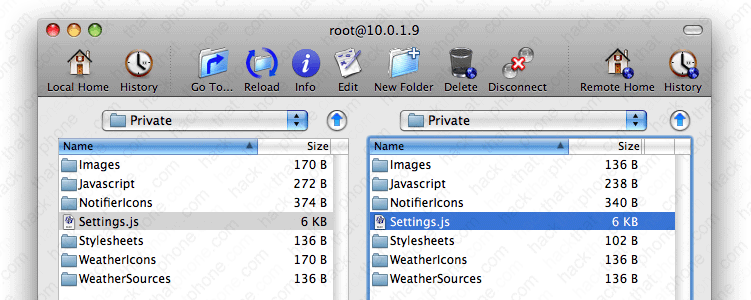
Now open the Settings.js file. Scroll down to the weather section. Enter your code in the area I have highlighted.
If you look around in this section you'll see other variables you can change. You can turn off the weather bar. You can use Apple as your weather service if you don't want Yahoo. Two icon sets for weather graphics are included, and you can change which set to use. You can select between Celsius and Faranheit. You can use real feel for weather, which includes the effects of wind chill and humidity. You can also customize your city name, and decide the order that information appears in.

Step 5.
There are many other things you can change in the Settings.js file. I'll briefly mention a couple. If you go to the General Settings section, make sure you set UseLockBackgroundImage to false if you ever want to see your charging battery icon again. You can change LockTextLeft and LockTextRight to display whatever you want. You can also specify the color of the text in this bar.
In the Clock Settings section you can select between a large or small clock text. Having a leading zero in front of three digit times. You can select between 12 and 24 hour time. Even the layout of the day, month and date are customizable.

Let's upload the Settings.js file to the iPhone. Using Fugu, navigate to /Library/Themes/MultiBar Lockscreen.theme/Private Copy your modified Settings.js file here.
Step 6.
If you want to receive notification of missed calls, and e-mails received, et cetera, then you must install Status Notifier from Cydia. Don't forget to launch the application and make your settings there.

Respring your iPhone to check out your changes.

Step 7.
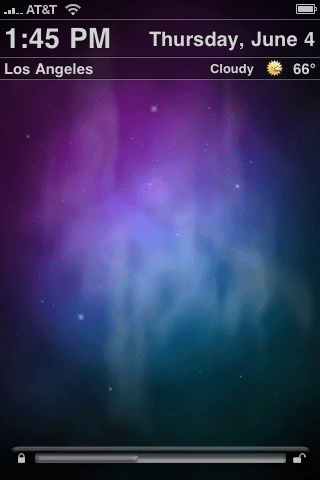
If you don't like tapping to unlock and want to use the standard slider, here is how you do that. Using Fugu, navigate to /Library/Themes/MultiBar Lockscreen.theme/Bundles/com.apple.TelephonyUI/ You should have four files here, two with the extension ALT.
First rename the non-ALT images to something else (I appended a 1 to them). Then with the ALT images delete the _ALT part.

Open the Settings.js file and in the General Settings section, change UseLockBar to false. Upload the Settings.js file back into your theme's Private folder.

Respring the iPhone. Note the slide to unlock bar will be invisible.

If you would like a visible slide to unlock bar there are a couple options. In both cases all you have to do is swap out a couple graphics. Navigate to /Library/Themes/MultiBar Lockscreen.theme/Bundles/com.apple.TelephonyUI/ You will have to rename two files: bottombarbkgndlock.png and bottombarknobgray.png. I recommend changing them to something descriptive because you'll go crazy with the multiple versions of these two files you are about to have.
Now that you've done that, if you download this file,made by 23qwerty, you'll achieve this look.

If you download this file,made by nk_twister, you'll have this look (there are several graphics you can mix and match).
Step 8.
If you are listening to music, the graphic that controls the iPod and lets you go back, play/pause and go backward will darken your bars.
Here is how to fix that. Download this file. Decompress it and you will have a file called SBLockScreenControlsLCD.png. Using Fugu, navigate to your /Library/Themes/MultiBar Lockscreen.theme/Bundles/com.apple.springboard/ folder and place the graphic in here.

Thanks to Cory Thallner for creating this. Now the bars appear at their normal brightness.

However, once you get notification status bars appearing, you are back in the same boat with that graphic again.

Step 9.
The author of this theme is currently working on how to fix the way incoming calls are handled. If you use a slide to unlock bar, then your incoming calls will look like this as far as the slider is concerned. Note I erased my phone number from the screen shot, a number will display for you. This is pretty ugly.
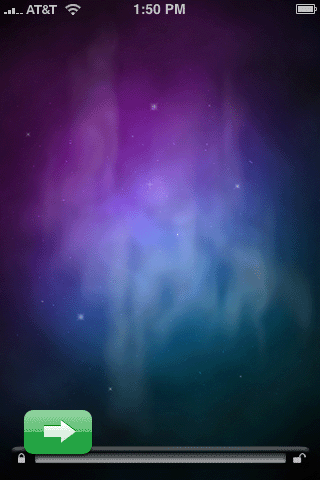
Here is one solution, and it will function if you tap or slide to answer the call.

If you use a tap to unlock button, then here is what it looks like when you receive a call. Just as ugly.


Here it is with the same new graphic in place. Simply tap to answer.
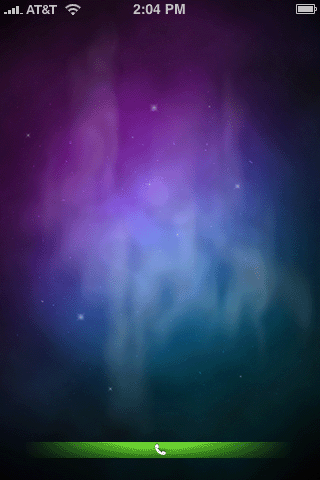
The solution is to add this file: bottombarknobgreen.png to your /Library/Themes/MultiBar Lockscreen.theme/Bundles/com.apple.TelephonyUI/ folder and respring. Andreim made this graphic, and you can download it right here.
Step 10.
If you would like to admire your new lock screen for longer than the 7 seconds that Apple has programmed in, download 20 Second Lock Screen, on Cydia.


