Make and use themes with WinterBoard
intel Mac & PPCSection 6: Changing Wi-Fi signal strength icons.
Note: If you replace any graphic with your own custom graphic, make sure you are saving the file as a png, and that it retains the same dimensions as the original. You can try experimenting with dimensions, but your restults may be mixed. You can get all the original Wi-Fi icons at my graphics directory here.
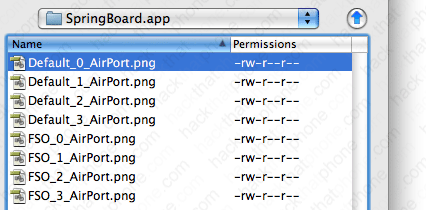
I'm going to use a theme on Cydia called MiWiFi to demonstrate how to change the Wi-Fi signal strength icons. In this case, eight graphics must be replaced to replicate the various signal levels on both black and white status bar backgrounds. These files are: Default_0_AirPort.png, Default_1_AirPort.png, Default_2_AirPort.png, Default_3_AirPort.png, FSO_0_AirPort.png, FSO_1_AirPort.png, FSO_2_AirPort.png, FSO_3_AirPort.png.
Step 1.
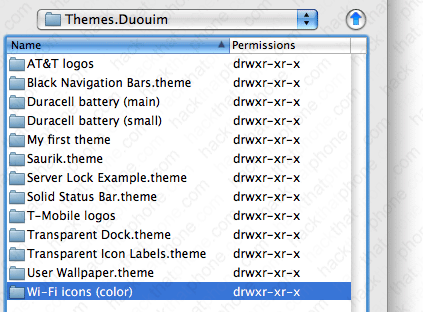
You should be at your Themes.xxxxxx folder. Create a new folder called Wi-Fi icons (color).
Then go inside this folder.
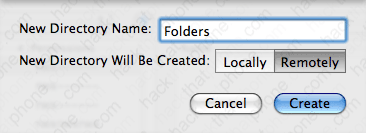
Create a folder called Folders.
Then go inside this folder.
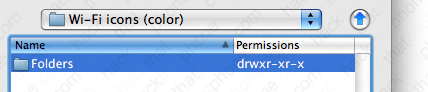
Create a folder called SpringBoard.app

Then go inside this folder.

Now place all your Wi-Fi icons in this folder. It should look like this when you are done.
Step 2.
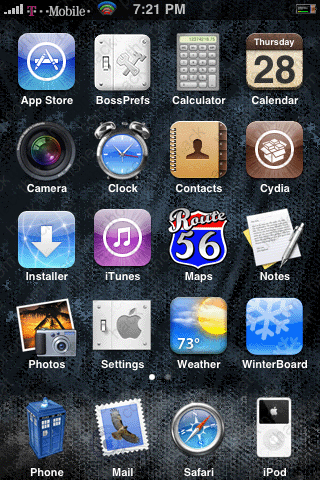
Launch WinterBoard and select your Wi-Fi icons theme. Here's what it looks like.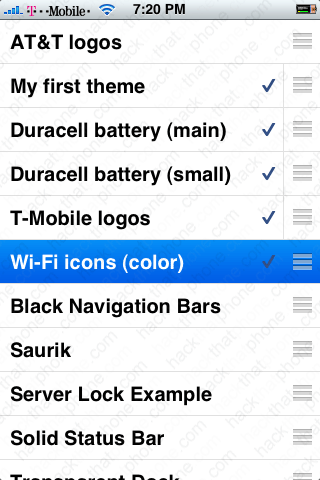
Ready to change the cellular signal strength graphics?
