Make and use themes with WinterBoard
intel Mac & PPCSection 14: Custom keypad dialer.
Note: If you replace any graphic with your own custom graphic, make sure you are saving the file as a png, and that it retains the same dimensions as the original. You can try experimenting with dimensions, but your restults may be mixed.
Let's face it, the stock phone keypad is BORING looking. You can download themes on Cydia (in conjunction with WinterBoard) to spice up your dialing experience like this. This dialer is called Leaf Dialer.


But I want to show you how to put your own personal photo on your keypad, to achieve something like this. You can also change the numbers and letters and get rid of the grid lines if you wanted... I then went a step further and made the next image. I won't be showing you how to do this, it's very time consuming (at least the first time). But if you analyze how other themes are made, you can duplicate the process with trial and error.


Step 1.
Find an image you want to use for your keypad. It must be 320 pixels in width by 273 pixels in height. You'll also need to superimpose the numbers for the keypad over your image, or you're going to have to guess where the buttons are.I've simplified this process by providing this Adobe Photoshop template graphic in PSD format which will allow you to layer the numbers and letters, and the separator lines over your image.
In this image you see the template file I provide with all the layers turned on. Your image goes on the "your picture goes here" layer. The "Apple stock image" layer is the grid that divides the buttons. You could also turn off the visibility of the numbers or the letters if you want.
When you are done compiling your graphic, simply save it as a png file and name it dialerkeypad.png

Step 2.
At this stage you have a choice to make. If you use just this single image for your keypad (dialerkeypad.png), your buttons will look like this when you press them.
If this is okay, then skip ahead to Step 3. If this is not okay, then you can have the buttons visually do nothing (it will dial numbers, your image won't change is all). To do this, duplicate your custom dialerkeypad.png image and rename it dialerkeypad_pressed.png.
There is one more option. You could color the numbers like this.
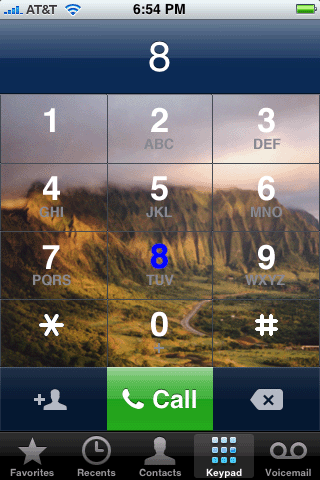
To do this, go back to the template with your photograph in it. Make whatever changes you'd like to the numbers or the letters, and save this image as dialerkeypad_pressed.png

Step 3.
Launch Fugu and navigate to your /Library/Themes.xxxxxx folder. Click the New Folder button and name this new theme Custom dialer.
Double click to go into this new folder.

Now make a folder called Folders.

Go inside this folder.

Make a folder called MobilePhone.app.

Go inside this folder.

Copy your image(s) into this folder.

Launch WinterBoard and try out your new theme.

Keep in mind this is a very basic tutorial. Try downloading some keypads from Cydia, and explore their contents to see what other images you can change. The Leaf Dialer I showed at the beginning of this tutorial modifies several other graphics to theme even more of the keypad. It is not as hard as it looks to do this.
Ready to give change some fonts?
