Make and use themes with WinterBoard
intel Mac & PPCSection 22: Per-page wallpaper images.
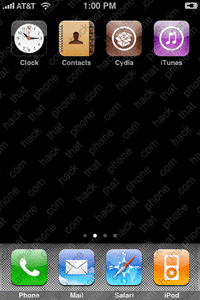
You can have a different image on each "page" of the SpringBoard. To demonstrate this, here are my stock iPhone pages.



From Saurik's site: "This graphic will be displayed above widgets and wallpapers, but below the icons. Unfortunately, due to a bug that I'm working on fixing, it will also be displayed above the dock when your icons are wiggling."
Attention
I will be using Fugu to upload the files in this tutorial. These instructions can be applied to any files you want to add to your iPhone, provided you already have SSH installed. If you have not installed OpenSSH, or used Fugu before, then you must read this tutorial first.Launch Fugu and navigate to your Themes folder. You can either place your new wallpaper images into an exisiting theme, or just make a new folder for the theme.

I'm making a new folder, so I clicked on the New Folder button. Make sure you create the folder Remotely.

Go into the folder where you want to put your wallpapers.

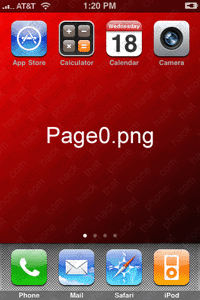
There is a maximum of 9 pages in the SpringBoard. Name your image files this way: Page0.png, Page1.png, et cetera. Make them 320x480 and save them in .png format. Place them into the folder.

Launch WinterBoard, and select your new theme.

Here are the new wallpapers.


Would you like to learn how to change the font for the lock screen clock, or how to remove the clock?
