Custom ringtones, system sounds and text tones
Posted: February 12, 2013Page 1 of 2
Yeah, I know. Why can't Apple make this easier? Unless you like paying for your custom audio tones in the App Store, you have to jump through some hoops to get your own audio clips onto the iPhone. I'm sure there's a program out there that would simplify all this for a dollar or two, but I'm going to show you the free method.
I am going to demonstrate three methods for putting custom ringtones (which can also be used as text alerts) onto your iPhone, using iTunes version 11.0.1. Apple loves to update iTunes a lot, so if you are using a newer version don't worry, It's all basically the same.
- Method 1: Using an .mp3 (MPEG) or .m4a (AAC) file, already edited to the proper length.
- Method 2: Using a non-DRM music file, and selecting a portion of it to use (not very precise).
- Method 3: Using GarageBand to make a new ringtone.
Method 1: Using an .mp3 (MPEG) or .m4a (AAC) edited file
Let's say you have a sound effect file or a piece of music that is already edited to the proper length. Here is how you make it into a ringtone.Find your file... If you have an .m4a already, you can just rename it to .m4r and skip down a bit in this section.
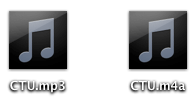
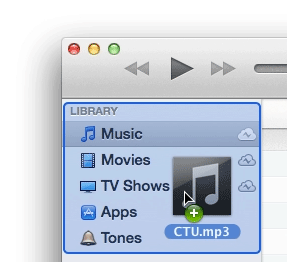
Then drag the .mp3 into the iTunes library. The file will be placed into your Music directory.
Right click this file, and select Create AAC Version. In this example it says Create MP3 Version. Well I already have an MP3 version. If you imported an m4a it is already in AAC format.

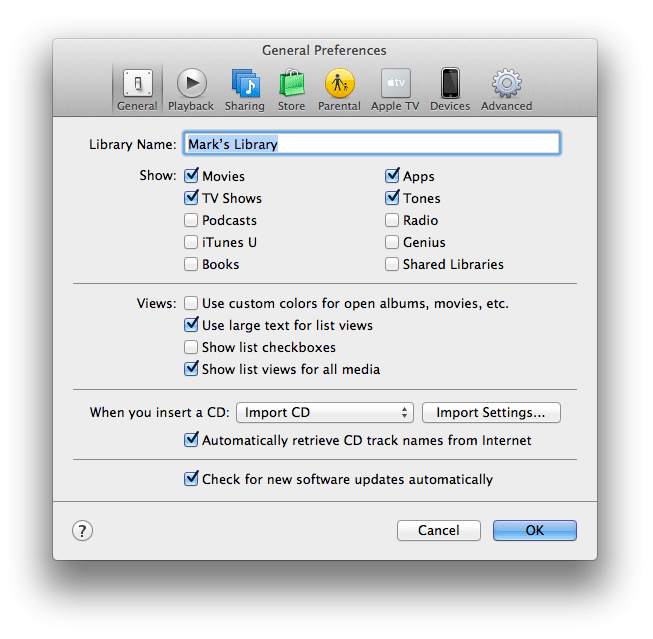
To get the option to convert to AAC, click on the iTunes menu bar, then Preferences..., and you will see this screen. Click the Import Settings... button.
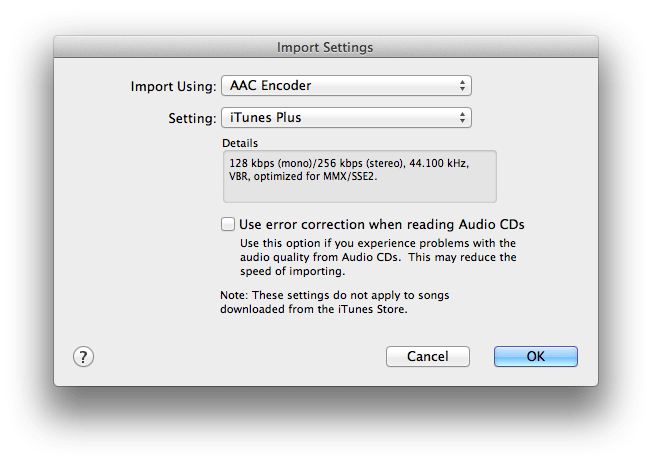
Then select AAC Encoder, in the Import Using drop down box. Click the OK button. Then click the OK button in the General panel.
Now when you right click the audio file you'll have an AAC option. Convert the file.

You'll now have an .mp3 (MPEG), and .m4a (AAC) version of your file.

Drag the AAC file out of iTunes and on to your desktop. Click on the file name so that it is editable. Change the a to an r, and hit return. Click .m4r at this pop up message.


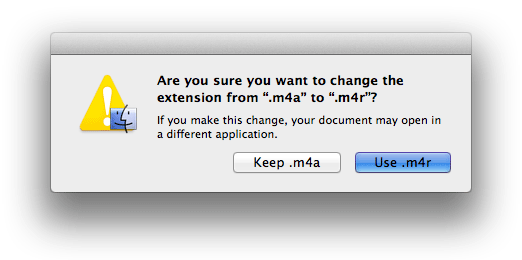
You should now have this on your desktop.

Delete both the AAC and MPEG versions of your file that are still in iTunes. If you don't do this then you won't be able to import your .m4r file.
Drag the .m4r on your desktop into iTunes.

It will be placed into your ringtones folder automatically.
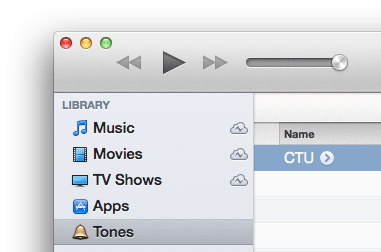
Now go to the Ringtones tab, click Sync Ringtones, and click Apply.
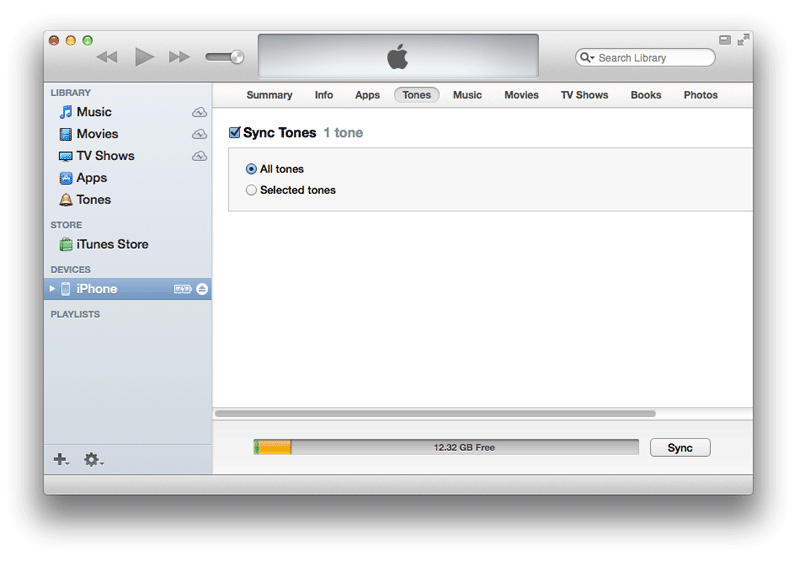
The ringtone will be placed at the top of the list.

Method 2: Using a non-DRM music file, and selecting a portion of it to use.
Launch iTunes and select a non-DRM song to use. Right click the song and select Get Info.Note: If you purchased music on iTunes, you can remove the DRM by peforming the following: burn a playlist of DRM protected songs to CD. Import the songs from the CD into your iTunes library. Convert these files to AAC format. You can change your sound format import settings by going into iTunes preferences, and clicking the Import Settings... button in the General tab, then select AAC Encoder. Of course iTunes currently is DRM free, but just in case you had old some old purchases.
Right click your song and select Get Info.
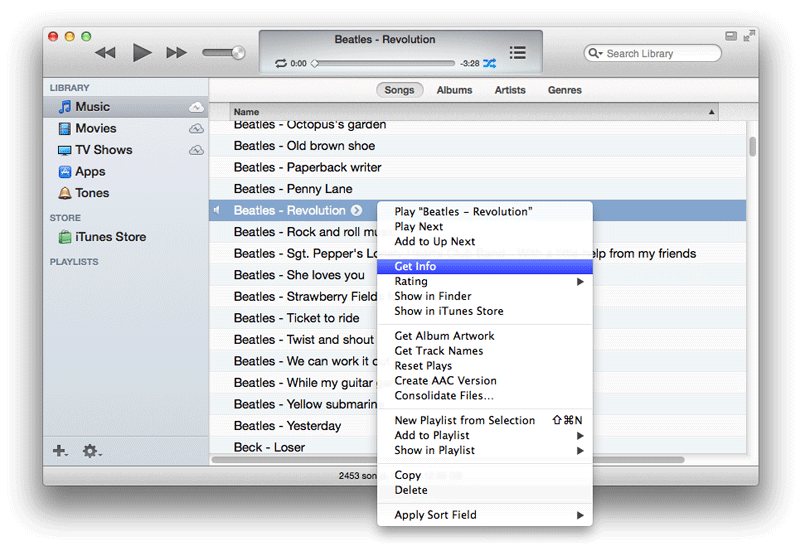
Go to the Options tab and specify the start and stop time for your ringtone. Click OK.

Right click the song name again, and select Create AAC Version.

You will now see a second instance of the song you selected. Notice that it is only 30 seconds long (or however long you selected). Drag the duplicate song out of iTunes.

Click the file name so that it becomes editable. Change the a to an r, and press return. Click .m4r at this pop up message.
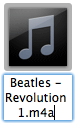

Delete the 30 second AAC file that you just made in iTunes. It will conflict with trying to add the .m4r file. Then drag the .m4r file into the iTunes Library
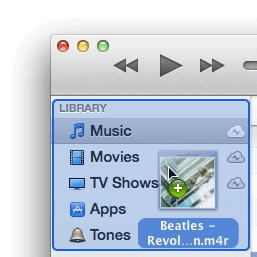
It will be placed into your ringtones folder automatically.
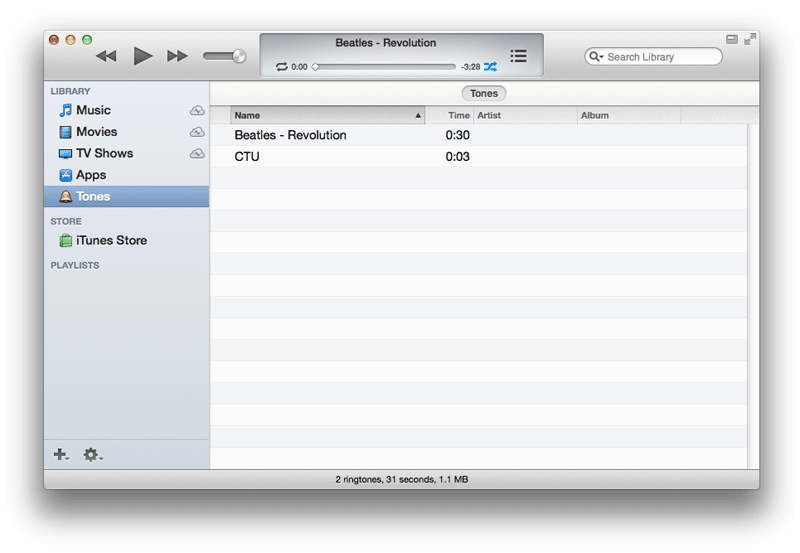
Now go to the Ringtones tab, click Sync Ringtones, and click Apply.

The ringtone will be placed at the top of the list.

Don't forget to go back to your original song, and erase the custom start and stop times so it will play normally. If you don't remember the stop time, you can just clear the entry field, and uncheck the box, then click OK.
