Lockscreens!
Posted: March 23, 2013|
Oh boy do I love lockscreens! It's the first thing you see on the iPhone and the stock
one is pretty boring looking. Here's what I'm talking about over to the right.
Yawn..... There is nothing you can do from this screen except slide to unlock. You'll receive little pop up bubbles for things like missed calls and voicemails and what not which is nice. But wouldn't you like to be able to customize more than just the wallpaper? Wouldn't you like to put some more useful information on there? I'm going to show you a few different lockscreens and provide a little information on how to customize them. My goal isn't to create an exhaustive in-depth tutorial for several lockscreens. I'm going to write a summary on a few that I like and then give you enough information to make you dangerous. This is just to whet your appetite. |

|
LockInfo
The grand daddy of lockscreen customization. This program has been around for a few years now. I can't even do it justice by just writing about all its features. You really should just watch the video below to get an idea of what is possible.I just love it for the new clock and weather integration. Swipe the clock to reveal a forecast. There's a pull down section (controlled by those two buttons) where you can place all your widgets. The list goes on and on. This is a paid application and worth every penny! There is also a trial version.


IntelliscreenX
|
This lockscreen came out awhile after LockInfo and also puts a ton of information on your
lockscreen, however they do it a little bit differently. They give your lockscreen
several pages that you can scroll left to right just like the home screen on the iPhone.
Sorry they don't have a snazzy video, so I just stitched the series of screenshots they display on their web site here. This is also a paid program, but it has a free trial. You can check out their web site here. |

|
miLock Pro i5
|
This picture is just an example of what you can do. There's a lot of changes you can make
to this to suit your tastes.
This is an amazingly configurable lockscreen. You don't need to mess with the file system (but you can of course), it's all configured right from the lockscreen! I haven't found any good documentation for setup so there's a frustration factor built in, but you may like trying to figure things out. You can change fonts and font sizes and colors, widgets, and you can position things where you want them. You just drag and drop. The first thing you need to do is install Lockscreen Clock Hide to hide the stock display for time and date. When installed you'll find it in your Settings application. It's called Clock Hide. Set the Enabled slider to on. To read about this theme over at ModMyi click here. This is something I put together very quickly, the HTC clock and a weather forecast with a cool slider. This is a paid program. |

|
Peekly
This is a lockscreen with more than meets the eye. The main page shows you the time and date. Here it is in "default" mode. You can also have a digital clock, a large round analog clock or have words display instead of numbers. On the second page you have the weather for one city. This lockscreen is called Peekly because you can peek at a half page behind these two main pages.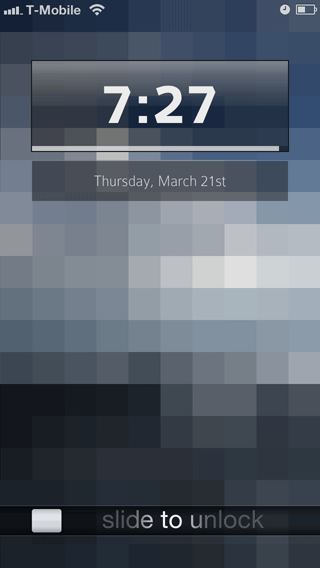
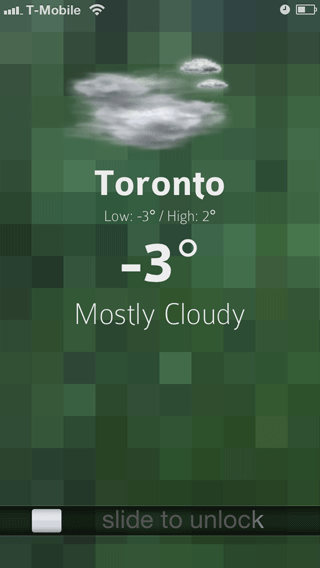
From the page with the time and date on it simply pull the screen to the right and by default a three month calendar will display. You can also have it display your Google Calendar or Twitter stream or an RSS feed here. From the weather page pull the screen to the left and a four day forecast will appear. Pretty cool.


You'll need to install a couple other programs to use this theme. They are all free.
- Lockscreen Clock Hide is used to hide the stock display for time and date. When installed you'll find it in your Settings application. It's called Clock Hide. Set the Enabled slider to on.
- 20 Second Lockscreen. This will provide you extra time to look at the lockscreen's various pages. There is no control panel for this tweak.
- iFile. This program allows you to edit the settings.js file in the theme that controls various things like setting your ZIP code, choosing between Celsius and Fahrenheit, 12 or 24 hour clock, clock style and adding your Google Calendar, Twitter feed or an RSS feed. You could also use SSH to do this. Just go to /Library/Themes/peekly.theme/settings.js
You can change the pictures by going to /Library/Themes/peekly.theme/images/ and replacing the bg.jpg and bg2.jpg graphics.
I recommend reading the developer's page here. They have comments from users that might help you out if you want to customize this theme.
exxOS Lockscreen2
This lockscreen was designed to work with a paid theme called exxOS (which I wrote an elaborate installation tutorial for here).You can use the lockscreen without purchasing the theme, you'll just have to install it via SSH. The direct download link is here.
You'll need to install Lockscreen Clock Hide to hide the stock display for time and date. When installed you'll find it in your Settings application. It's called Clock Hide. Set the Enabled slider to on.
The cool thing about this theme is pressing the weather icon will reveal a five day forecast that slowly fades in and back out when you press the icon again.


You can change the wallpaper (this isn't the default image, it's hideous), it just takes a little work. The exOS5_Final_LS.theme/LockBackground.html file is what controls the background and other aspects of the theme, however you can just drop your own image which you must call Wall.png into the exOS5_Final_LS.theme/image folder.
Sarif
|
Sarif is a paid theme but the lockscreen is nice in that it is one of only a few themes
that lets you use words in place of digits for the time of day. If you are into that
kind of thing.
Check out the developer's site here to learn more about this theme. I just love the carrier and Wi-Fi bars in this theme and that slider! |

|
Various lockscreen themes
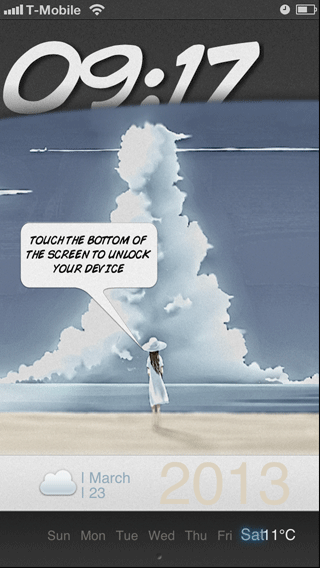
Here are a few different looks that you may like. If you want to find more just launch Cydia and type LS in the search bar and you'll see tons more to choose from. They pretty much all require tweaking of a settings file to enter your location and configure things like the clock and temperature display.Here's LS Climacon and LS Jelly Bean.
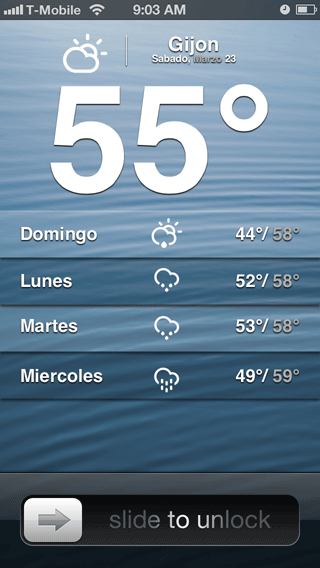

LS Vignetti v1 (i5) Theme and my heavily modified version. Edit the Style.css and LockBackground.html files to achieve this look with the much larger clock. Stretch the heck out of that Overlay0.png while you're at it... I actually had to learn some CSS to do this as I didn't like the all capital letters which are harder to read.

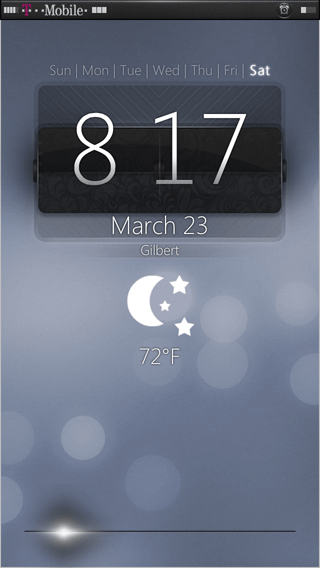
LS Cliffs IP5 and LS Round for i5.

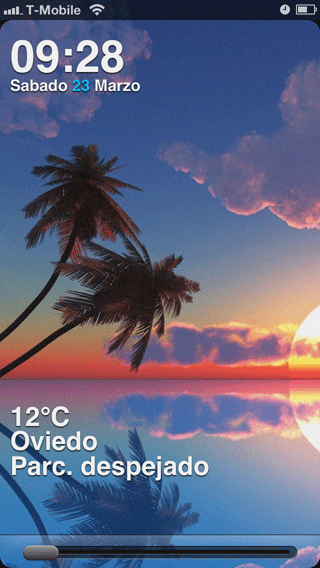
Here's LS Anime for i5. And a modified version of LockHTML2.

Sliders
Don't think you're stuck using the same old sliders either. You can change the text, completely remove the text and totally change the look of the slide to unlock, slide to answer and slide to power down sliders. If you see one thing you like in one theme and another thing you like in another theme then just put theme together. The sky is the limit when creating a theme. Here's a small sampling of just some of the slider themes out there.


