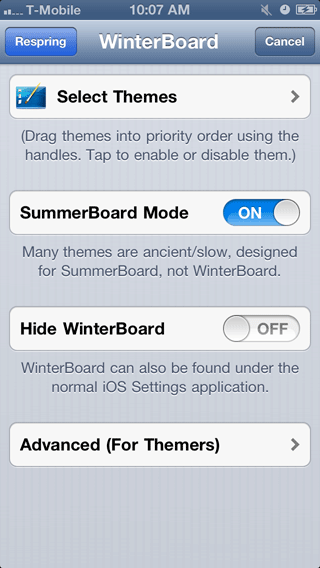
Understanding a theme's directory structure
WinterBoard functions by substituting one image for another. It does this in a unique way: it doesn't directly replace the image, it instead tells the iPhone to look somewhere else for the image it needs. It accomplishes this through mimicking the folder structure of the iPhone as far as where it places its images. It's important you understand how this works, or your themes will not function.First create a folder for this theme you are creating. Mine will be called App Store icon.

Open this folder and create a folder inside of it called Folders.
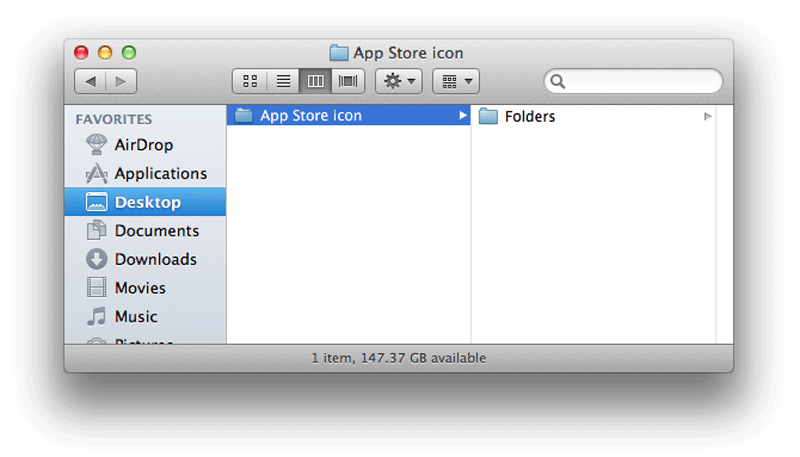
Open this folder and create a folder inside of it called AppStore.
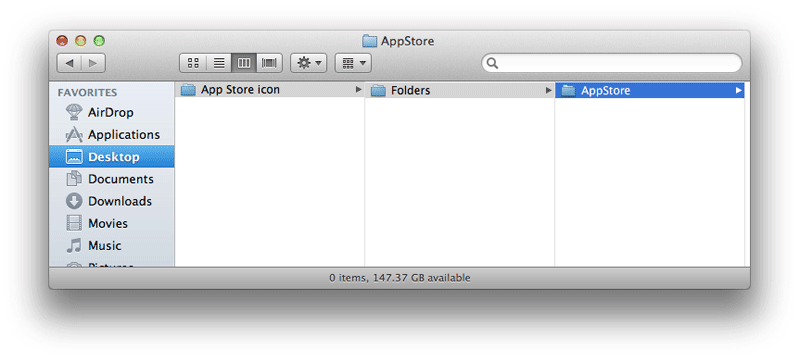
Next you'll place your graphic into this folder.

In this particular case the extension .app needs to be appended to the AppStore folder for it to work. This is best done after you have placed your images into the folder. You could do this afterward, but then you would need to right click the folder with the .app extension and then select Show Package Contents to manipulate the contents. You pick which method you like, I'm demonstrating the method I prefer.
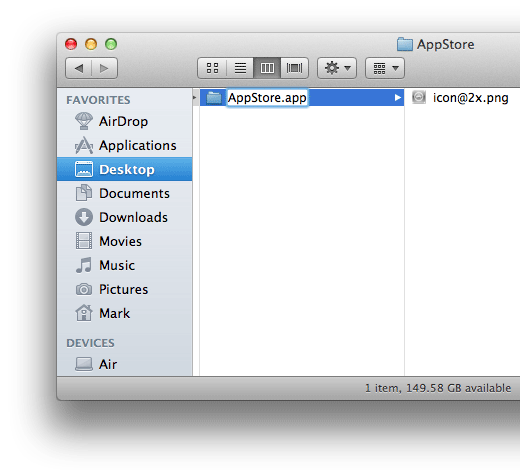
You'll be asked to confirm this decision.
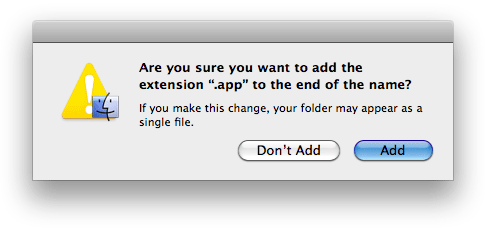
You'll notice that when you click on the AppStore.app, you'll no longer see the contents inside it.

Here is how you'd view the contents of a .app folder. Right click the AppStore.app, then select Show Package Contents. When you do this a new folder opens, and now you can view the contents. You can at this point add or remove items and it will update the original folder.

At this point you can simply upload your AppStore icon folder to your iPhone's /Library/Themes folder, where the rest of your WinterBoard themes will go.

For this particular tutorial, here is what I would write in place of showing you step by step how to build these nested folders, and where to place the graphics:
Create the following directory structure: Your theme/Folders/AppStore.app/ Then place your graphic called icon@2x.png inside the AppStore.app folder.
This will save me a lot of time creating screen shots, and makes the tutorials a lot shorter as well. Most of the time you won't append .app to a folder.
Launch WinterBoard, select the App Store icon theme, press WinterBoard, then press Respring and there's your new icon.