SSH via a USB connection and using FTP
Updated: February 7, 2013Note: If you are only interested in using Cydia or the App Store to install applications on your iPhone, then you do not need to perform anything in this tutorial. This tutorial is strictly for those who need to interact with their iPhone's file system to perform advanced level tasks.
In this tutorial I'll cover how to use SSH over a serial connection (your iPhone's USB sync cable). This is great if you are on the road and don't have access to a Wi-Fi network as you can still interact with your iPhone's file system in a more robust way than using a program like DiskAid, iExplorer or PhoneView. I came across this process in a thread over at the MacRumors forums. "-aggie-" detailed the process here in post 14. A big thank you goes out to him!
I realize that DiskAid, iExplorer and PhoneView can also interact with your iPhone's file system easily (and at a cost), however none of those programs allow you to change file permissions (and there may be other things they can't do as well).
Step 1.
Press Settings, General, Auto-Lock and set it to Never. You should always do this when working with SSH. If the iPhone should sleep, you will lose your connection and possibly data. If this happens during a critical process you could damage the iPhone, or have data corruption issues. Don't forget to set this back when you are done or the screen will not shut off!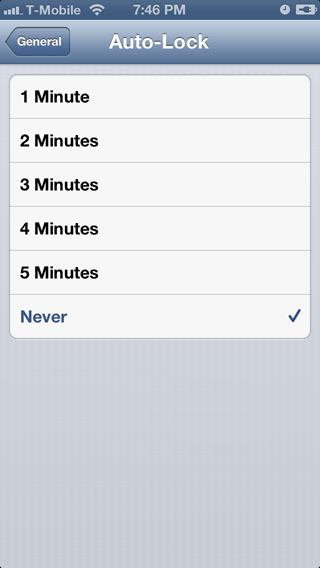
Step 2.
Download iPhoneSSH here. When you see the file on the left appear, double click it to decompress it and you'll have a folder.
Step 3.
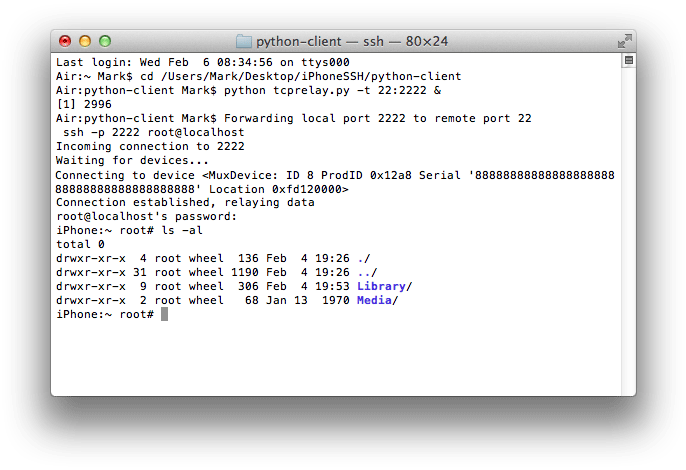
On your Mac go to your Applications folder, and then into the Utilities folder. Launch the Terminal.app program. In the terminal window type the letters cdPress the space bar once. Open the iPhoneSSH folder. Drag the python-client folder into the Terminal window.

The path to that folder will now be added in the Terminal window.
Press enter then type python tcprelay.py -t 22:2222 &
Press enter. You should receive a reply message immediately.

Step 4.
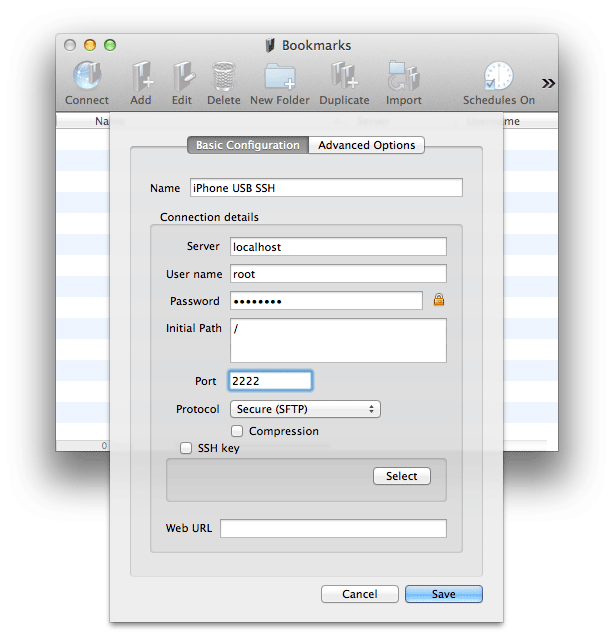
Launch YummyFTP (or any other FTP client). Click the Add button.
Enter the following values. The default password is alpine (you may have changed it already). Click Save.
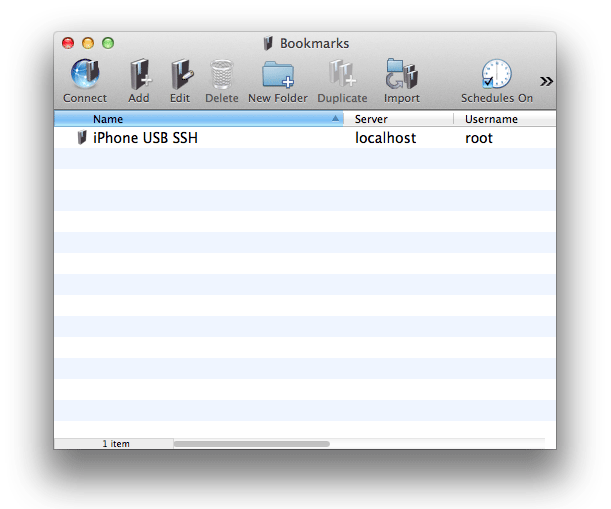
Double click the iPhone USB entry to make the connection.
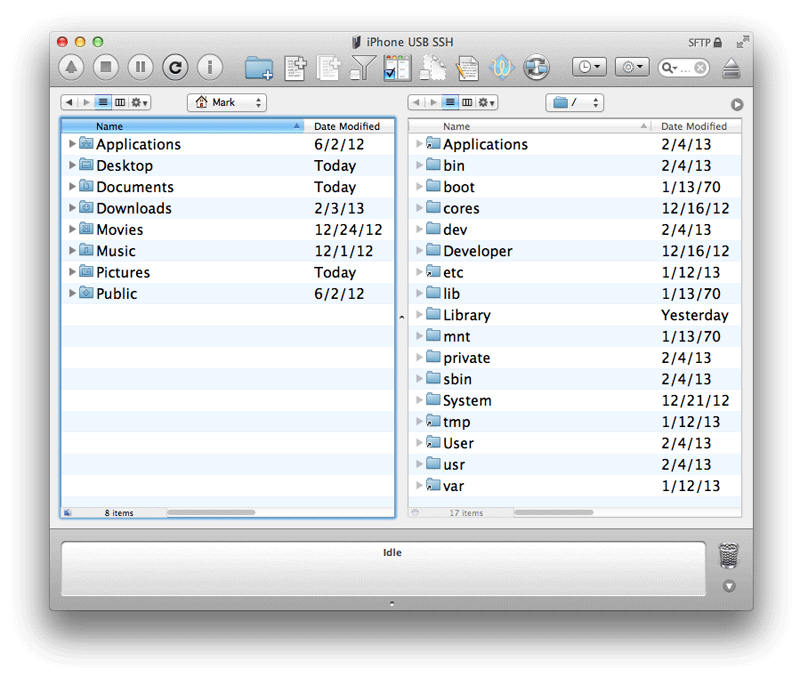
Your computer's file system is on the left, the iPhone's on the right.
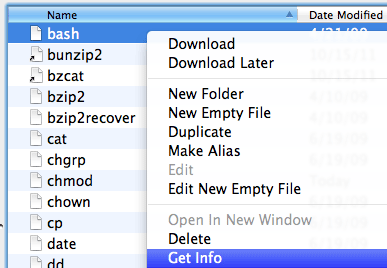
To change permissions on a file first select the file you want to modify then right click it and select Get Info.
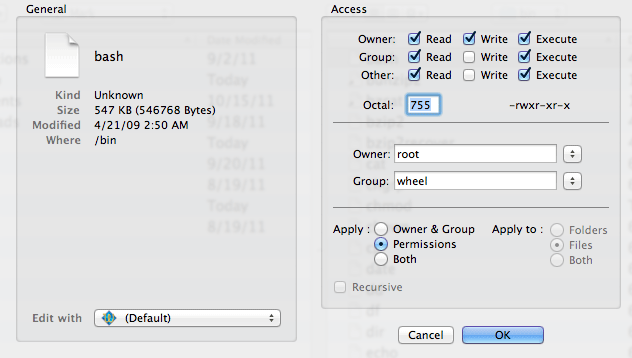
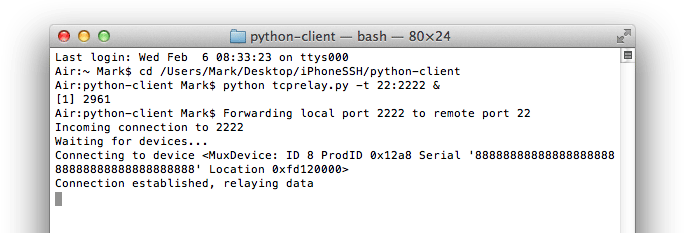
You could also change permissions in the Terminal used below. The Terminal window will let you know that it is connected and relaying data to your iPhone based on its serial number (displayed in hex).
Alternate log in method
If you don't want to use a GUI then you can do everything using the Terminal. Once you've invoked tcprelay enter the following command: ssh -p 2222 root@localhost