Converting PNG files
Posted: February 12, 2013I've read several reasons why you can't just take a png file out of the iOS firmware and open it in your favorite image editing program: there's additional data in the file that makes it unrecognizable, the color channels are skewed, the images are compressed by removing metadata. It's my understanding the pngs are modified like this to make it easier/quicker for the iPhone to process and render them, or just to befuddle people who would mess around with the iOS system files.
This image was removed from my iPhone. I noticed that you can see what the image looks like based on the icon (which I've never noticed before with previous firmware versions). If you try to view stock graphic files in the firmware, you'll see they refuse to display with image editing programs like Adobe Photoshop. I did notice that the Apple Preview program was able to open it, but that's not a very helpful program for what we want to do.
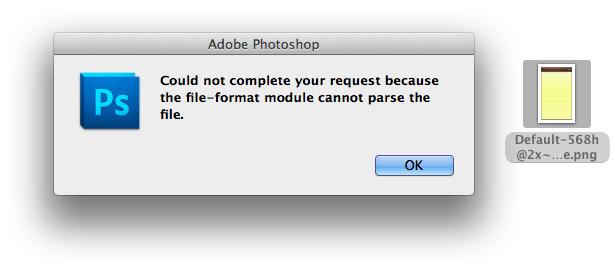
Whatever the reason, there are a few ways to convert these images to an editable state.
- FixPngDroplet was the first program I came across years ago. I think it's development has come to an end, however you can read my original tutorial from the 1.x firmware days here.
- A similar program iPhonePNG isn't 100% reliable.
- The Python based iPhone PNG Images Normalizer also isn't 100% reliable.
- I've "heard" that Graphic Converter can do it, but I don't want to spend $40 to find out.
- There is also a program called pngdefry which I haven't used. That page provides an excellent analysis of what Apple does to pngs.
- You can of course use Xcode. Apple took the open source program pngcrush and modified it (while not making their changes open source - classic Apple move) and included it with Xcode. I'll show you how to do this with Xcode.
Step 1.
Install Xcode. Xcode will take some time to download and install. It's 1.65 gigabytes!
Once you have installed the program from the the App Store, launch the Xcode.app in your /Applications folder to complete the installation process.
Step 2.
In order to get to the pngcrush program we need to be able to view the contents of the Xcode.app. Right click the app to do this.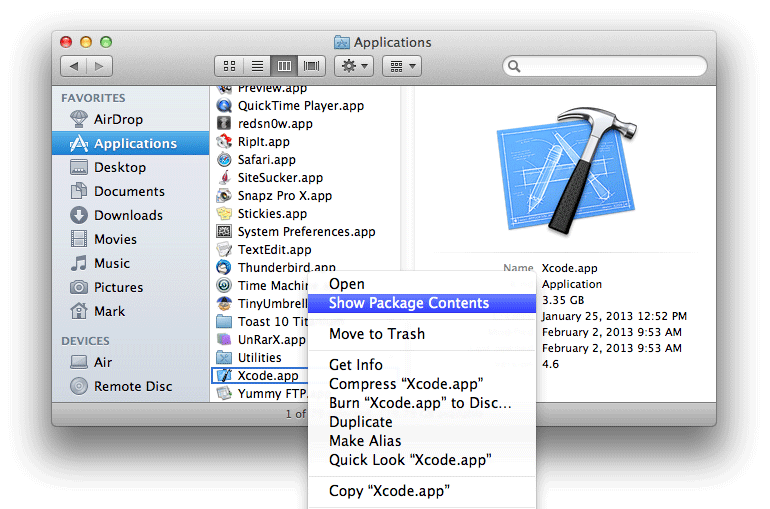
Now go to Contents//Developer/Platforms/iPhoneOS.platform/Developer/usr/bin/ You'll see the pngcrush binary here. Either copy it someplace easier to remember or just remember the path to it to use in the Terminal later. I placed a copy on the Desktop.

Step 3.
Go to your /Applications/Utilities directory. You'll find a program called Terminal.app. Launch it. Change directories to wherever you decided to place pngcrush. I placed a copy on the Desktop along with the graphic I wanted to convert. The command you use to convert a graphic is:
./pngcrush -revert-iphone-optimizations -q GraphicYouWantToConvert.png TheNameYouWantToGiveTheNewGraphic.png
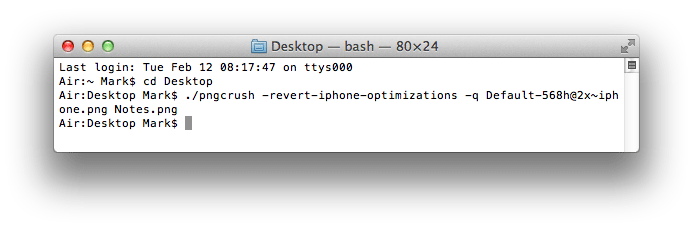
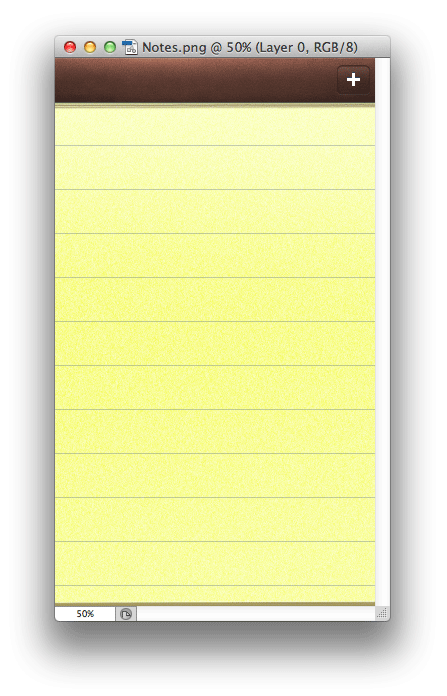
Here it is, a completely editable image. You do not need to do anything fancy to put this graphic back onto the iPhone, other than making sure it stays in .png format, retains the same dimensions and has transparency if it did originally.