Saving your SHSH & APTicket with redsn0w or Tiny Umbrella
Updated: April 13, 2013At present the SHSH exploit has been blocked with the creation of the APTicket by Apple. This prevents iPhones newer than the 3G S from using the downgrade or restore to firmware that is current exploit form working. You should still save your SHSH and the new APTicket in case an exploit should be discovered.
Previously the SHSH was used to restore to firmware that Apple was no longer approving for restores if the firmware being used wasn't the current firmware. The ability to restore to unapproved (older) firmware becomes very important when there is no jailbreak for approved (newer) firmware.
Put another way, as of February 20, 2013, 6.1.2 firmware is the current firmware. This means Apple will not allow you to restore to any firmware older than this like 6.1.1, 6.1, 6.0.2, 6.0.1 or 6.0. So let's say there wasn't a jailbreak for 6.1.2 yet but you screwed up and updated to it. Then you found out that there was no jailbreak for it and now you want to go back to 6.1.1 where you were previously jailbroken. Well since 6.1.1 firmware is older firmware Apple won't approve it for restoration when you try to use it. Therefore you can't restore, can't jailbreak and are stuck waiting for a new jailbreak.
If you want to read more about the SHSH and firmware was downgraded before the exploit was blocked, then I'd recommend reading this page.
Saurik released an article in April 2013 discussing the process in depth and why any APTickets saved by Cydia directly are useless. You can read about it here.
Using redsn0w to retrieve the SHSH & APTicket
Download redsn0w 0.9.15b3 (or later) from the iPhone Dev Team here. It's at the bottom of their post.Next download 6.0.2 firmware from Apple. You can get the iPhone 5 AT&T/GSM version here, and the Sprint and Verizon version here.
Install redsn0w and launch it. Click Extras.
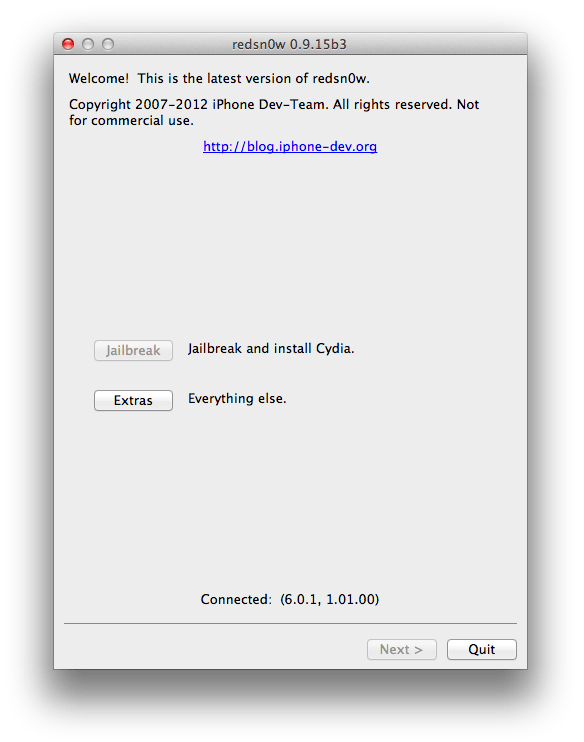
Click SHSH blobs.

Click New.

Browse to wherever you saved your 6.0.2 firmware file. Select it and then click Open.

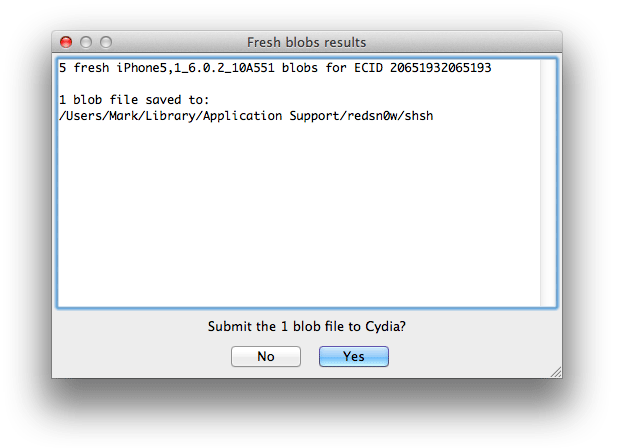
A pop up window will appear. Click Yes.
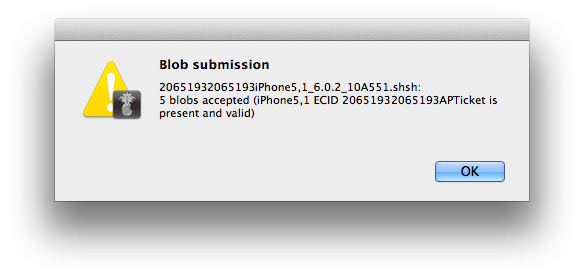
Click OK at the next pop up message.
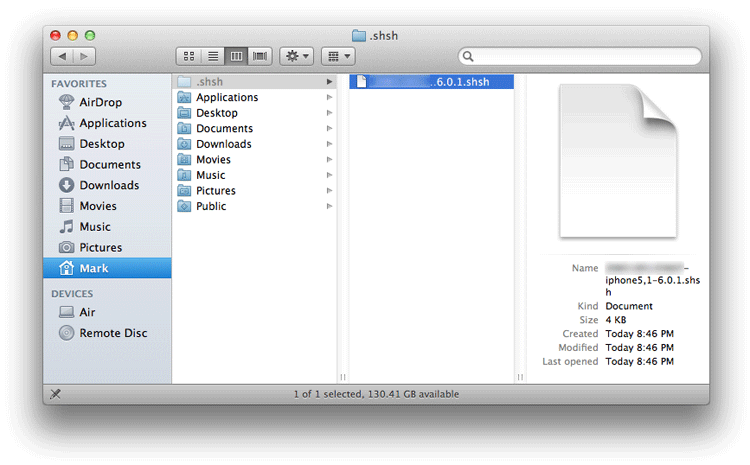
You may want to find that SHSH and copy it some place safe just in case... Redsn0w stores it at /Users/your user name/Library/Application Support/redns0w/shsh If you don't see the Library folder just click Finder > Go > Go to Folder.
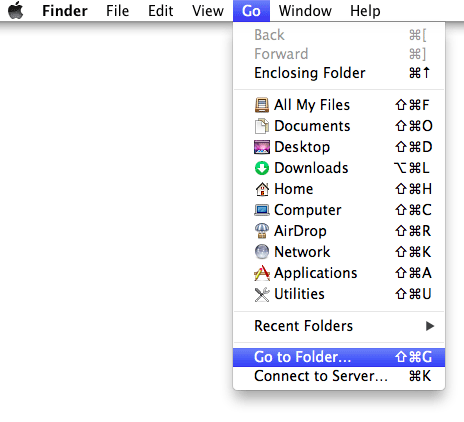
Then enter /Users/your user name/Library and it will take you to it

There it is.

Using Tiny Umbrella to retrieve the SHSH and APTicket
Go to the Tiny Umbrella blog and download the latest version of the program. Once you have it you'll see this icon. Double click it and install it.
Launch the program. If your iPhone is connected you'll see some information about it. I've blurred most of mine out as it's private information.
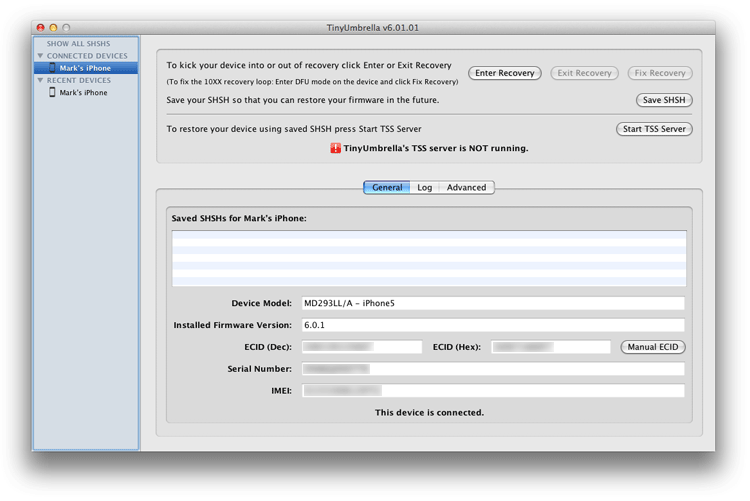
Click the Save SHSH button to the right and the program will download files for whichever firmware(s) it can. In my case my iPhone came with 6.0.1 firmware installed from the store so that was the only SHSH it could retrieve. You can NOT go back in time to get these SHSHs for firmwares that are no longer current. You would have had to use this program when 6.0 firmware was still the current firmware to retrieve the SHSH for it. Understand? Great!

If you click the Log button you'll see what the program has done since you started it. Note the line that says iPhone 5 6.0.1 SHSH successfully saved. Click the link that says click here to open.

You will now be taken to the secret folder where the program stores your SHSHs. You can pick another location. At the very least you should make a copy of this file and keep it somewhere safe. Just in case. This is the file you'll need to use to restore older firmwares with. That is if they can get this system working again.