Using the exxOS theme
Posted March 4, 2013Page 1 of 2
|
I came across this cool theme called exxOS at ModMyi.com. It reminds me of those iNav
style themes. One thing I see as a major improvement in this theme over those iNav themes
is you aren't forced to use the same applications in the same positions on the page as the
theme creator.
You can read the thread about this theme at ModMyi
here.
Note: With Gridlock being updated to work on 6.x firmware installation just got a lot easier than what I'm demonstrating below. You can't tell from still pictures but this is a vertical scrolling theme. You can still swipe left to right but that's not really how it is intended you get around. Check out the video from the theme creator Bluemetal below. This theme isn't quite ready for prime time in my opinion. It's got some graphical issues (they may not bug you but I'm a perfectionist) and there have been a couple updates just since I started writing this tutorial. I won't be updating this tutorial as I don't use this theme and it takes a long time to set up. After reading what I've written you'll be an expert in this theme and can certainly figure out what to do next without help. Some of the graphics that you see in my screenshots may have changed since the latest updates. The downside of using a theme like this is the amount of set up time it involves. This isn't like a typical theme where you go on Cydia and press install and then launch WinterBoard to activate it. Count on this taking two to three hours to get set up how you want it. Also it may not theme all of your programs icons to match the look of this theme. The creator has made a psd available so that you can customize your own graphics however. This theme is not free. It sells for $2.99. It also requires some add on tweaks to make it function as intended. Infiniboard is .99 and Iconoclasm is $3.00. SpringJumps, Icon Renamer, iBlank and No iBlank Shadows are all free. This tutorial is written detailing the installation process on an iPhone 5 running 6.1.2 firmware. For other iPhones or older firmwares, consult the thread I linked to above. I will be covering installation and setup for an iPhone 5 only. |
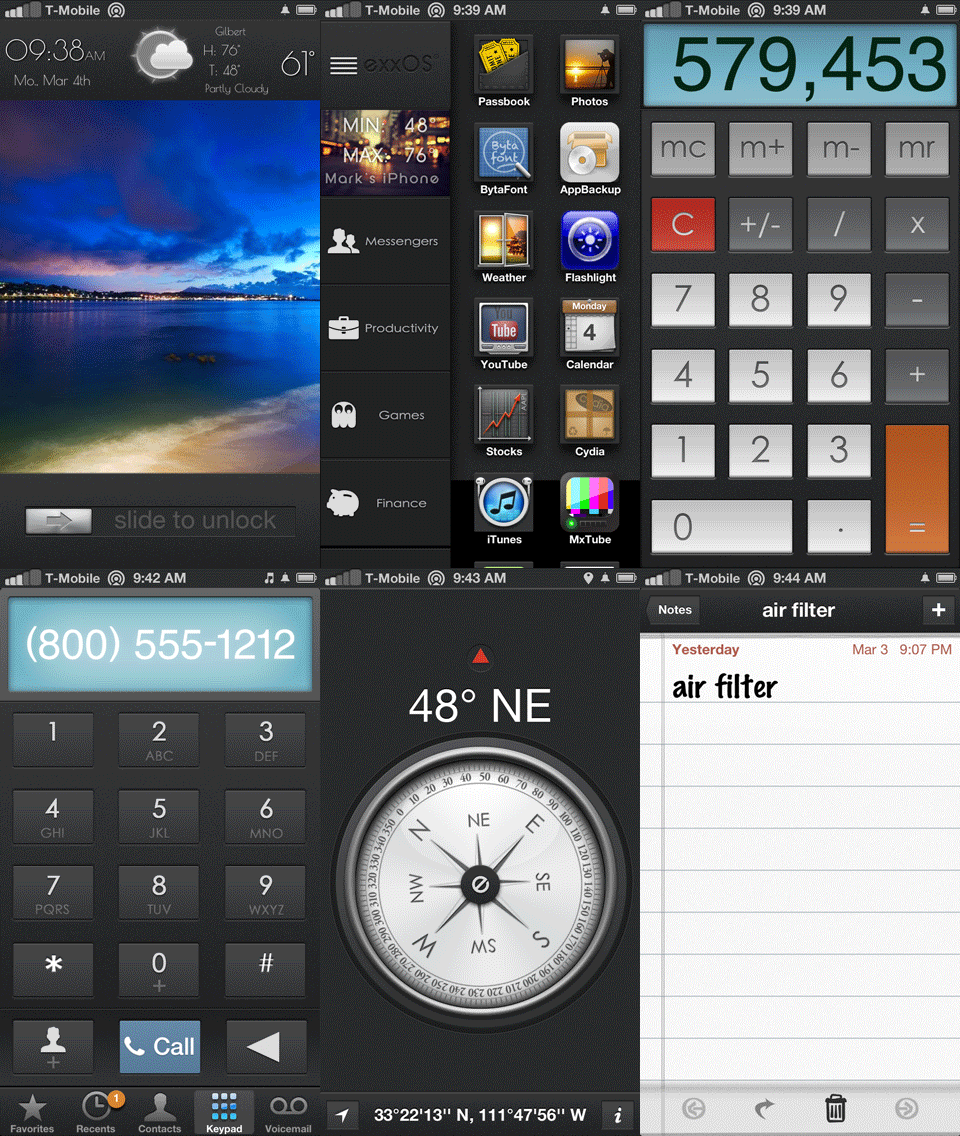
|
Step 1. Installation
Install exxOS. Install Infiniboard.

Install Iconoclasm. Install Icon Renamer.
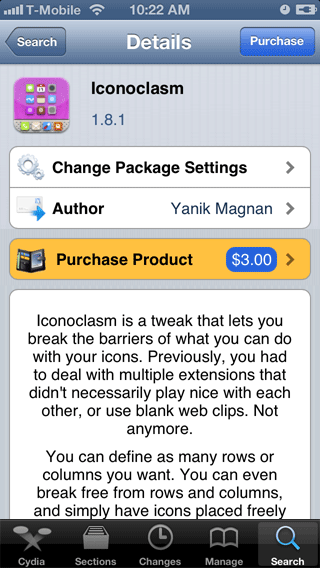
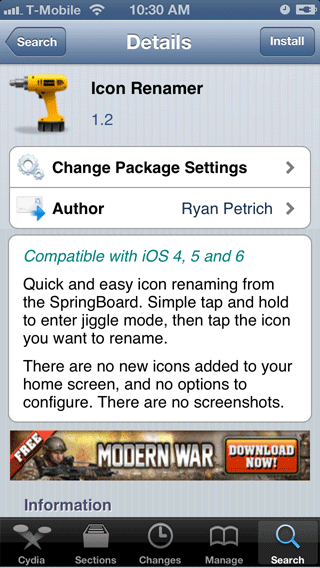
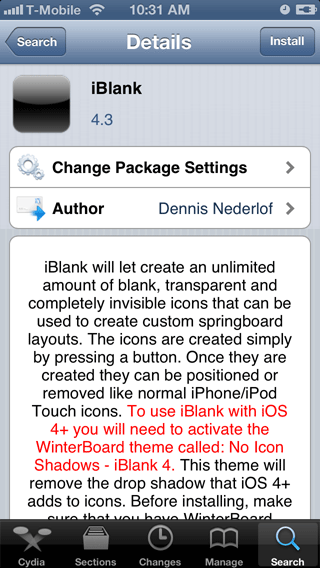
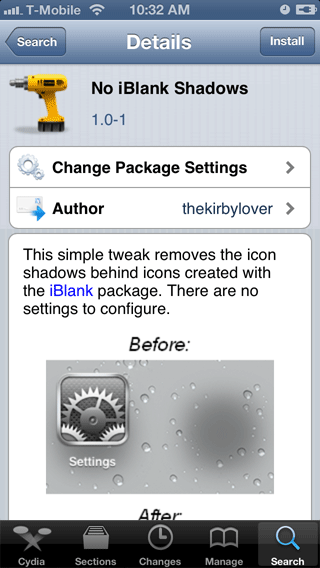
Install iBlank. Install No iBlank Shadows.
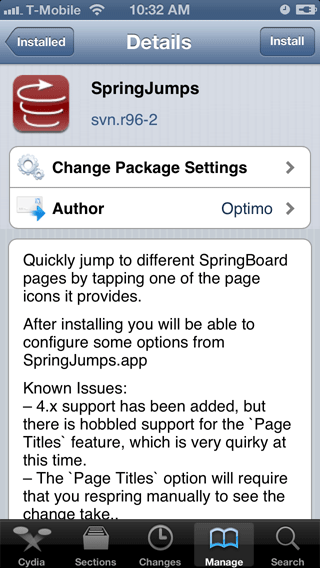
Install SpringJumps.
Step 2. Configuration
Launch Settings. Press Infiniboard. Set Vertical Scrolling to ON and Hide Behind Dock to OFF.
Launch Settings. Press Iconoclasm. Enable Iconoclasm to ON. Under Uniform Layout press the Layout button. Scroll down the list and press exxOS iP5. Back out of this screen.

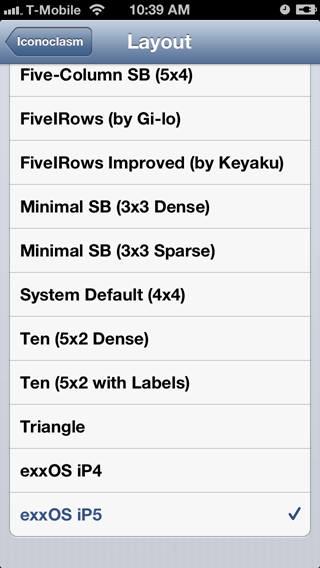
Under Extras press the Layout button. Scroll down the list and press exxOS iP5. Close Settings.


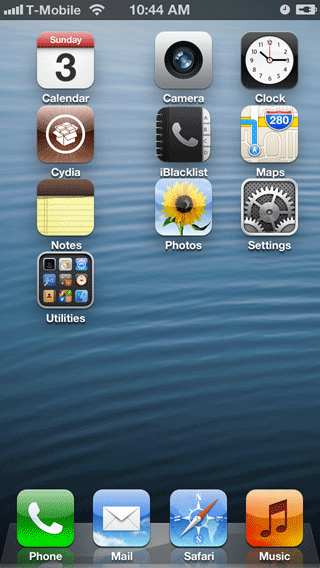
At this point my phone looks like this. On the first page there is one column of icons to the left and two shifted to the right. The second page has 81 spring jumps on it. You'll have to scroll this screen to see them all.

Step 3. Icon layout
Now for the REALLY TEDIOUS PART. This will take an hour or two.You need to build 9 pages for your applications to be grouped into. You must place spring jumps in the left column with an iBlank icon in the second position. The second position is where the photo widget will go.
Depending on how many applications you have for each page, you'll need some iBlank icons to fill up the page so that you can place the spring jumps properly in the far left column. When you use iBlank to create the blank icons it will always place them on the same page (I think it was the second page by default). Empty the dock and use it to more easily move everything around. Be careful when swiping to change pages that you don't accidentally delete a springjump.
The page categories that you want to populate are presented in the following order by this theme:
- Page 0 This is the home page
- Blank This is where the photo widget goes
- Page 1 Messengers
- Page 2 Productivity
- Page 3 Games
- Page 4 Finance
- Page 5 Travel
- Page 6 Tools
- Page 7 Setup
- Page 8 Shopping

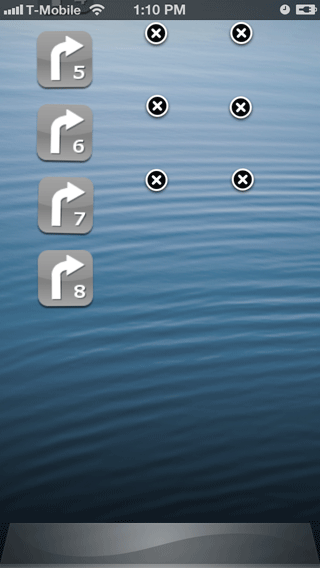
Here's the same page viewed normally.


Step 4. Icon renaming
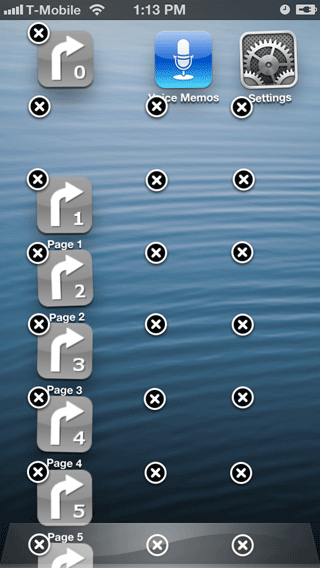
Now for another tedious step. You need to remove the icon name for all the spring jumps on all 9 pages.Press and hold the icons until they start wiggling. Press the spring jump on the icon (not the x!) and a pop up will appear. Press the x in the dialog box and press Apply. Rinse, wash, repeat.

Step 5. Activating the theme(s)
Launch WinterBoard and turn SummerBoard Mode ON. I then enabled all these themes for my particular setup. Don't forget to respring.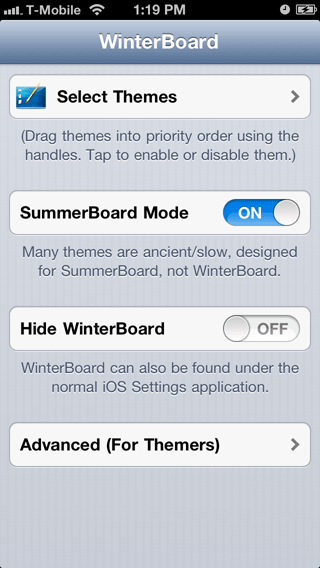

Step 6. Lock screen configuration
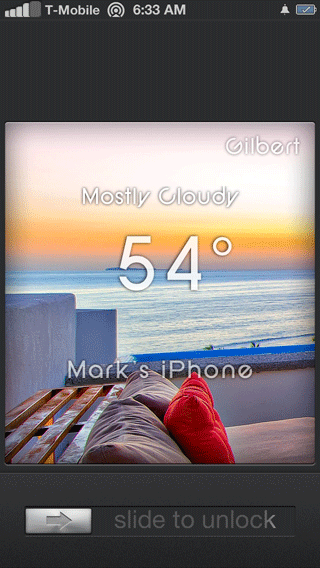
Here's the lock screen. I'll show you how you can customize the text and the images.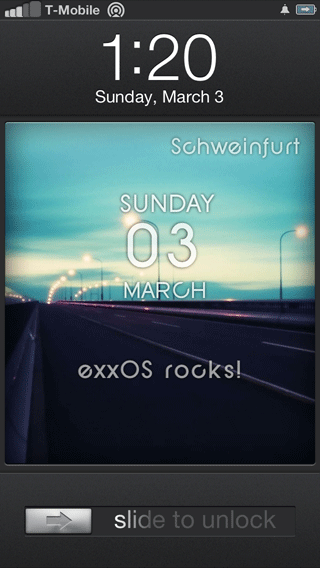
You need to copy the config.js file from the home screen widget which is at /Library/Themes/exxOS Lockscreen.theme/Setup/Config.js Copy this file to your desktop.
Open it with iFile on the iPhone directly or transfer the file to your computer through SSH or a program like DiskAid. Then edit with your favorite text editor. I use a program called BBEdit and you can download a free trial version here.
You can now configure your location, the language that it displays in and the clock.

To find your Yahoo weather location code go to http://weather.yahoo.com/ There's a weather banner there and a field you can enter your zip code into. After you do that the URL above will show the number for your location code. Entering 85233 as my zip code yielded http://weather.yahoo.com/united-states/arizona/gilbert-12794490/ Plug this number into your Config.js file for the var locale value.

Continue reading this file to find out what else you can change. It was already configured for degrees in Faranheit, English as the language and for a 12 hour clock so I left the rest of the file alone. Upload the file back to your iPhone when you are done.
When you respring you'll now have your city's name, the temperature and weather condition, lows and highs, sunrise and sunset times, last update time and the day month and date displaying. To get rid of the text exxOS rocks! do the following. In the exxOS Locksceeen.theme folder is a file called WidgetLS.html. Edit this. I'm only showing a portion of the file below. You can change anything you want to truly customize the lock screen.
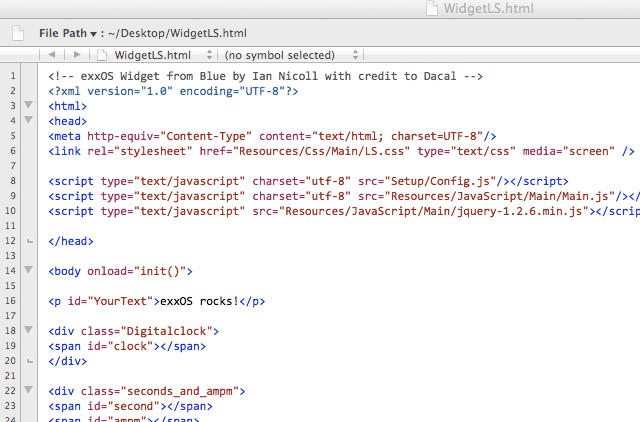
You can also edit the file LockBackground.html. This will allow you to change the dissolve duration time from 2 seconds to something else. By default the images are 1.png through 10.png. You can add more file names (go up to 100.png if you want or rename them something more meaningful like beach.png).
To actually change the photos with your own go to /Library/Themes/exxOS Lockscreen.theme/Private/Photos Make sure to make your photos the same dimensions: 640 x 960.
Here's my end result. I'm still using the stock photos as I like them.