Step 2: Okay I've jailbroken, now what?
Posted: February 6, 2013So you finally decided to jailbreak your iPhone and now you are wondering what to do next. I'll introduce you to Cydia and to one critical program (Respring Cache Fix) you should install. Think of it as the App Store for jailbroken iPhones.
Launch Cydia
Launch Cydia. You may or may not see a line under the banner with the word Home in it that says This device is in the pending TSS queue, or SHSH: iOS and then has numbers after it. All this lets you know is that if you wanted to you could downgrade your OS to that version. Keep in mind your modem firmware will not downgrade so this doesn't benefit unlockers.Next are a couple buttons for Facebook and Twitter so that you can follow Cydia and its creator Jay Freeman.
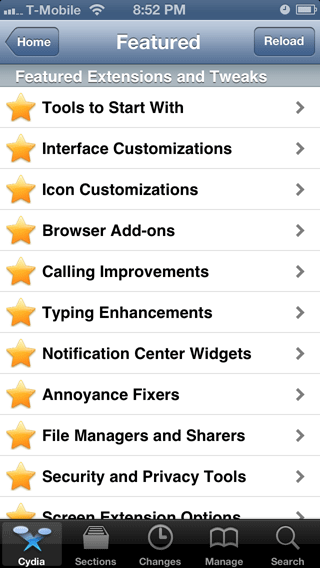
The next button below those is the Featured button. Pressing it reveals a list that may help point you in the right direction as far as what kind of things to install from Cydia.

Themes
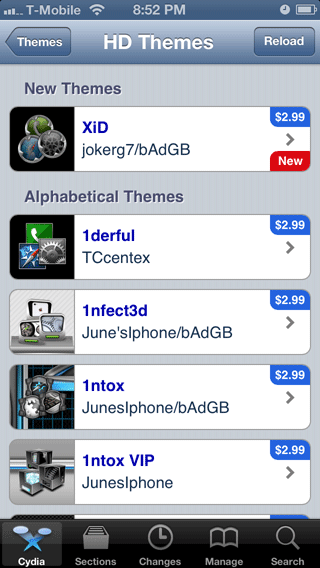
Back at the home screen, pressing the Themes button will bring you to a selection screen where you choose which device you'd like to installs themes onto. Themes change the graphical look along with some of the audio events on your iPhone. Keep in mind this section is not all inclusive. Many themes are in other sections of Cydia as well. Some themes are for sale, and some are free.
Manage your Cydia store account
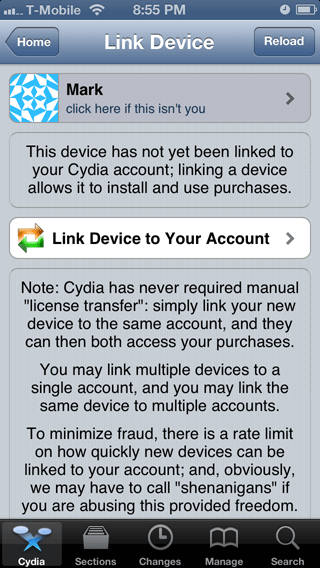
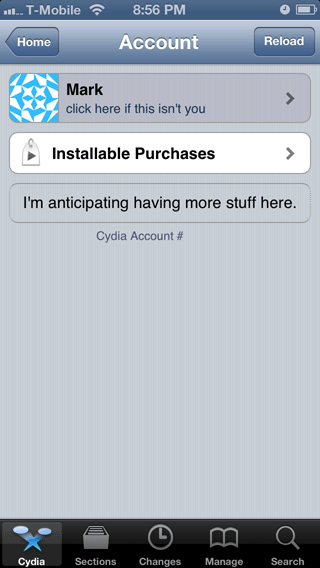
Pressing the Manage Account button from the home screen will allow you to link your iPhone to your Facebook or Google account so that you can make purchases. Once you are logged in just press the Link Device to your Account button.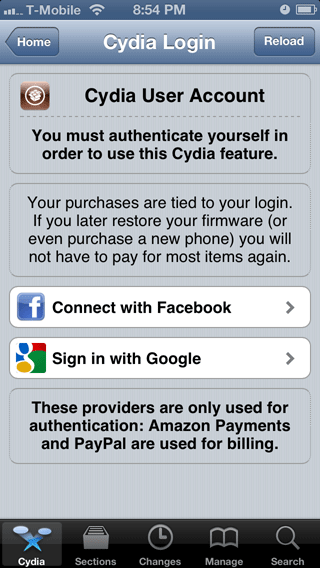
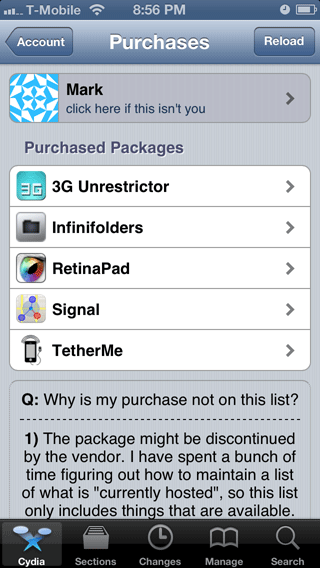
Pressing the Installable Purchases button and you'll see all the programs you have paid for on Cydia with the account you used to log in with. Selecting a program in this list will allow you to easily install it without having to remember that you purchased it.

One way to add a new repository/source
Pressing the More Package Sources button will reveal a list of additional sources you can add to Cydia to give you access to an ever greater library of free and for fee programs.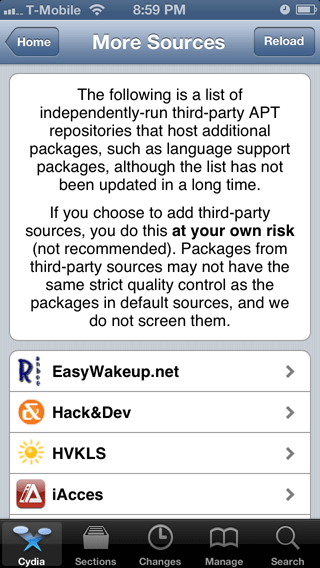

Another way to add a new repository/source
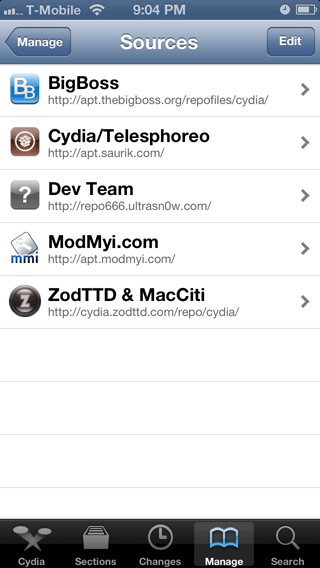
While Cydia comes with many "sources" preinstalled, you can add sources that are not included by default or on the additional sources page. To add a source do the following: Press the Manage button, then press Sources. Press the Edit button.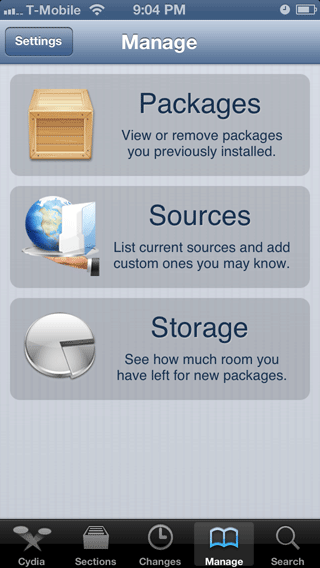
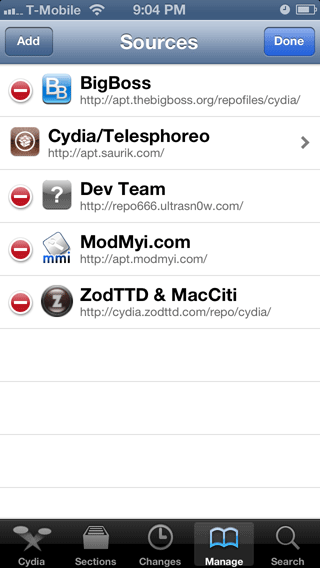
Press Add. Then enter the source's URL. Press the Add Source button.
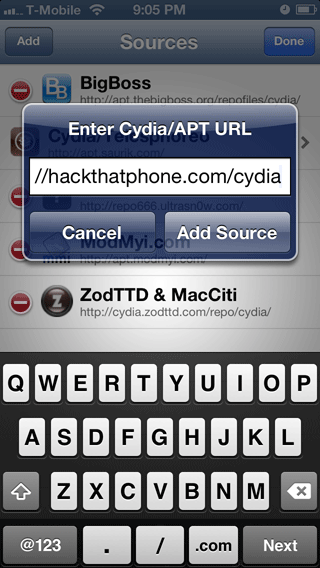
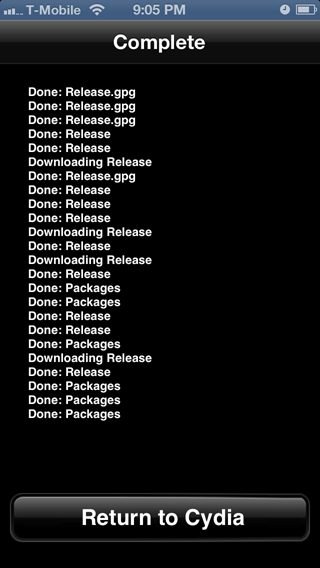
Your source will be added to your list. Press the Return to Cydia button. Your source is now added.
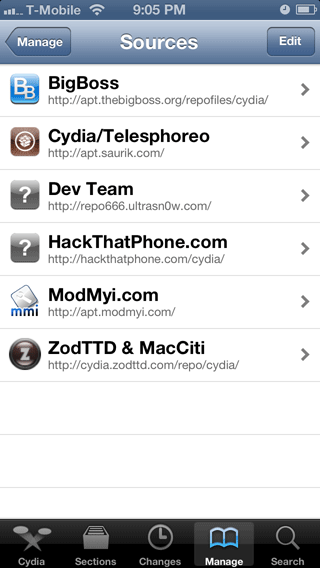
You can press the source's name to see every package offered by it.

See all the programs available in Cydia
Pressing the Sections button at the bottom of the screen will reveal a list of folders. Everything that is in Cydia (by default) is categorized in these folders. Selecting a folder will reveal everything in it that is available for installation. If you add more sources, then more programs will appear in your folders. Packages listed in blue are for sale.

Updating your Cydia programs
The Changes button may display a red badge on it. Some times a pop up message will also appear indicating important Cydia system updates. Read and follow the instructions and confirm installation and the changes will be applied. Sometimes they require a respring or a reboot to take effect.


See what is installed through Cydia
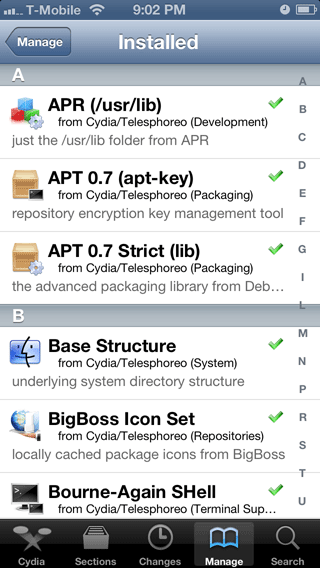
If you press the Manage button, then select Packages, you can see what Cydia has installed on your iPhone already.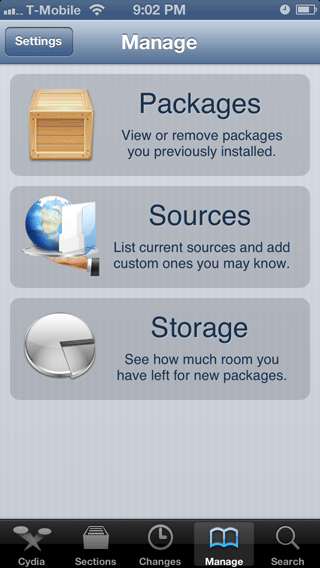
Check your iPhone's storage space
You can also see how much free space you have on the two paritions of the iPhone's storage chip. Press the Manage button, then select Storage.

Installing and removing a program
Let's search for and install a program. OpenSSH is critical to many of the tutorials on this site. It's one of the best ways to move files to and from the iPhone, and to install programs that are not available on Cydia or the App Store.Note: If you do decide to install OpenSSH it is critical that you change the root and mobile passwords on the iPhone to ward off attacks by viruses, trojans, phishing schemes and worms and social engineering scams. Read this tutorial to learn more.
Press the Search button at the bottom. Enter the name of your program in the search box, then press the Search button. Your results will be displayed. Press the one you want to install.


Press the Confirm button. You'll see a status report of the install process like this. When it has finished, press the Return to Cydia button.


To remove a package already installed on your iPhone, press the Manage button, then select Packages. Then press the name of the package you want to remove. Then press the Modify button.
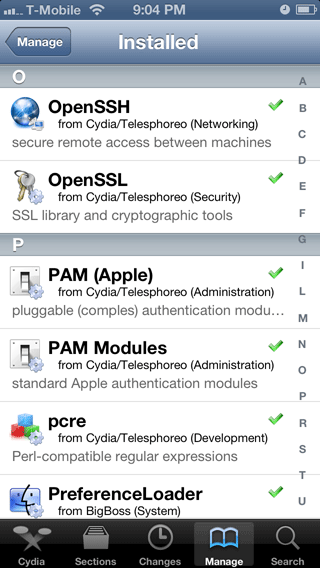

Press Remove.

When something messes up your iPhone
Note: I haven't crashed my iPhone 5 yet. When/if I do I'll post updated pictures.Mobile Substrate (a key component to Cydia) version 0.9.3997 and later has a new feature to help you recover from fatal problems when installing programs with Cydia. It is possible to install a program and then your iPhone reacts negatively. Maybe the program wasn't written very well or maybe it is interacting in an odd way with another program that you already have installed.
Your iPhone may now be in a state where it keeps rebooting, or only displays the Apple logo and doesn't start up. There is one way to fix this without resorting to restoring your iPhone. Simply reboot the iPhone while holding the volume up button. This will put your iPhone into Safe mode. You can then launch Cydia and remove the program(s) you previously installed to recover from this issue. In my example you can see that my custom graphic reverted to the default graphics, and the order os the program icons has changed. This is how you tell you are in safe mode. You'll notice all things on the iPhone won't properly function in Safe mode. So you'll want to reboot after you've used Cydia to uninstall the program you wish to remove.


Installing that one critical program...
Installing program via Cydia often results in having to reboot or respring the iPhone for the program to be installed. According to a jailbreak program developer Ryan Petrich, these resprings create temporary files that after time take up a lot of space on your iPhone. Rebooting doesn't cause this problem, but it takes much longer to reboot than respring.Because of this Ryan has created a free program called RespringCacheFix that deletes these files each time your respring your iPhone. Be aware this program is still in beta.
To install this program you'll have to enter a source to Cydia: http://rpetri.ch/repo/


